Placements
Last updated: February 26, 2026
Learn how Spott tracks and manages successful hires, connecting candidates, jobs, and clients into a single placement record.
You can quickly navigate to this page using G then P.
Learn more about all shortcuts here.
Placements in Spott represent the successful outcome of your recruitment process, when a candidate is matched and confirmed for a role.
A placement links together the job, the candidate, and the client, giving you a complete record of the hire. Placements also power reporting and revenue insights, helping you track performance and forecast business growth.
Create a new placement from an existing candidate
Step 1. Navigate to an open job
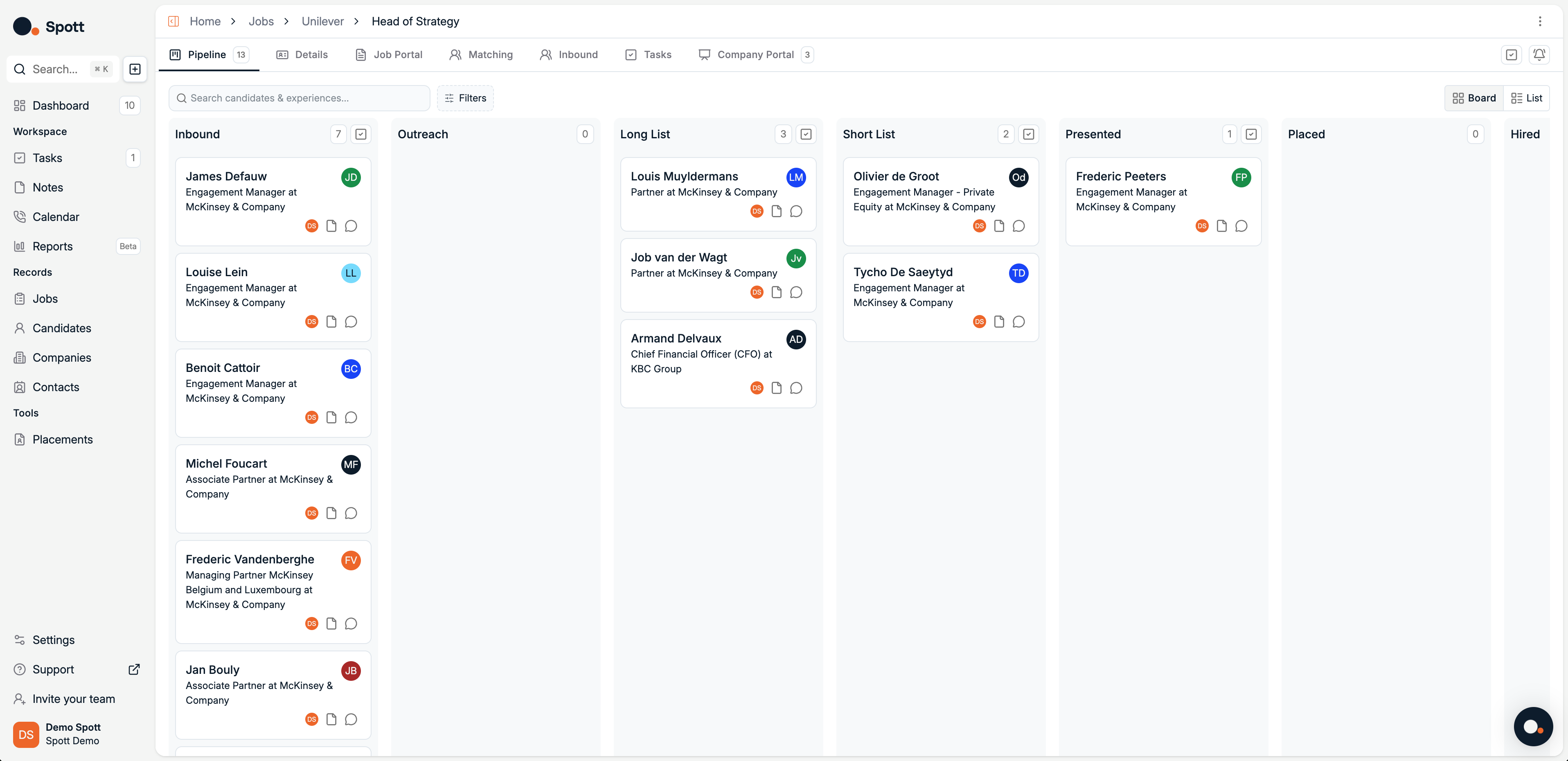
In Spott, go to Jobs.
Find the job you want to place a candidate for
Make sure the job is under the correct company or client
Click on the job title
Step 2. Place a candidate
Click on the candidate’s professional title, directly underneath their name
Mark the candidate as Placed
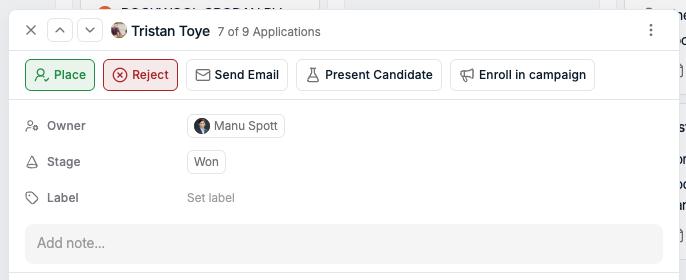
Clicking on a candidate’s name in Job view opens their candidate profile. To open the placement menu, make sure you click on the professional title directly under their name.
Step 3. Fill placement details
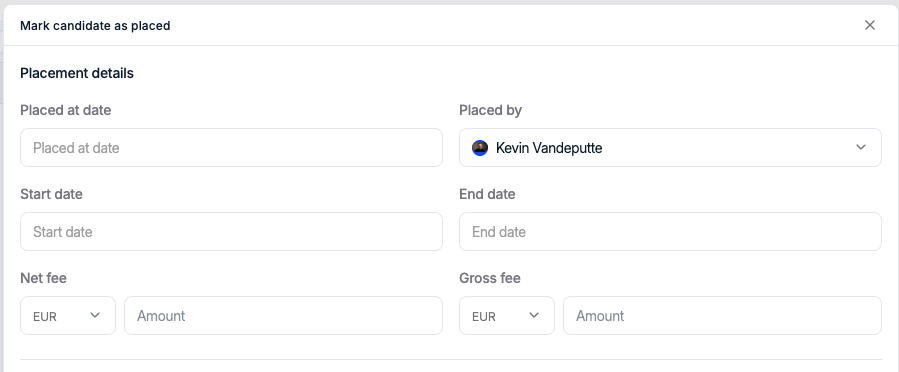
When creating a placement, you can fill in the following fields:
Placed at date, the date the candidate was placed at a company
Placed by, the person responsible for the placement
Start date, the start date of the candidate’s contract
End date, the end date of the candidate’s contract
Fee income, the income generated from the placement
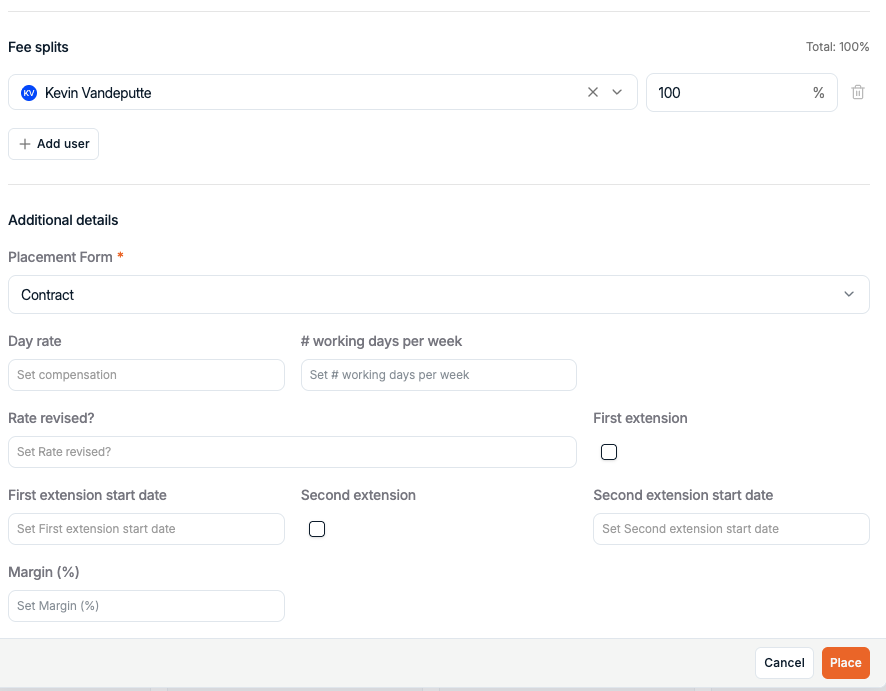
Customizable Placement Forms
Depending on the placement type, different data points may need to be captured. Collecting the right information ensures accurate reporting, billing, and contract tracking.
To support this, you can create custom placement types in Settings > Placements. Each placement type can have its own associated form, allowing you to define and capture all required fields specific to that type of placement. Here below are some examples:
Contract: Capture day rate, number of working days per week, margin, and contract dates. You can also track rate revisions and contract extensions.
Permanent (Perm): Record base salary, additional salary components, and equity.
Retained: Define the payment split, track mandate signature, and indicate whether the placement or shortlist presentation applies.
Temporary (Temp): Capture hourly rate, working hours per week, and charge rate.
Once created in the Settings, when placing a candidate, you can select the type of placement from the dropdown, and the relevant fields will show up:
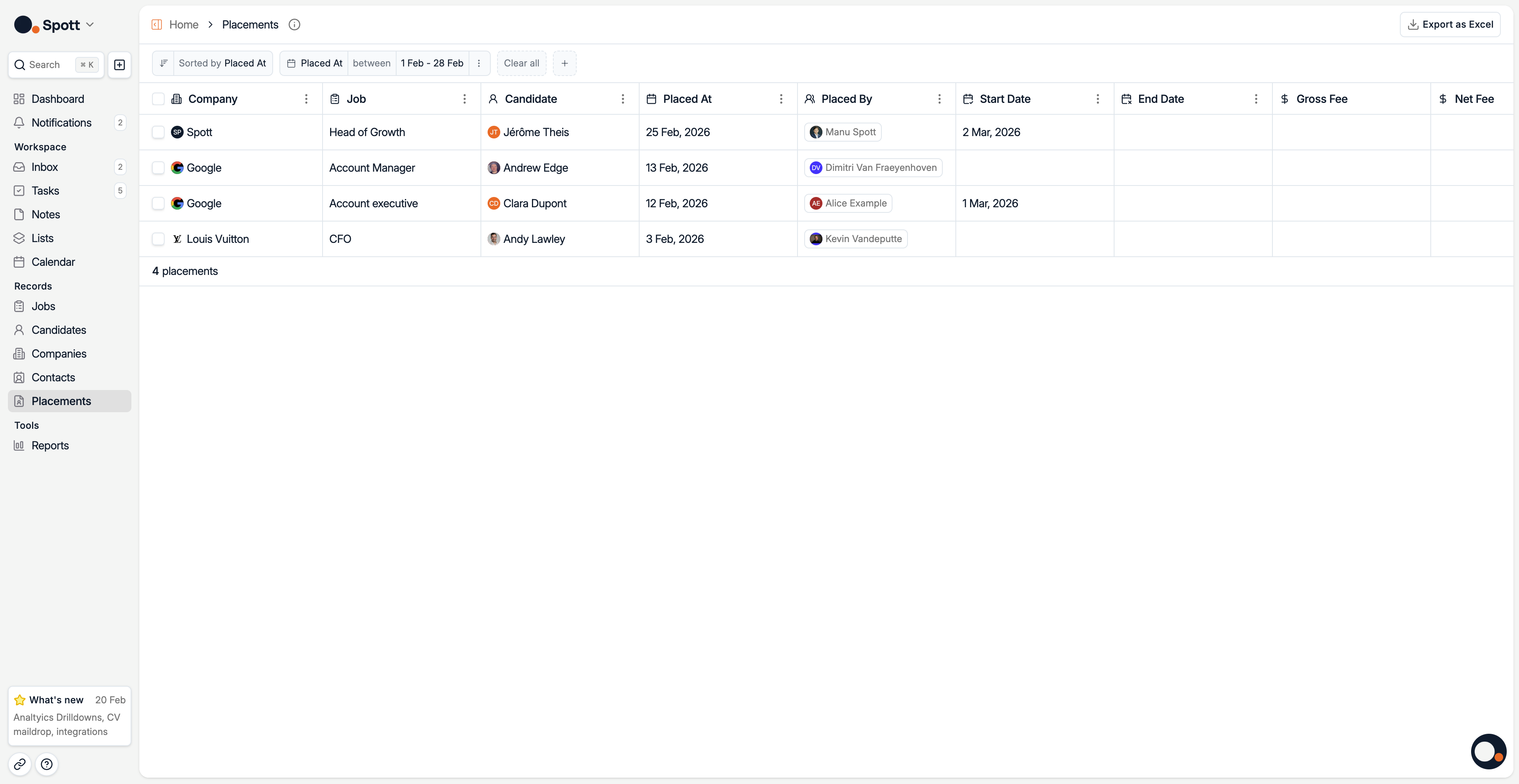
Placements overview
The Placements tab in Spott gives you an overview of all placements in a table format. Each column represents a placement attribute:
Company, the company where the candidate was placed
Vacancy, the role in which the candidate was placed
Candidate, the name of the candidate
Placed at, the date the candidate was placed
Placed by, the person responsible for the placement
Start date, the start date of the contract
End date, the end date of the contract
Fee income, the income generated from the placement
Fee details and splits, You can record both net and gross fees and define how the fee is split across users. The total split must equal 100 percent.
From the Placements overview, you can:
Edit placements if placement details need to be updated
Delete placements if they are no longer relevant