Manually Adding Notes
Last updated: February 26, 2026
Learn how to add notes in Spott, link them to meetings, people, clients, or jobs, and where those notes appear. Notes are key because they fuel AI with rich context.
You can quickly navigate to this page using G then N.
Learn more about all shortcuts here.
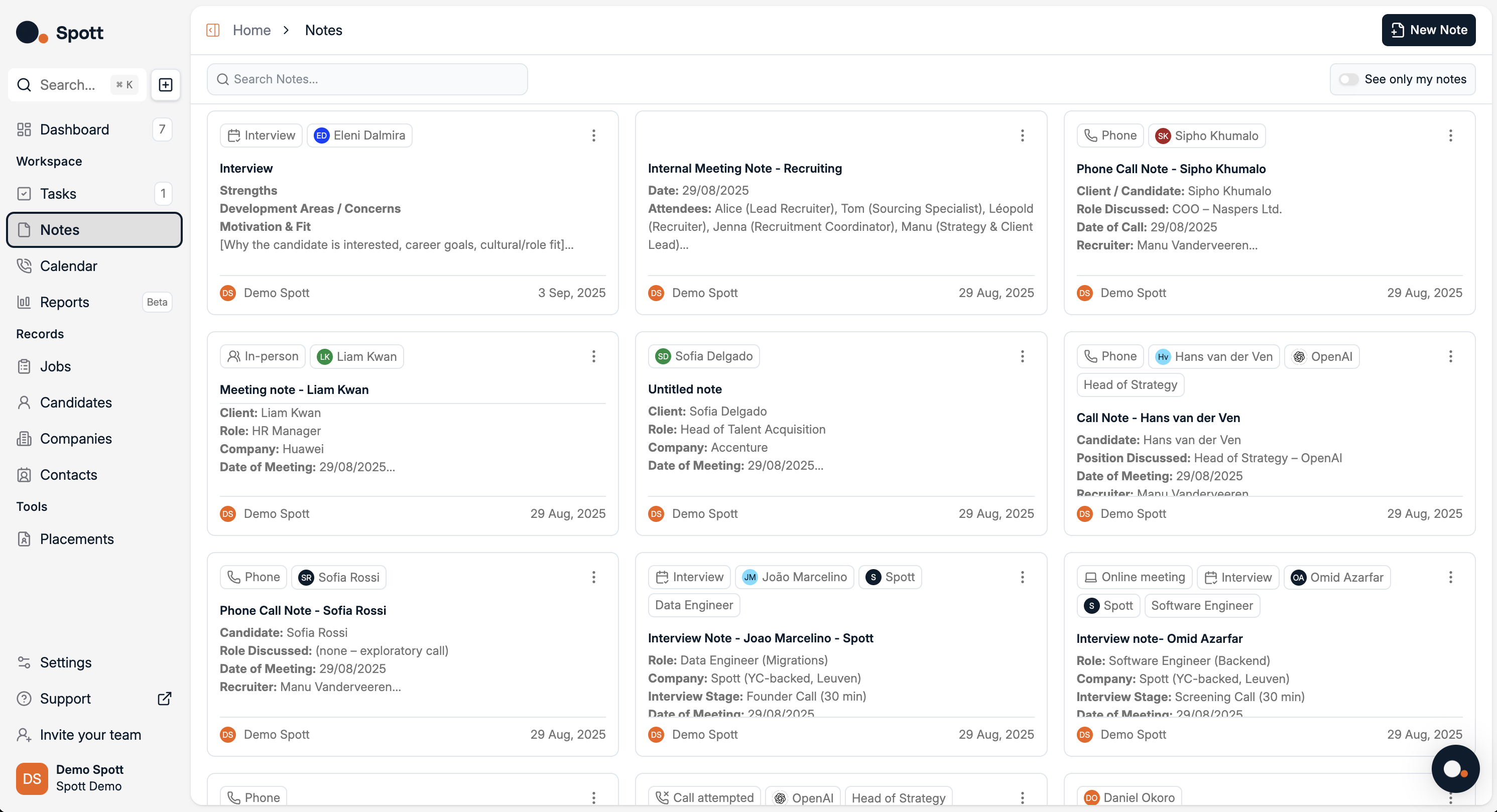
Open the Notes view
From the left-hand navigation bar, select Notes to open the notes list.
This view shows all notes stored in your workspace.
Add a new note
Click Add Note. A pop-up editor opens.
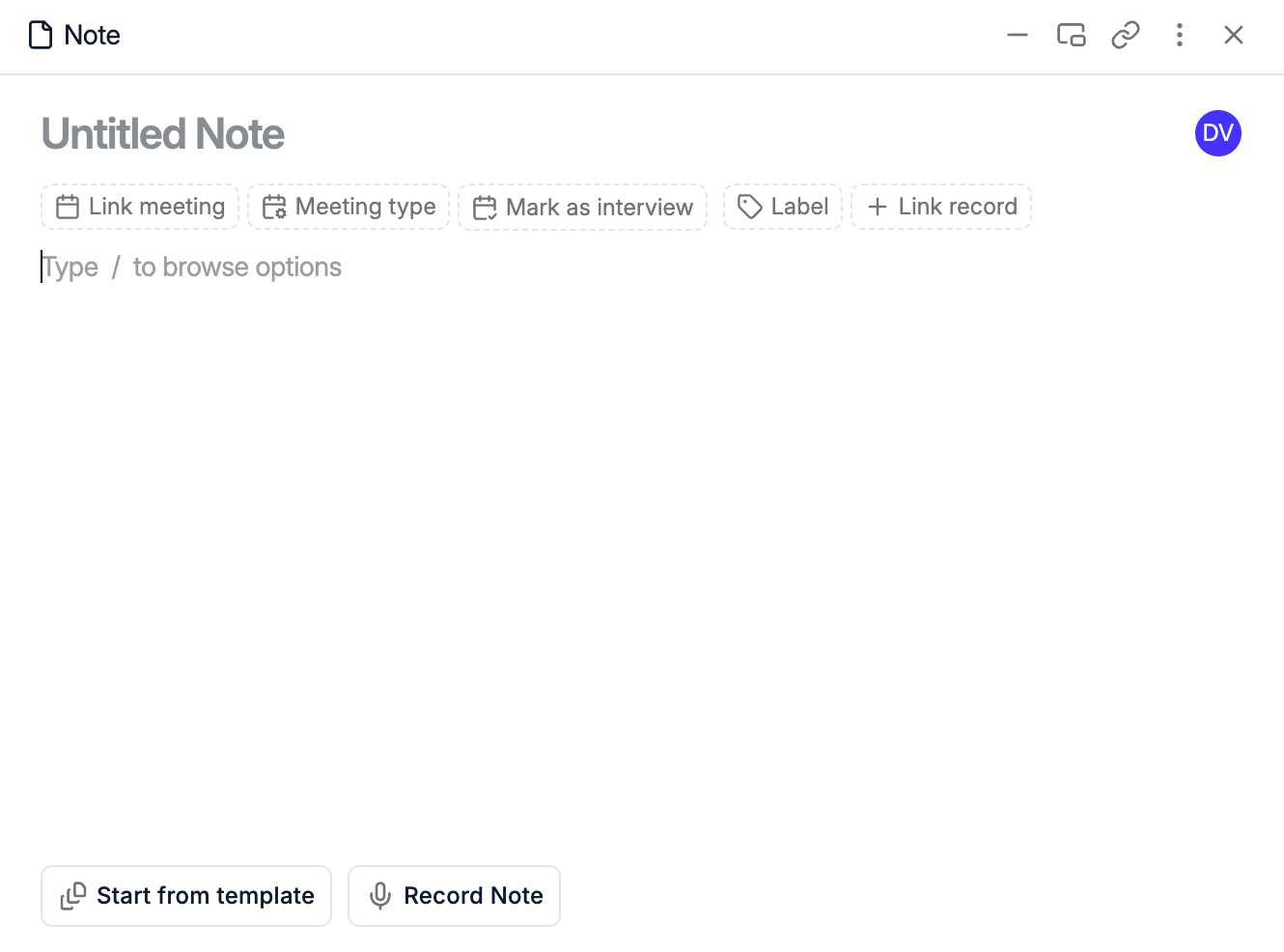
In this window you can:
Link meeting — Attach the note to a specific calendar meeting
Meeting type — Categorize the meeting, for example in-person or phone
Mark as interview — Flag the note as interview-related
Link Record — Connect to a candidate, a contact, a job or a company
Label — Add labels to your notes (e.g. Intro, Business Development), configurable from the settings
Select a template — Insert a company-created note template for consistent structure
Record Note - Record a 5 minutes Voice Note
Type your note in the editor.
Notes save automatically. You don’t need to click Save. Moving to another page keeps your changes.
Where your note appears
Linked notes are visible in multiple places:
The main Notes list
The Person profile you linked, candidate or client contact
The Client company profile you linked
The Job record you linked
The Meeting entry if one was attached
Open any linked record and go to its Notes tab to see the same note in context.
If you want a note to show up on a person, client, or job, make sure to use the link chips in the note pop-up. Notes without links will only appear in the main Notes view.
Use your company templates to keep note taking consistent across the team, for example interview debriefs or client call summaries.