GDPR Consent Management
Last updated: January 2, 2026
Candidate consents allow you to manage compliance requirements (e.g., GDPR). They are stored directly in the candidate profile and include type, source, and validity period.
When candidates update their own information through the Candidate Portal, a GDPR consent record is automatically created and logged in the system.
How to Manually Add a Candidate Consent
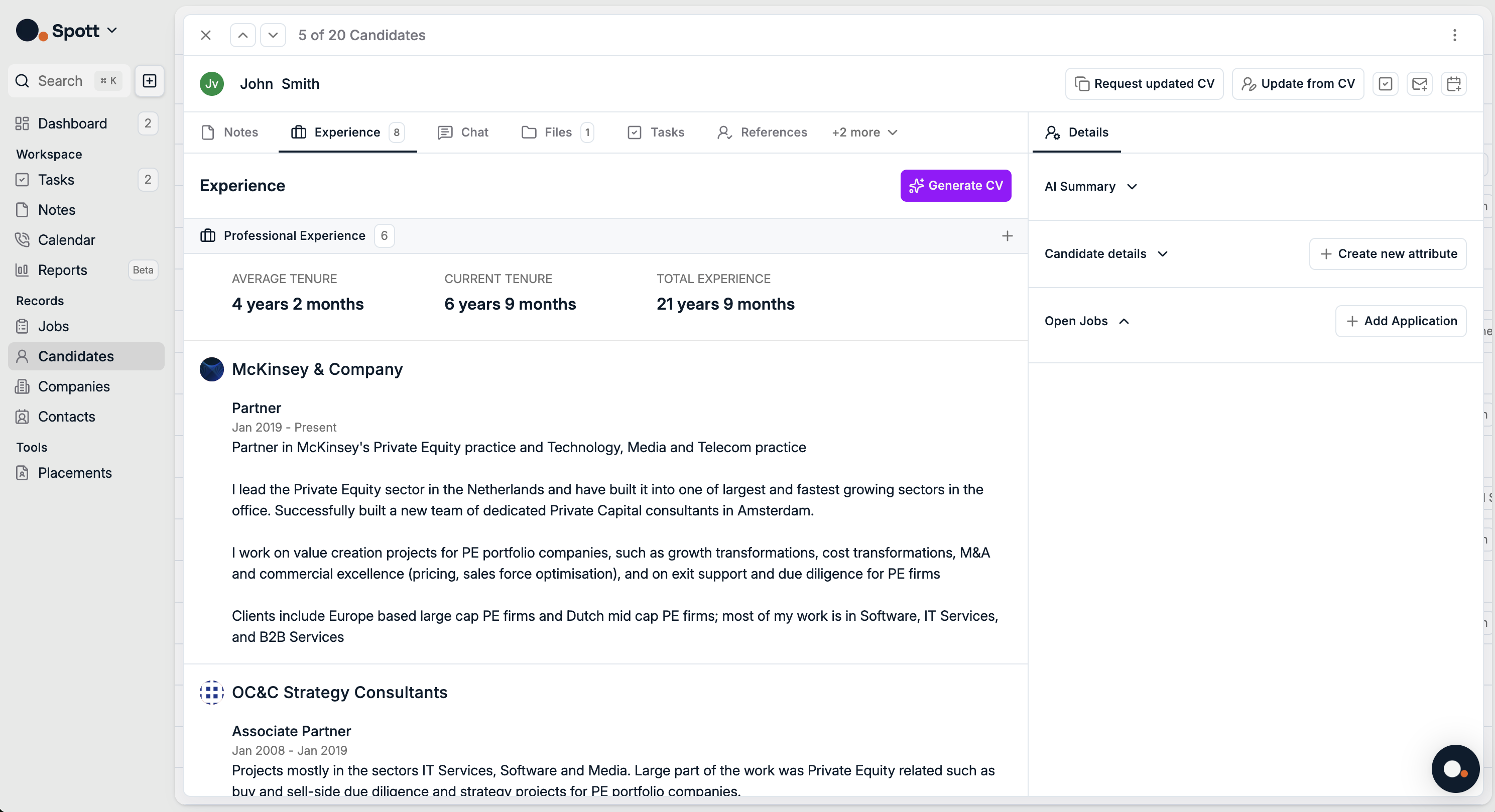
Open Candidate Profile
Navigate to the Candidates section.
Select the candidate you want to update.
You’ll land on the Candidate view (Experience, Notes, Files, etc.).
Open GDPR Consent Menu
Click the three dots (⋮) in the top-right corner of the candidate profile.
Select GDPR Consent from the dropdown menu.

Consent Box
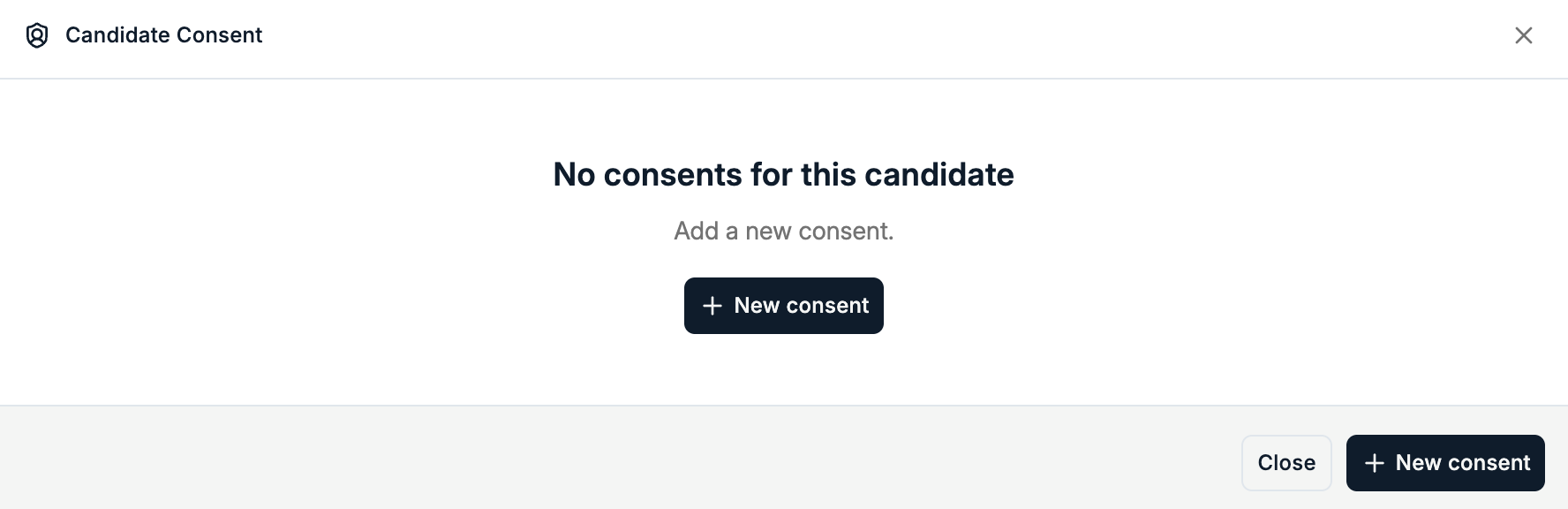
A modal opens with the message “No consents for this candidate” if none exist.
Click + New Consent.
Consent Settings
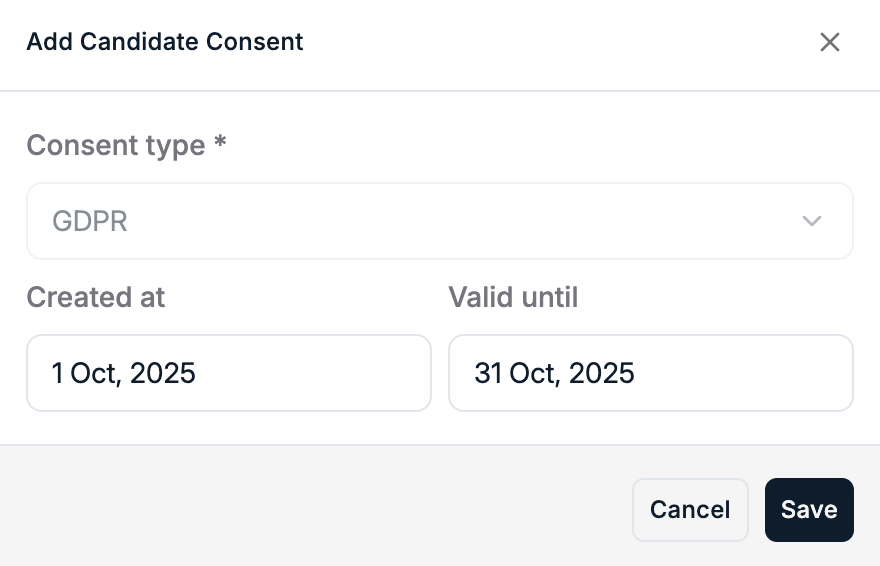
Fill in the required fields:
Consent type (e.g., GDPR)
Created At date
Valid Until date
Click Save.
Final Consent View
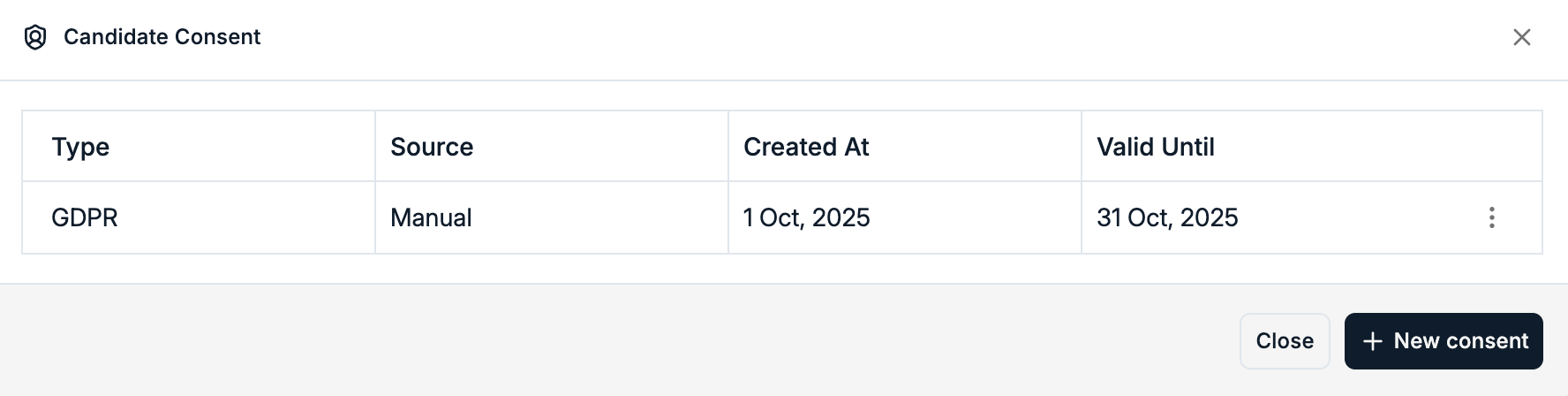
The consent now appears in a table with:
Type
Source (e.g., Manual)
Created At
Valid Until
From here, you can add more consents or manage existing ones.
Managing Consents
Add multiple consents (different compliance requirements).
Delete a consent via the same dropdown menu.
Track expiry dates to stay compliant and renew when needed.