Message Templates
Last updated: February 26, 2026
Learn how to create and personalize email templates directly from the Inbox in Spott using recipient name placeholders.
Templates help you send personalized messages faster while keeping a consistent tone across your outreach.
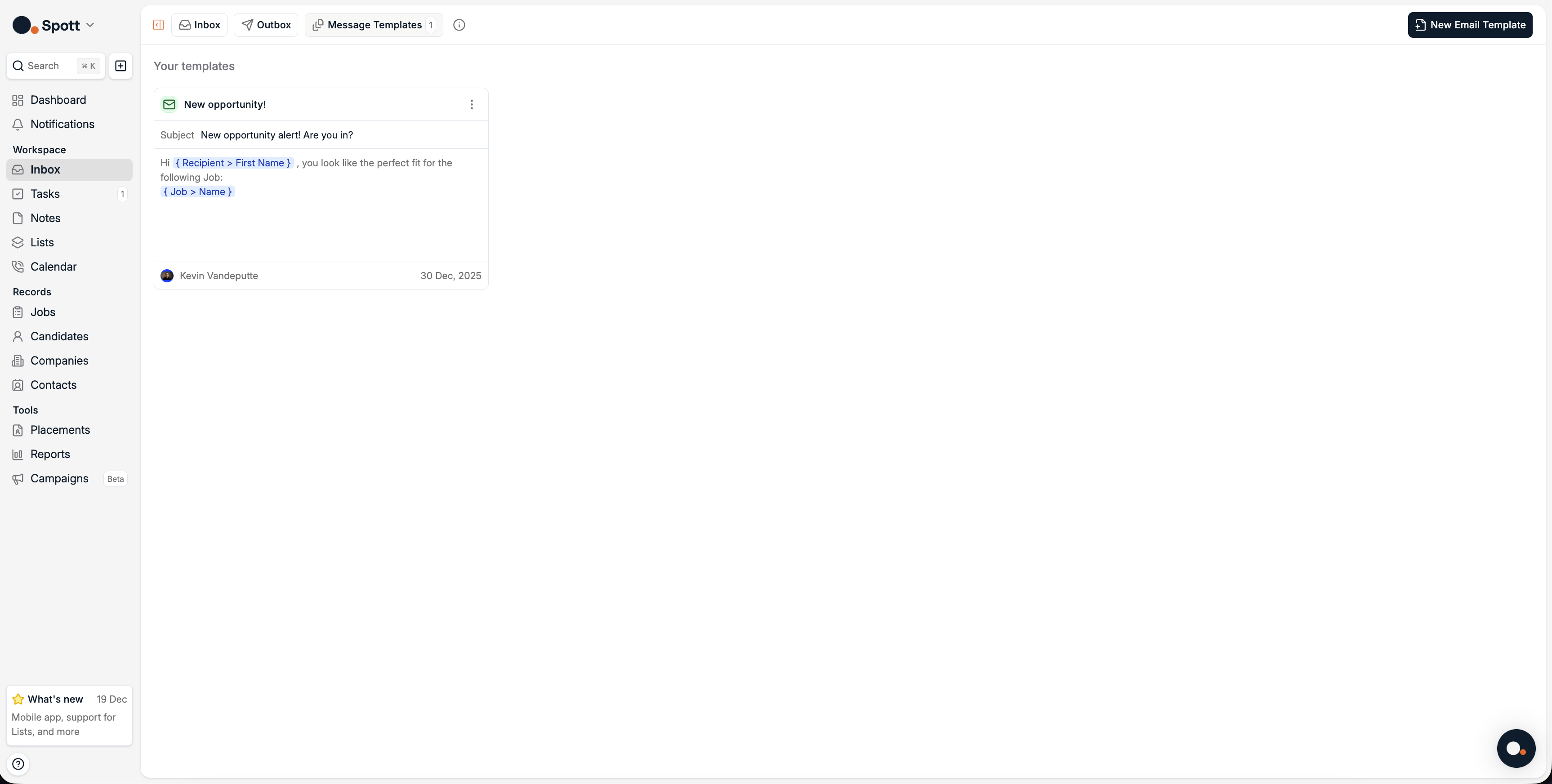
Open the Templates tab in Inbox
From the left-hand sidebar, go to Inbox.
Click the Message Templates tab at the top of your Inbox.
This page lists all your existing templates with their subjects, previews, and authors.
Create a new email template
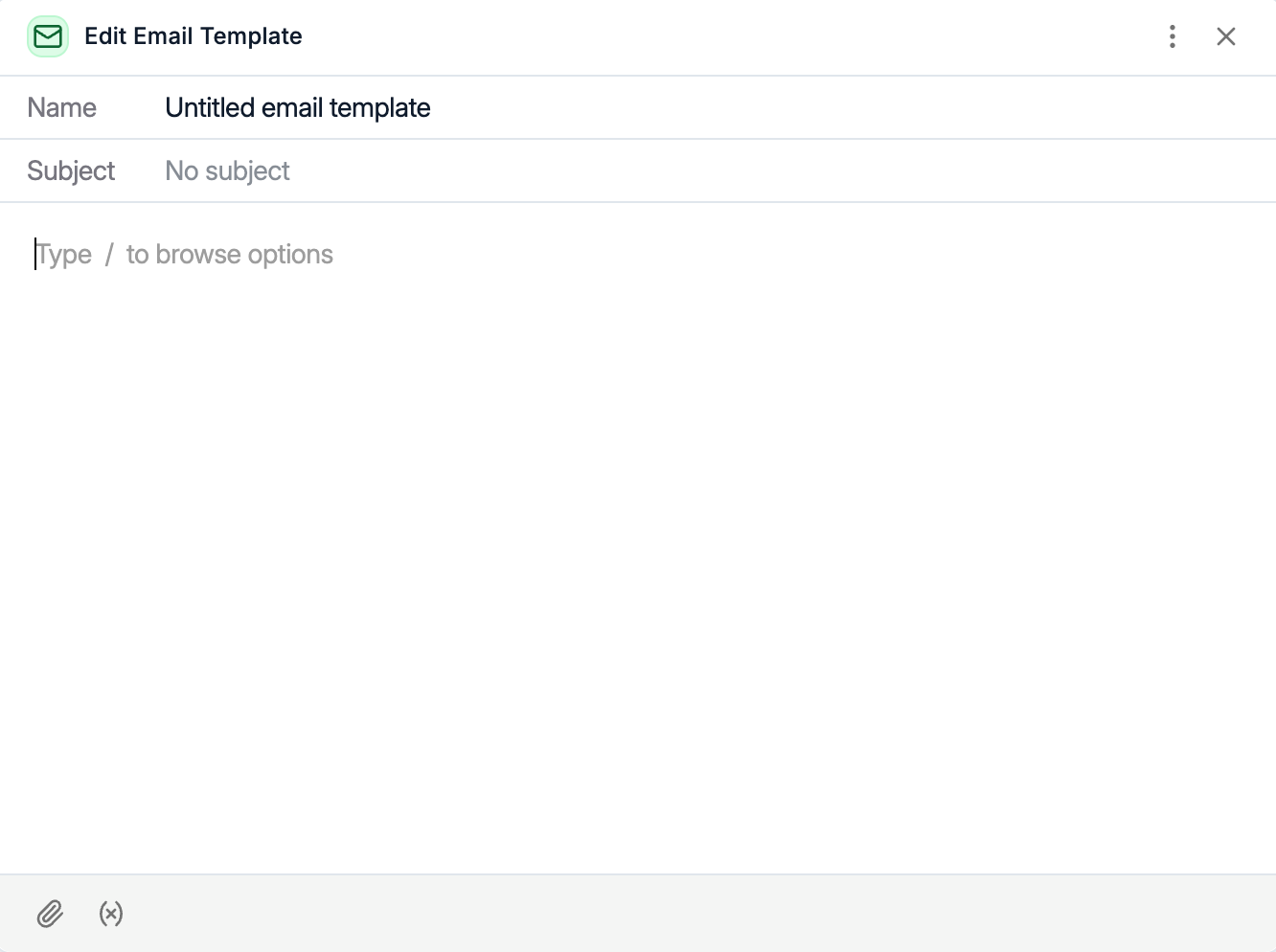
Click New Email Template in the top-right corner.
The template editor opens, where you can set:
Template Title, for internal use
Subject line
Email body content
Attachements
Use clear, reusable titles so your team can easily identify templates, for example: Candidate Intro – Software Engineer.
Personalize using recipient placeholders
To make your messages feel personal, insert dynamic placeholders that automatically pull the recipient’s name from your database:
{ Recipient > First Name }— Inserts the recipient’s first name{ Recipient > Last Name }— Inserts the recipient’s last name
Placeholders only populate if the recipient’s details, first and last name, exist in Spott.
Example:
Hi { Recipient > First Name },
You look like the perfect fit for the following opportunity!
Auto-save and usage
Templates are automatically saved as you type, no need to click Save.
Once created, they become instantly available when composing new messages in the Inbox or when using bulk outreach features.
By clicking on the three dots in the top right corner, you can share this template with the rest of your workspace.
You can always edit, duplicate, or delete templates from the Templates tab in the Inbox.
Email templates make communication faster and more consistent across your team, while placeholders ensure every message feels tailor made for the recipient.