Adding a New Task
Last updated: February 26, 2026
Learn how to create a task in Spott, link it to people or clients, and set reminders.
You can quickly navigate to this page using G then T.
Learn more about all shortcuts here.
Open the Tasks view
From the left-hand navigation bar, select Tasks to open your task list.
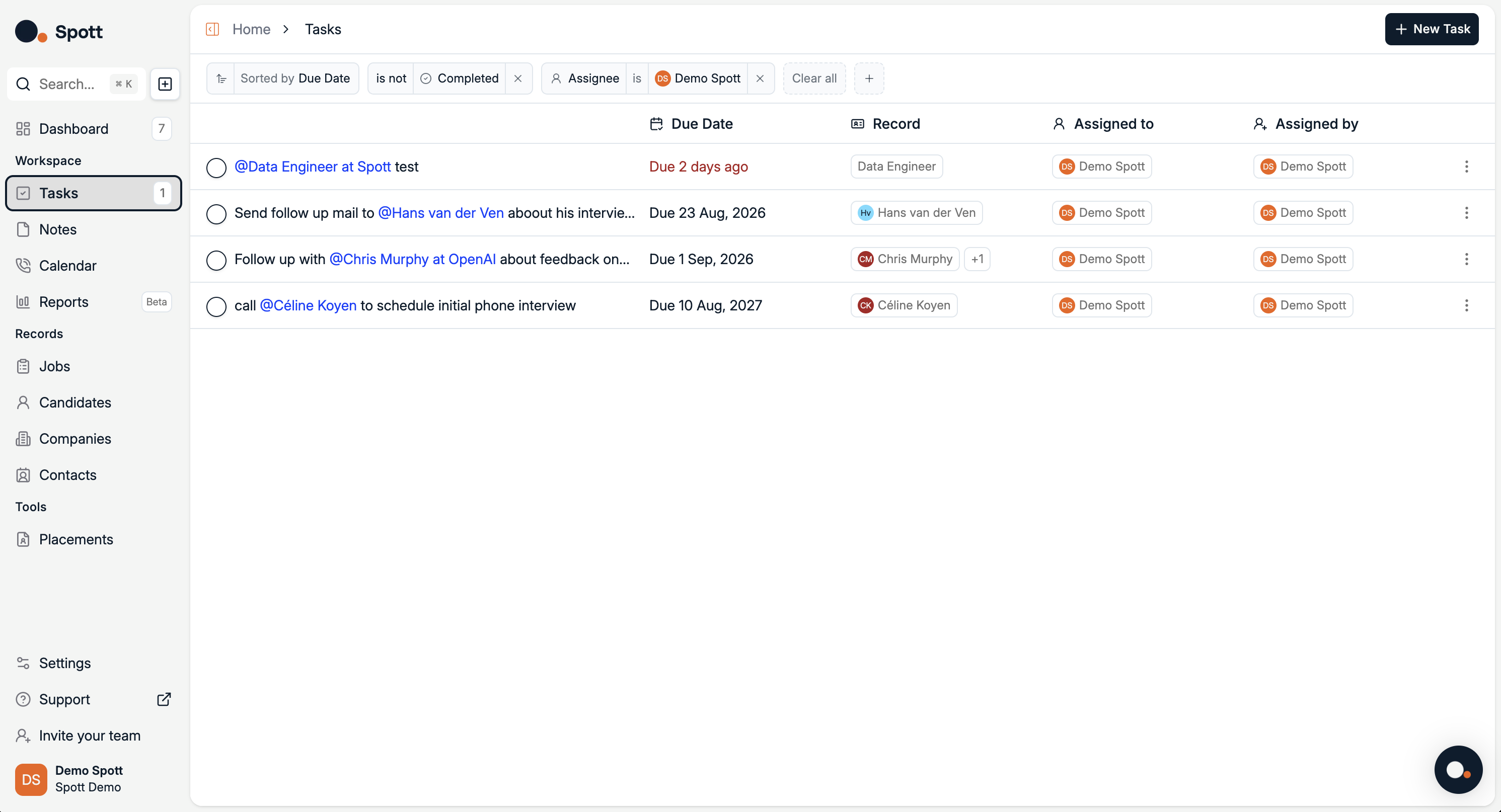
Add a new task
Click Add Task in the top-right corner.
Fill in the task Title and Due Date.
Use @ followed by a person, a contact, a client name or a job to automatically link the task to that record in your database.

Linking tasks with @ makes them accessible directly from the linked person or client’s profile.
From the Settings, you can turn on notifications for tasks assigned or on completion of tasks you assigned.
Manage and track tasks
Edit tasks directly from the list by clicking on their title
Mark tasks as complete once finished
Use the search bar and filters to quickly find specific tasks
Keep task titles clear and concise so they’re easy to find later. Use reminders for time sensitive tasks to avoid missing deadlines.