Filtering Tasks
Last updated: February 26, 2026
Learn how to use, remove, and replace default filters in the Tasks view.
You can quickly navigate to this page using G then T.
Learn more about all shortcuts here.
Open the Tasks view
From the left-hand navigation bar, select Tasks to see your task list.
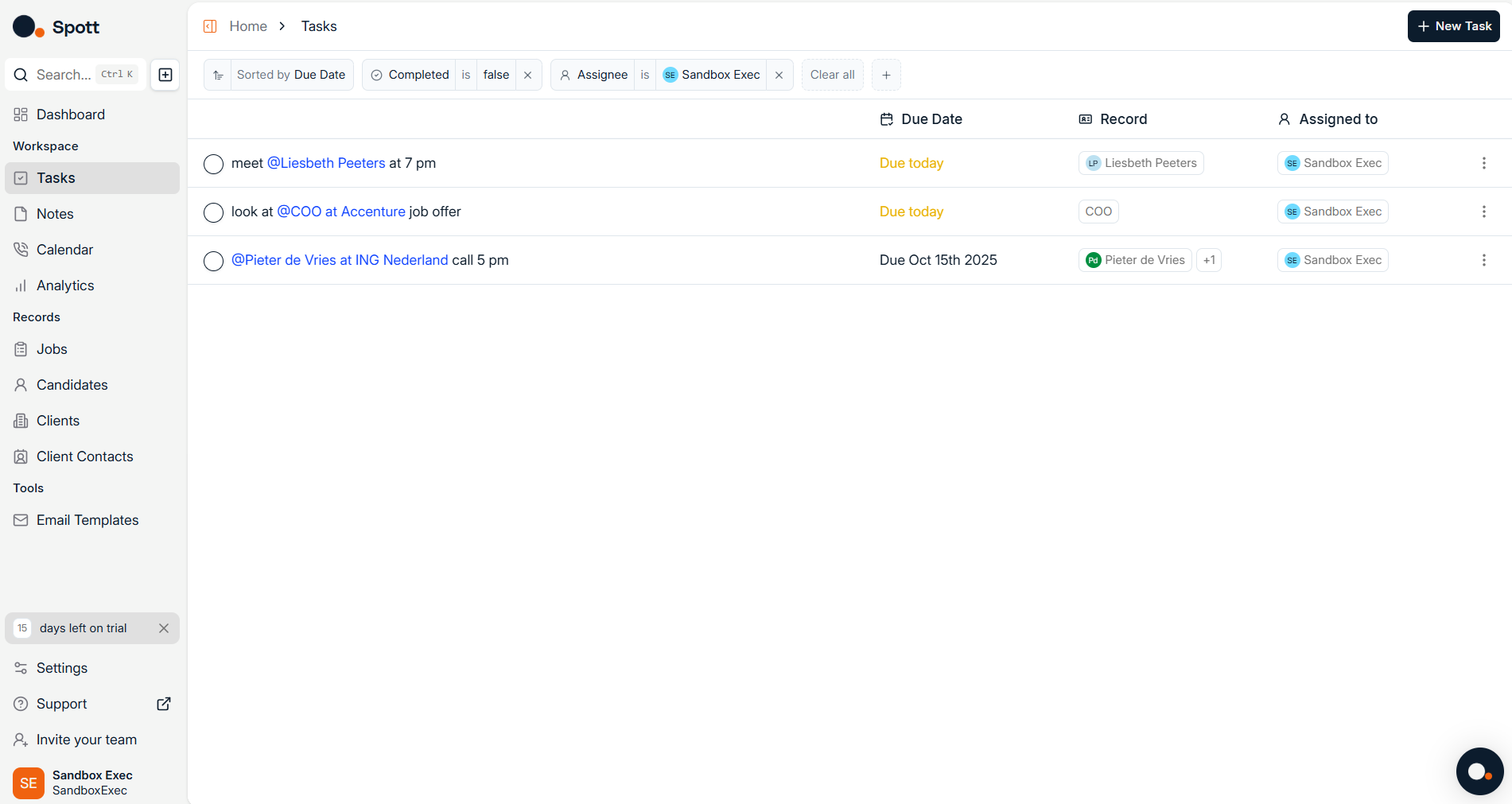
Understand the default filters
When you open Tasks, two filters are applied by default:
Status, set to show only Open tasks
Assigned to, set to show only tasks assigned to you

These defaults help you focus on your own active tasks, but you can remove them and apply any filters you prefer.
Remove the default filters
In the filters bar, click the small dot icon on the filter chip to remove it.
Once removed, the list updates to show all tasks matching your remaining criteria, or all tasks if no filters are applied.
Add new filters
Open the filter controls in the filters bar.
Select from available criteria, for example assignee, due date range, or status
Apply your new filters to instantly update the list
You can combine multiple filters for more precise views. Remove any filter chip to adjust results, or clear them all to return to the default view.
Sort the task list
After filtering, you can sort the list. Currently, sorting is only available by Due Date, which helps prioritize what needs to be done first.
If your list looks too small, check whether the two default filters, Status set to Open and Assigned to set to Me, are still applied.