Set Up your Scheduler
Last updated: February 26, 2026
Share your calendar and let others book time that works for both of you. Your availability is continuously updated based on your connected calendar and scheduling preferences.
Make sure Outlook or Gmail are synced with Spott
Before scheduling a new meeting, ensure that your Outlook or Gmail account is synced with Spott.

In Spott, go to Settings → Accounts.
Find the Microsoft Outlook or Google Suite integration settings and make sure one of them is connected
If not, click Not Synced and follow the login prompts
Once your calendar is connected, Spott can automatically generate your available time slots and sync all scheduled meetings in real time.
Enable the Spott calendar scheduler
To allow others to book meetings directly into your connected calendar, you first need to enable the Spott calendar scheduler.
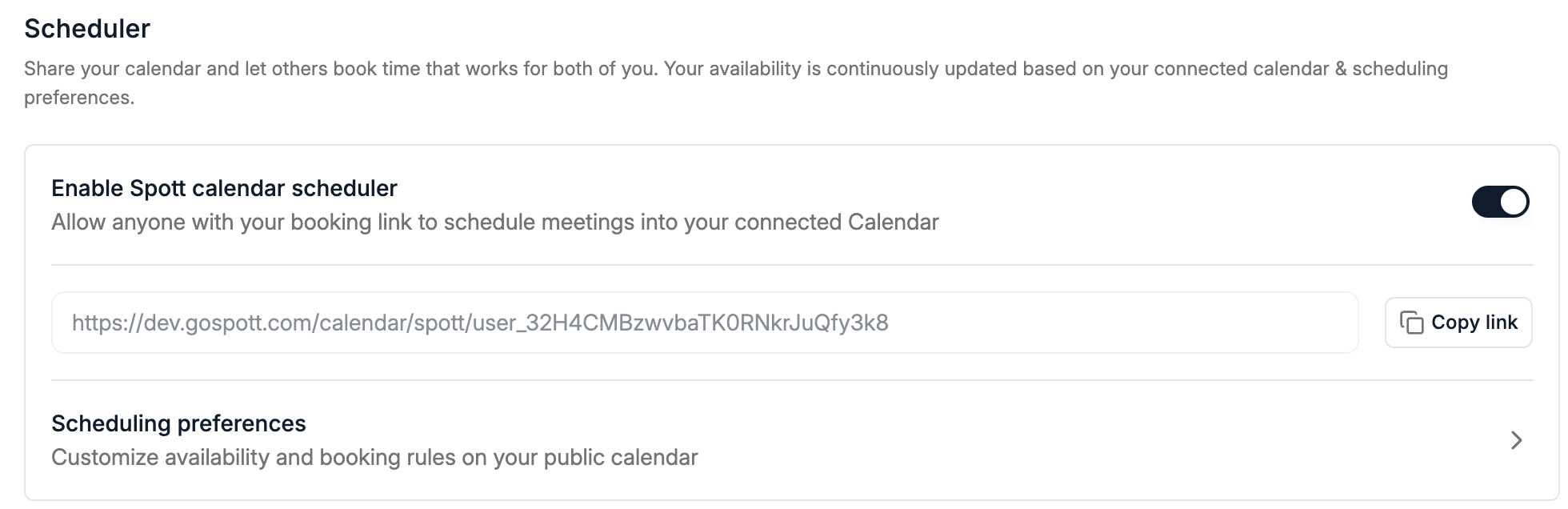
Go to Settings → Calls.
Scroll to the Calendar Scheduler section
Toggle Enable Spott calendar scheduler
Copy your personal booking link and share it with anyone you would like to allow scheduling time with you
Once enabled, anyone with your booking link can schedule a meeting directly into your connected calendar. You can also add your link automatically to your email footer by using Insert calendar scheduler link when composing an email in Spott.
Access your scheduling preferences
You can fully customize your availability and booking rules by going to Settings → Calls → Calendar Scheduler.
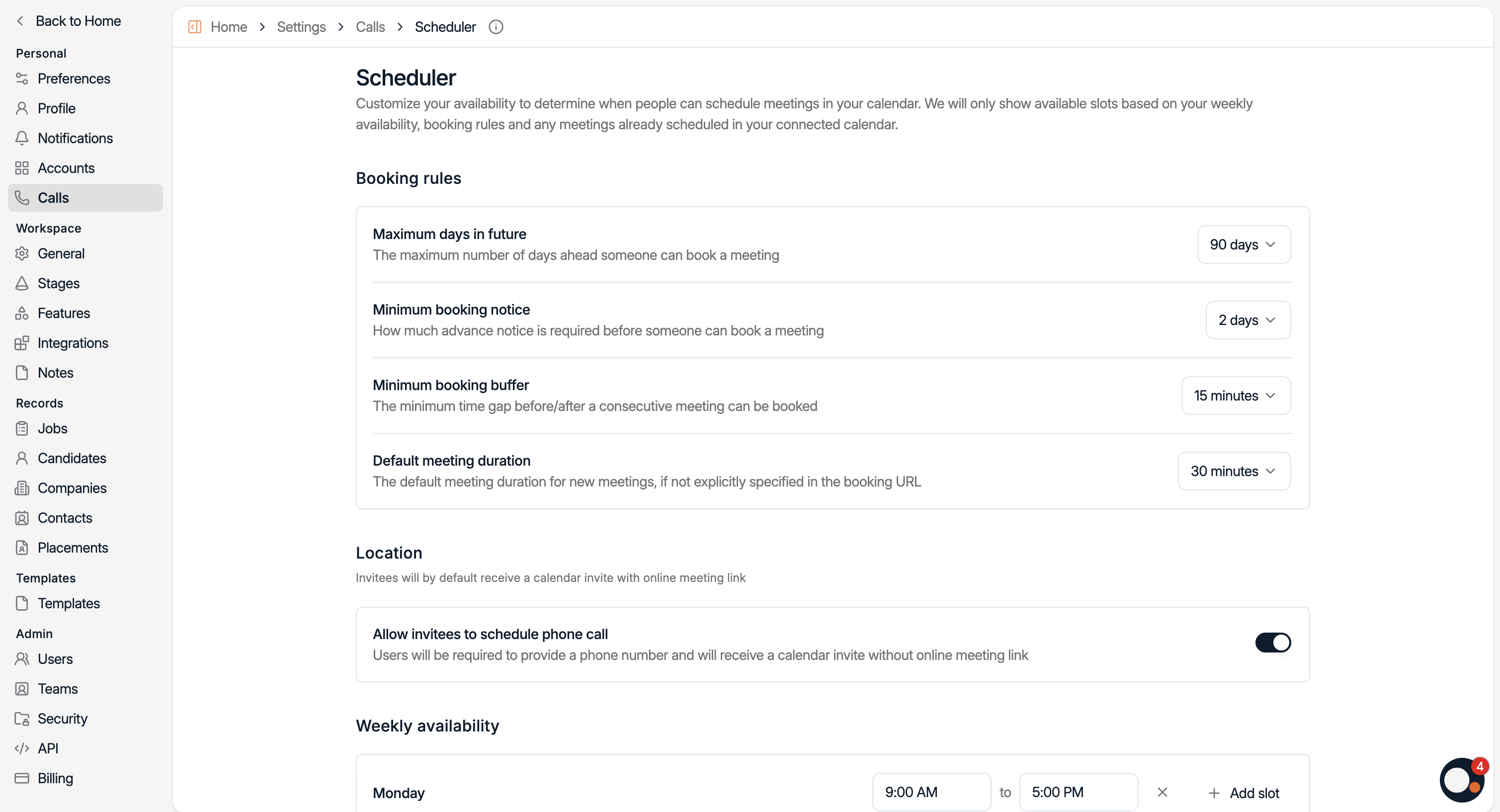
Here you can define:
Maximum days in future, how far ahead someone can book a meeting
Minimum booking notice, how much advance notice is required
Minimum booking buffer, the minimum time gap before or after another meeting
Default meeting duration, the default length of meetings, for example 30 minutes
Set your weekly availability
Below the booking rules, you can set your available time slots for each day of the week.
Add one or multiple slots per day, for example 9:00 AM to 12:00 PM and 1:00 PM to 5:00 PM
Leave a day empty if you do not want to appear available for meetings
These settings automatically sync with your connected Outlook or Google Calendar to ensure real time availability.
Share your booking link
Once your preferences and availability are set, your public scheduling link will automatically reflect them.
You can find your link under Settings → Preferences → Scheduler.
Use the Copy link button to share it directly
Anyone using your link will only see time slots that are free based on your connected calendar and booking rules.
When sending emails from Spott, you can easily attach your calendar link directly using the Insert calendar scheduler link option. This allows recipients to instantly book time with you without back and forth coordination.