Schedule a new meeting on your Calendar
Last updated: January 5, 2026
Easily schedule new meetings in Spott directly from your connected Outlook or Google Calendar.
You can quickly navigate to this page using G then C.
Learn more about all shortcuts here.
Make sure Outlook or Gmail are synced with Spott
Before scheduling a new meeting, ensure that your Outlook or Gmail account is synced with Spott.

In Spott, go to Settings → Accounts.
Find the Microsoft Outlook or Google Suite integration settings and make sure one of them is connected
If not, click Not Synced and follow the login prompts
Once your calendar is connected, Spott can automatically generate your available time slots and sync all scheduled meetings in real time.
Schedule a new meeting manually
To schedule a new meeting, go to the Calendar tab in Spott, then click Schedule Meeting in the top right corner.
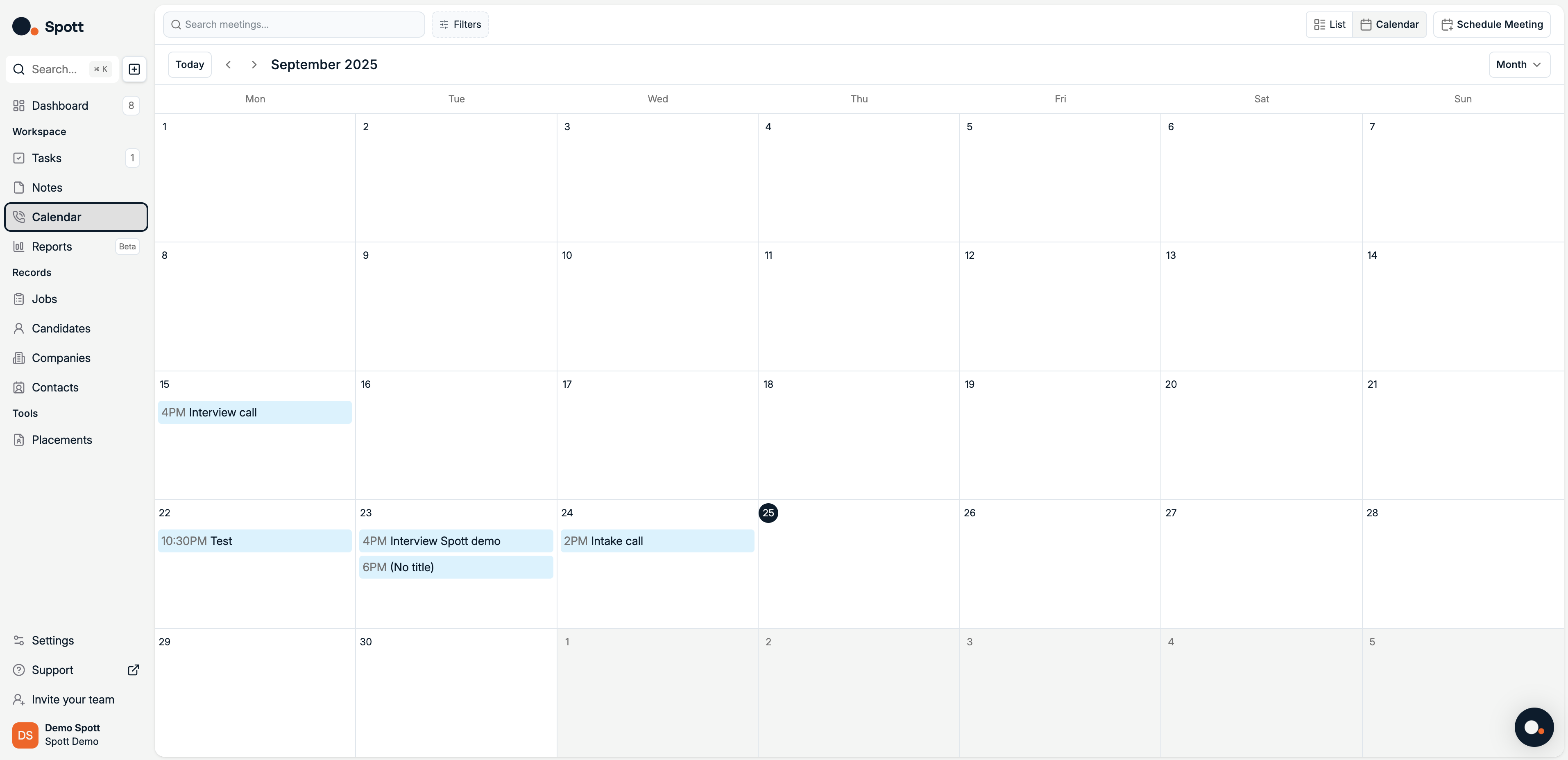
In the meeting settings menu, make sure that Send calendar invite is toggled on in the top right corner, as well as Online meeting if you plan to meet via Microsoft Teams or Google Meet.
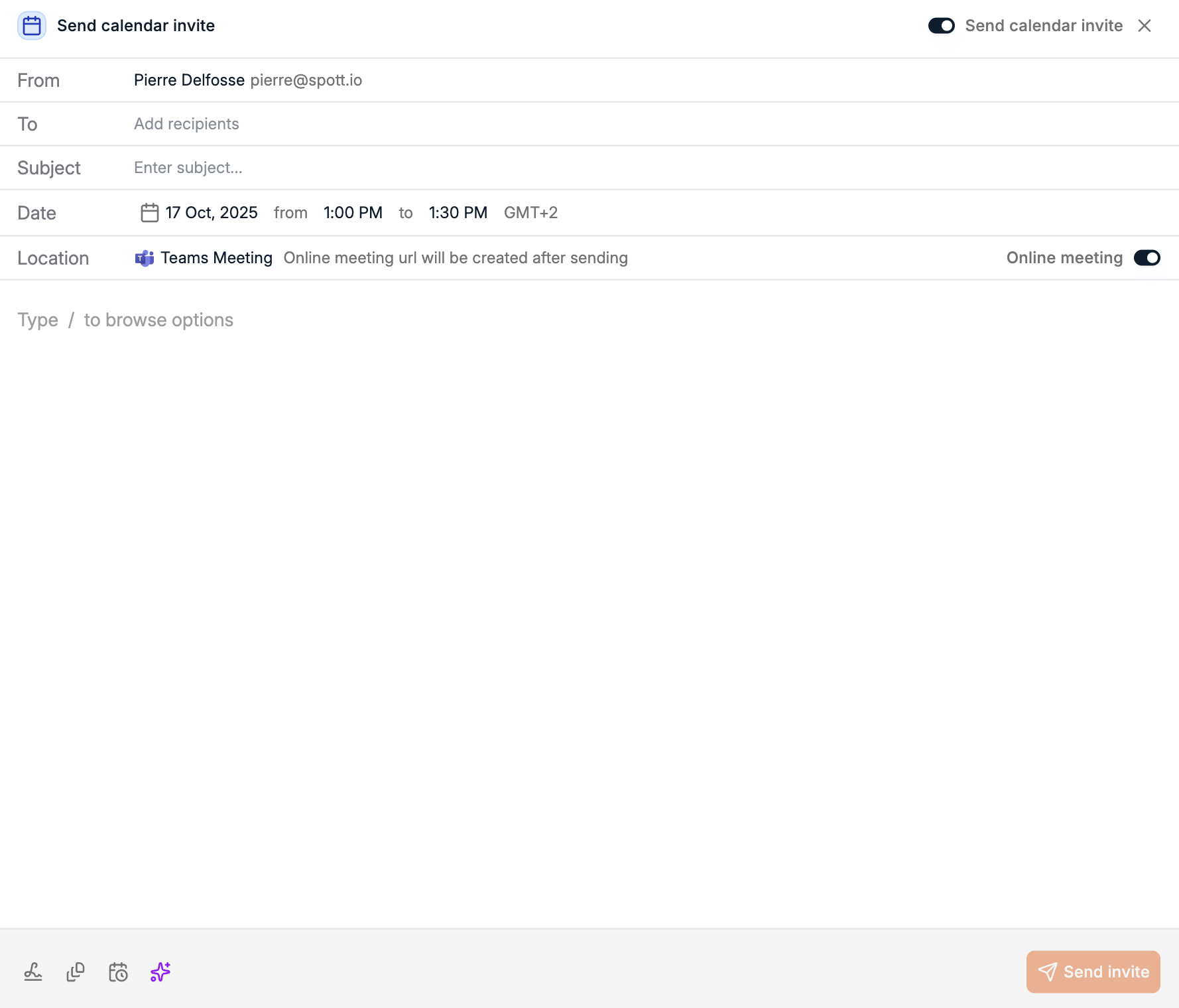
You can set a few parameters before sending the meeting request:
Recipient / To – Person to schedule a meeting with
Subject – Subject or topic of the meeting
Meeting date and time
Meeting location – Physical or online
Email body – Optional message to include with the invite
You can also use the new toolbar to insert your signature, start from an email template, add your scheduler link, or use AI to pitch a candidate or job.

Share your personal booking link
You can also share your personal booking link so others can directly schedule meetings with you based on your availability.
You can find this link:
In Settings → Preferences
In the footer of your emails, using Insert calendar scheduler link
Anyone with the link can pick a time that fits both calendars.