Adding and Managing Contact
Last updated: February 27, 2026
Learn how to add a new client contact to Spott, use client context, and link relevant contacts.
You can quickly navigate to this page using G then O.
Learn more about all shortcuts here.
1⃣ Open the Contacts view
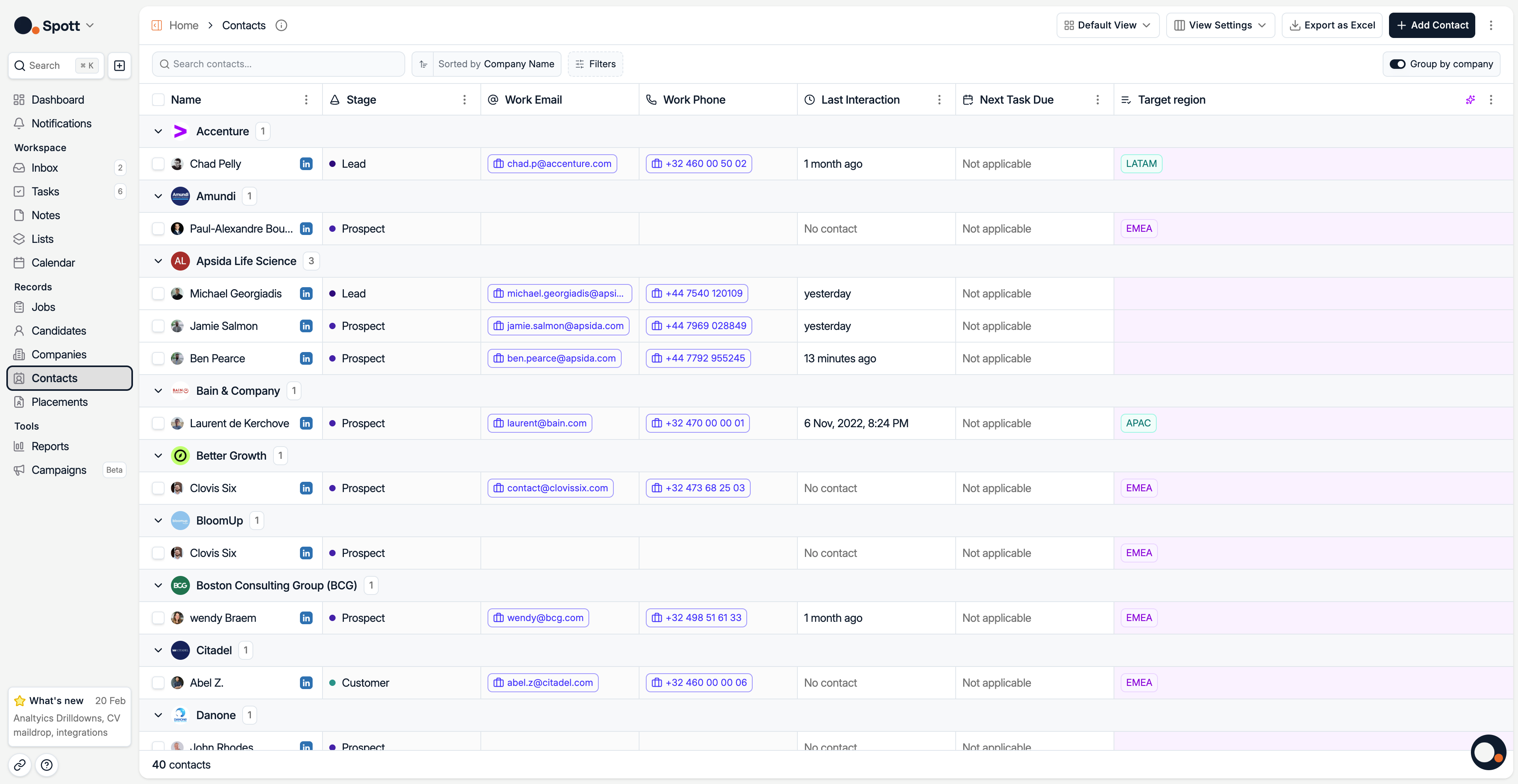
From the left-hand navigation bar, go to Contacts to see all client contacts in your system.
2⃣ Enable or disable client context
At the top-right of the Contacts view, you can toggle Group by company.
ON – Contacts are grouped under their company name. This makes it easy to view all contacts belonging to the same organization together.
OFF – All contacts are shown in a single list, sorted according to your chosen sort option, for example Last Activity Date, without grouping by company.
Use Group by company when you want to work in a client-centric way and see all related contacts at a glance.
Disable it if you prefer to sort and filter purely by individual contact attributes.
3⃣ Add a new client contact
There are two options to create a new contact in Spott:
Add a Contact manually
Click the Add Contact button in the top-right corner
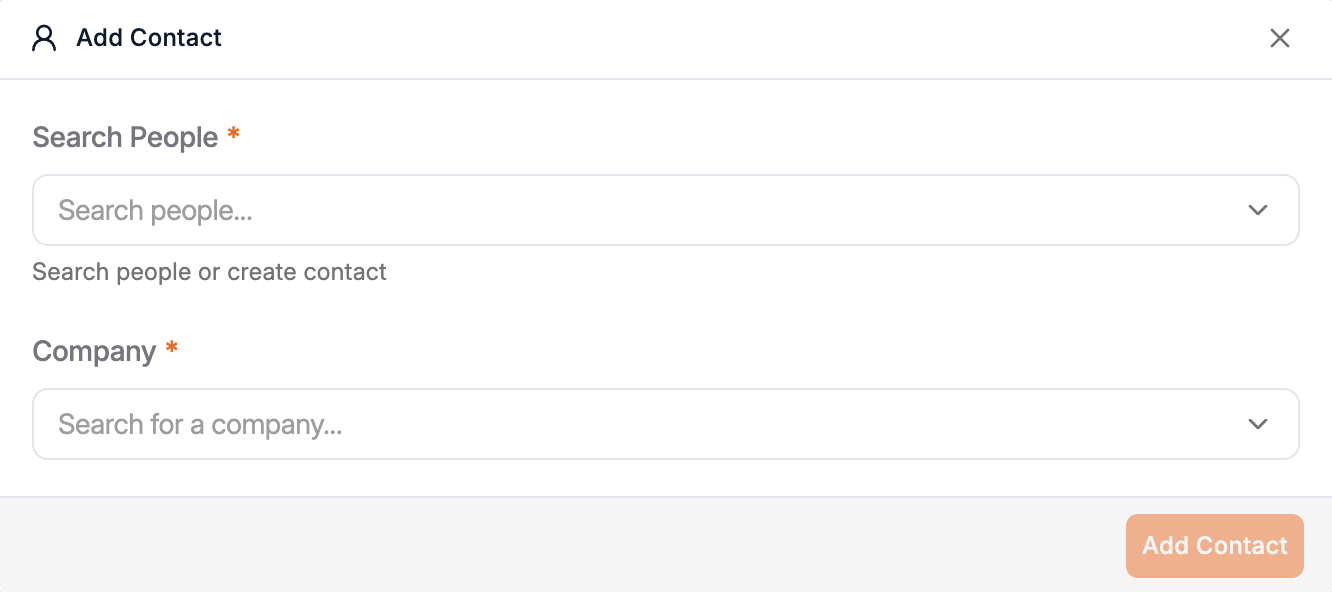
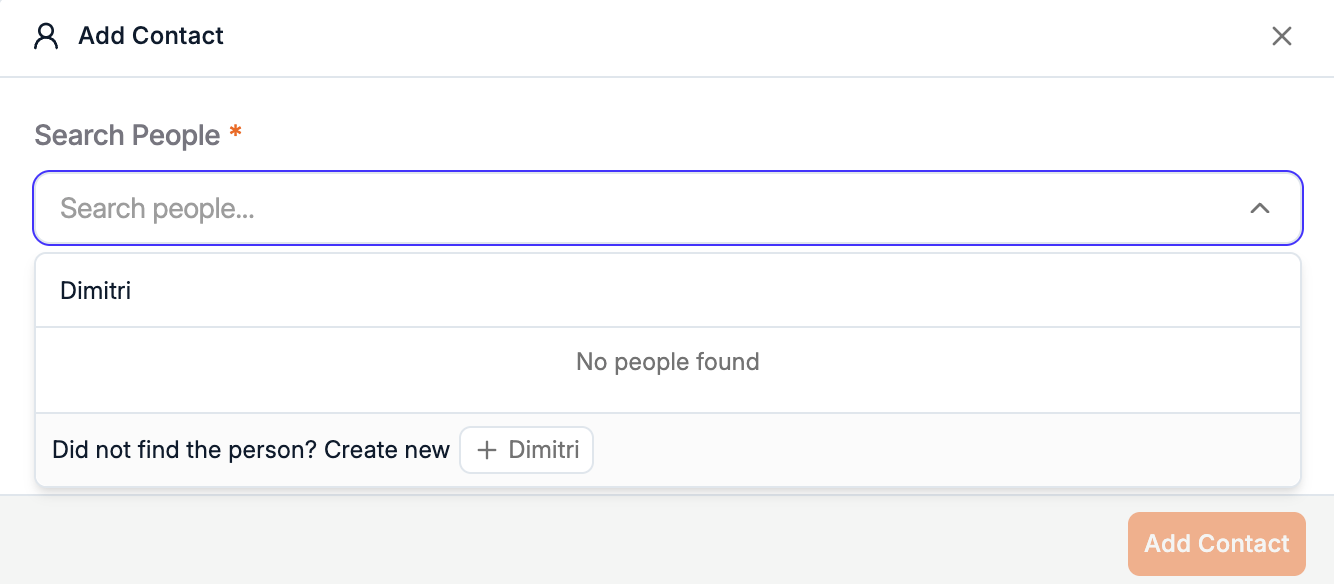
Search an existing Person in Spott or Type the name of the person and create a new contact out of this.
You can then link it to a Company.
Add a Contact via the LinkedIn Browser Extension
For more information about this topic, navigate to this page.
4⃣ Manage and link contacts
Once a client contact is created, you can:
Edit their details directly in the table or in their profile
Link them to specific jobs
The Contact Page looks just like the Candidate Page:
Overview Tab
In this tab, find:
Summary - AI Summary of the Contact and suggested field updates based on the entire context of the profile.
Notes - All notes related to this contact and related jobs
Experience - Work Experience and Education Overview
Chat - View and Send Email, LinkedIn or WhatsApp
Files - Job Descriptions, Briefing Documents, Terms
Tasks - Don't miss a Follow-Up
You also find the same Side panel as for Candidates: Details, Activity, Ask AI
Contact Tab
In this tab, find:
Jobs - All Jobs for which this Contact is tagged on
Speculative - All Candidates presented proactively to this contact
Companies - Current and Past Companies this Contact is related to
Keeping client contacts up to date ensures you always have the right people connected to the right clients, improving communication and coordination.