Import Candidate CSV
Last updated: January 5, 2026
Learn how to import candidates into Spott using a CSV file.
You can quickly navigate to this page using G then A.
Learn more about all shortcuts here.
The CSV import feature allows you to bulk add candidates to Spott, for example when migrating data from another system or uploading leads from an external source.
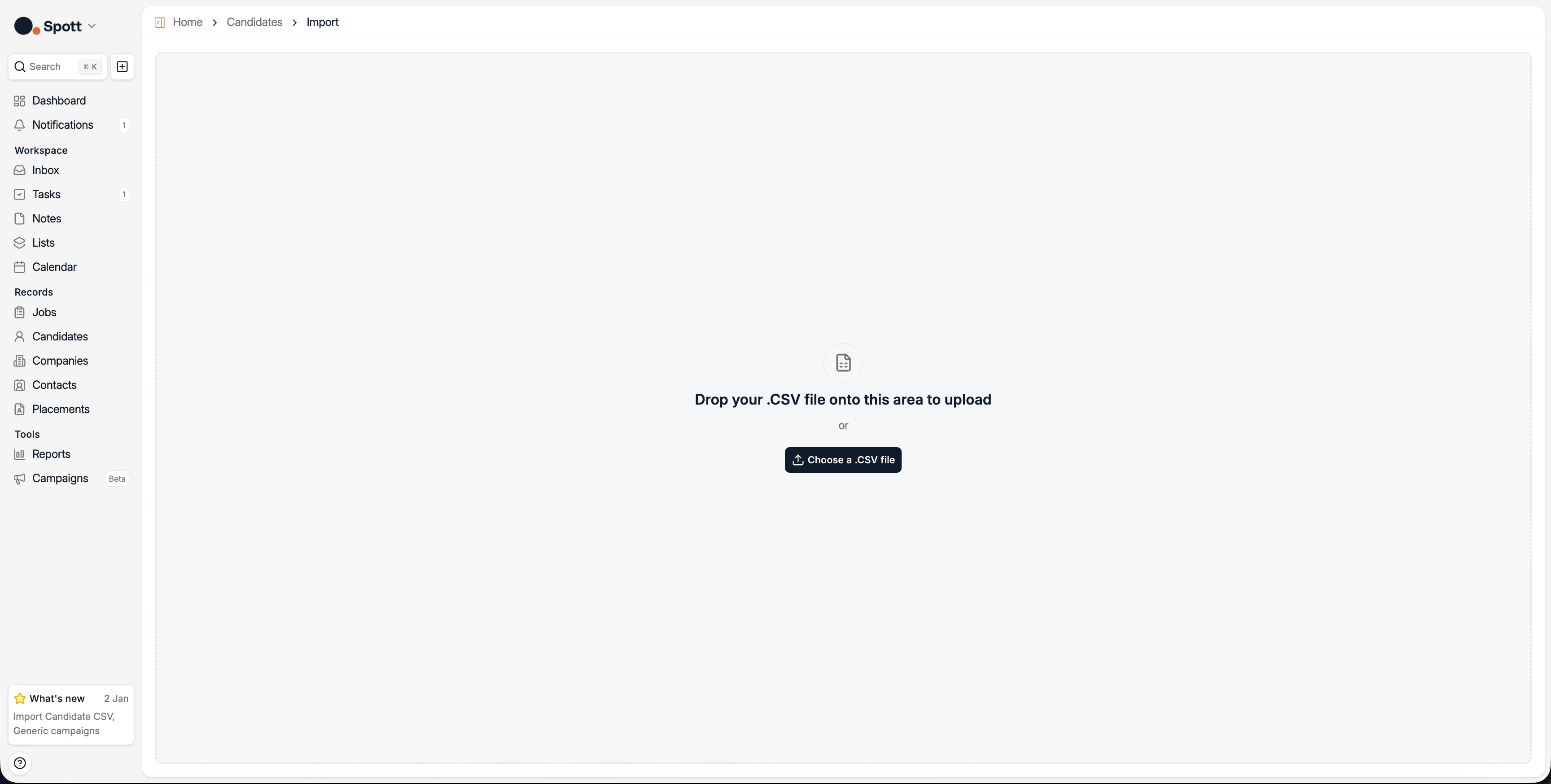
You can import candidates into Spott using a CSV file. Each row in the file represents a single candidate.
Currently supported fields include first name, last name, email, LinkedIn URL, and phone number, making it easy to bulk-add candidates into Spott.
You can choose which columns to import by mapping them during the import process.
Start a CSV import
Open the Candidates page
Navigate to Candidates from the main sidebar.
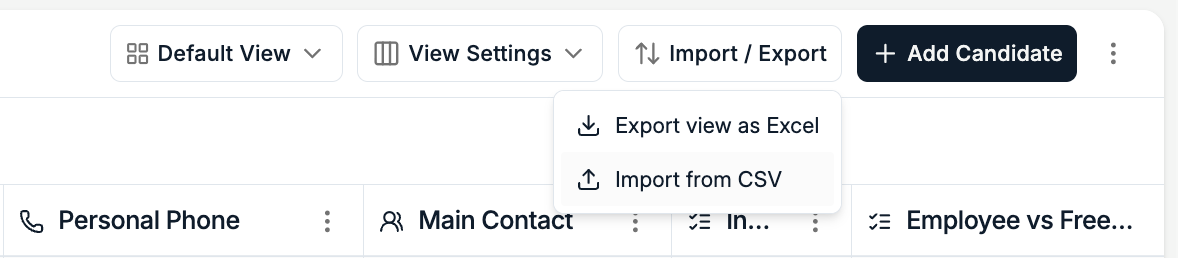
Open Import / Export
In the top right corner, click Import / Export, then select Import from CSV.
Upload your CSV file
Select the CSV file from your computer. Spott will automatically analyze the file and prepare it for import.
Review your data
After uploading your file, you will see a summary including:
File name and size
Number of detected columns
Total number of candidate rows
A preview of the first 50 rows
Use this preview to confirm that your data is structured correctly before continuing.
When you are ready, click Continue.

Map columns to candidate attributes
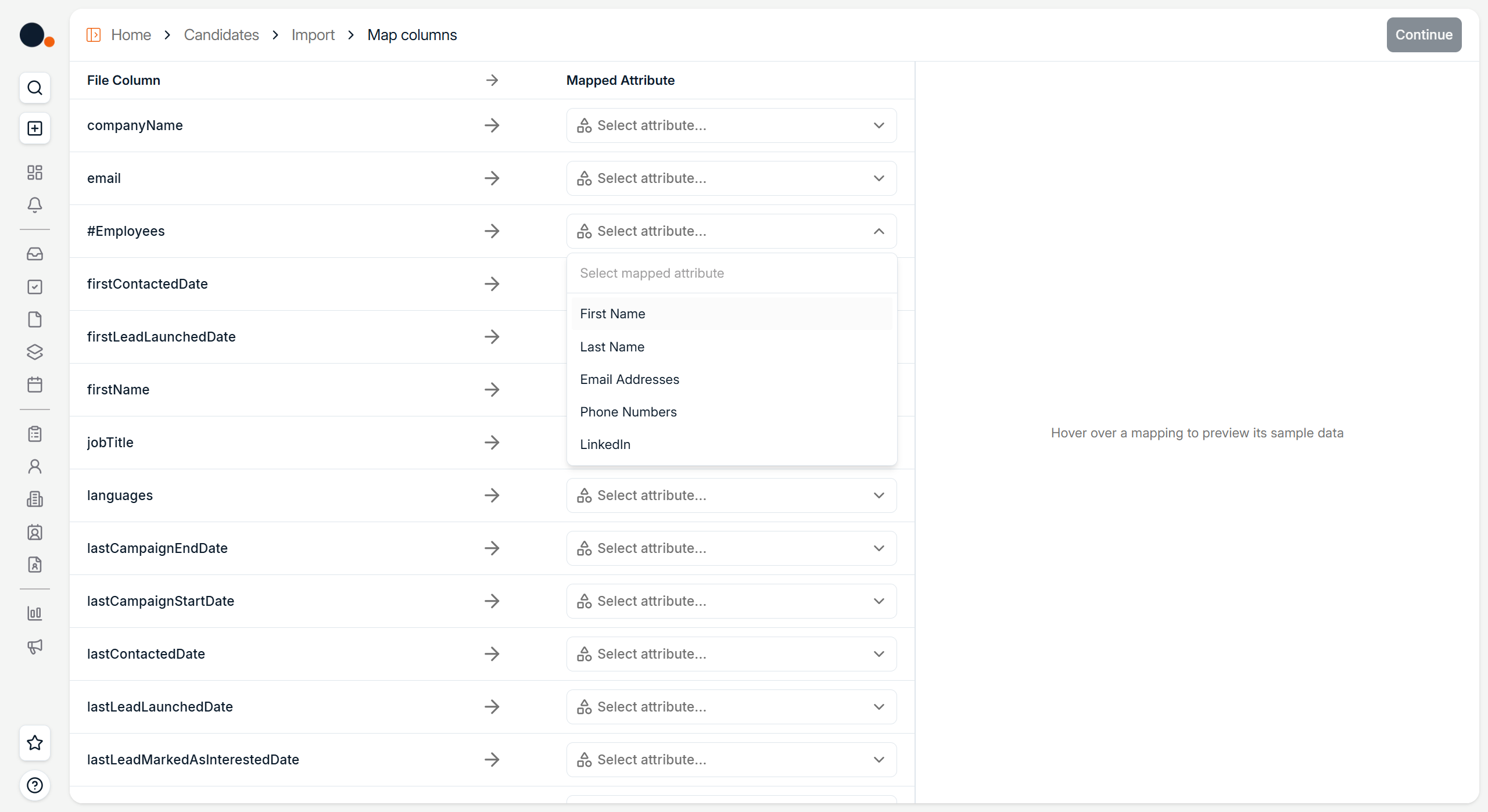
After clicking Continue, you will be asked to map your CSV columns to Spott candidate attributes. This step defines how Spott should interpret each column in your file.
How column mapping works
On the left side, you will see the column names from your CSV file.
On the right side, you can select the corresponding Spott attribute for each column.
For each column:
Click Select attribute
Choose the correct candidate field, such as:
First Name
Last Name
Email Addresses
Phone Numbers
LinkedIn
You only need to map the columns you want to import.
Unmapped columns will be ignored.
Preview mapped data
When you hover over a mapped column, Spott shows a preview of sample data from that column.
This helps you verify that the correct data will be imported into the correct field.
You can adjust mappings at any time before continuing.
Complete the import
Once all relevant columns are mapped:
Click Continue
Spott will create candidate records based on your mappings
After the import is complete, your candidates will appear in the Candidates workspace and can be searched, filtered, exported, and added to Lists.
Tips for successful imports
Include at least one unique identifier, email or LinkedIn is recommended
Map First Name and Last Name for cleaner candidate records
Remove empty rows before uploading your file
Use UTF 8 encoded CSV files for best compatibility
Double check email and phone mappings to avoid incorrect data placement