Adding Candidates to Spott
Last updated: February 27, 2026
Learn how to add new candidates to your Spott database by uploading CVs or entering details manually.
You can quickly navigate to this page using G then A.
Learn more about all shortcuts here.
Open the Candidates window
In the left-hand navigation bar, select the Candidates section.
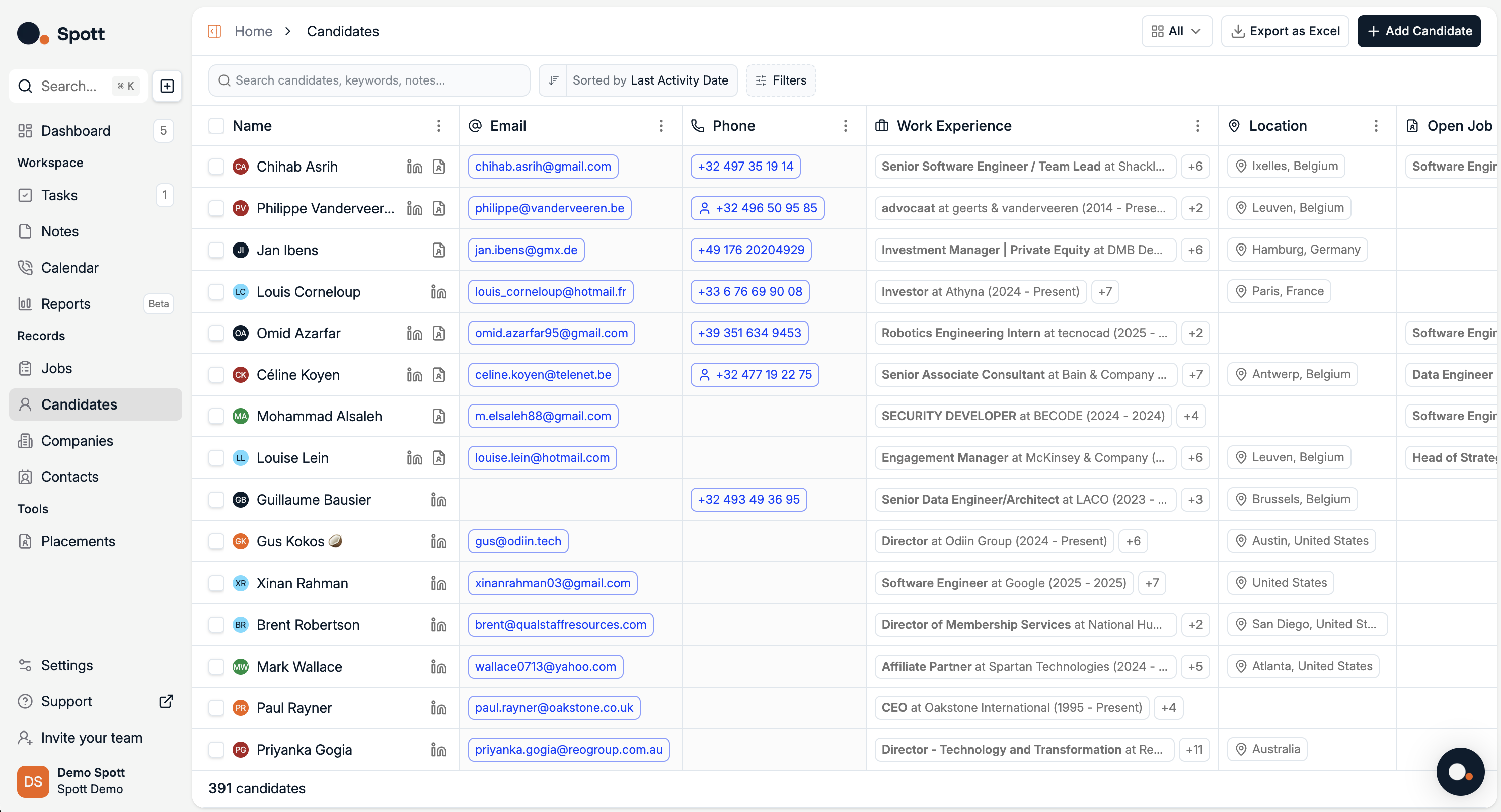
This view displays all candidates currently stored in your Spott software.
Add a new candidate
Click Add Candidate in the top-right corner of the screen.
You can choose between:
Upload CV – Import one or multiple (up to 20) CVs from your computer to automatically fill in candidate details
Maildrop CV - Forward your attached CVs to cv@spott.io to automatically create a new profile
Add Candidate Manually – Enter all candidate details without uploading a CV
If you choose Add Candidate Manually, you will see the same view as when a CV has been parsed - the four tabs for Basic Attributes, Experience, Education and Custom Fields - but all fields will be empty for you to complete manually.
Upload CVs
Select Upload CV.
Browse your computer and select the CV file or files you want to add
Click Open to start the upload
Spott will automatically parse the uploaded CVs and pre-fill details in the candidate form.
You can upload multiple CVs at once - each will be processed and matched to a new or existing candidate profile.
Review parsing results in all three tabs
Once the CVs are parsed, one of the following may occur:
New Candidate – The candidate is not in your database
Before adding the candidate, you must review all four tabs:
Basic Attributes – Name, nationality, date of birth, languages, email, phone number
Experience – Roles, companies, durations
Education – Schools, degrees, grades
Duplicate – The candidate already exists in the database
The record will be marked as duplicate.
You can still attach the new CV to the existing profile.Partial Match – The candidate exists but with a different email or phone number. Then Review and update as needed.
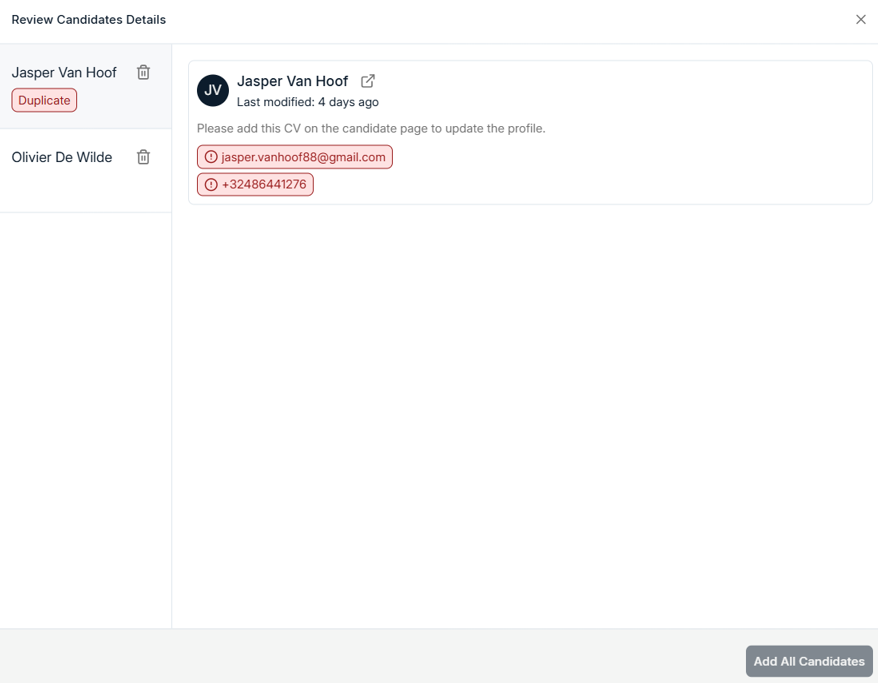
Always verify all four tabs before adding the candidate to the database. Missing or incorrect details here will be saved to the profile.
Save candidates to the database
Once all tabs have been checked and details are correct, click Add All Candidates at the bottom-right of the pop-up window.
The new candidates will now appear in your database.
Edit newly created candidate information
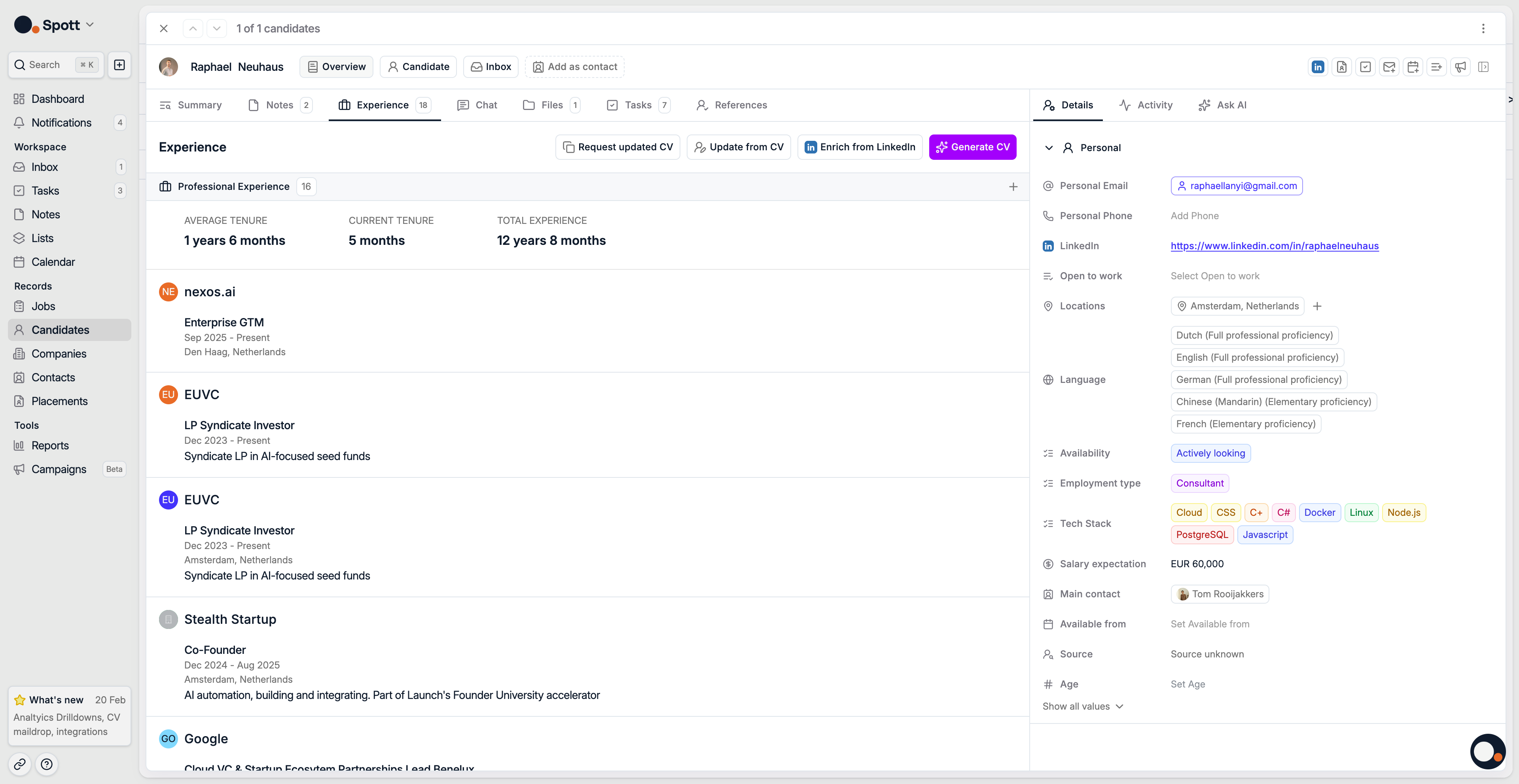
Go to the Candidates list.
Click on the candidate’s name to open their profile
Review the summary of CV imported and manually entered information
Click any field to make updates
Keeping candidate profiles up to date improves your search accuracy and matching results in Spott.
CV Maildrop
You can email us a CV to create Candidate profiles directly in Spott. Forward your attached CVs to cv@spott.io to automatically create a new profile.
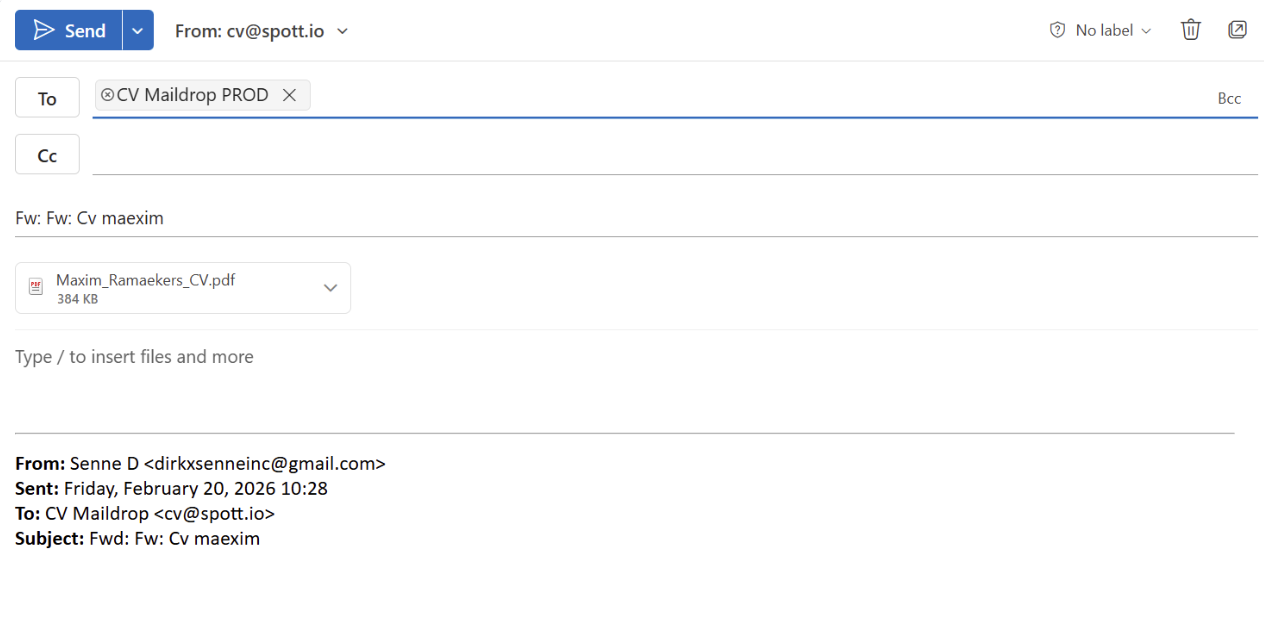
Duplicates are automatically detected and enriched with new information only. You’ll receive an email notification if processing fails for any reason.