Set Up the LinkedIn Browser Extension
Last updated: February 27, 2026
Learn how to set up and use the the LinkedIn Browser Extension to sync messages, import candidates and contacts into Spott.
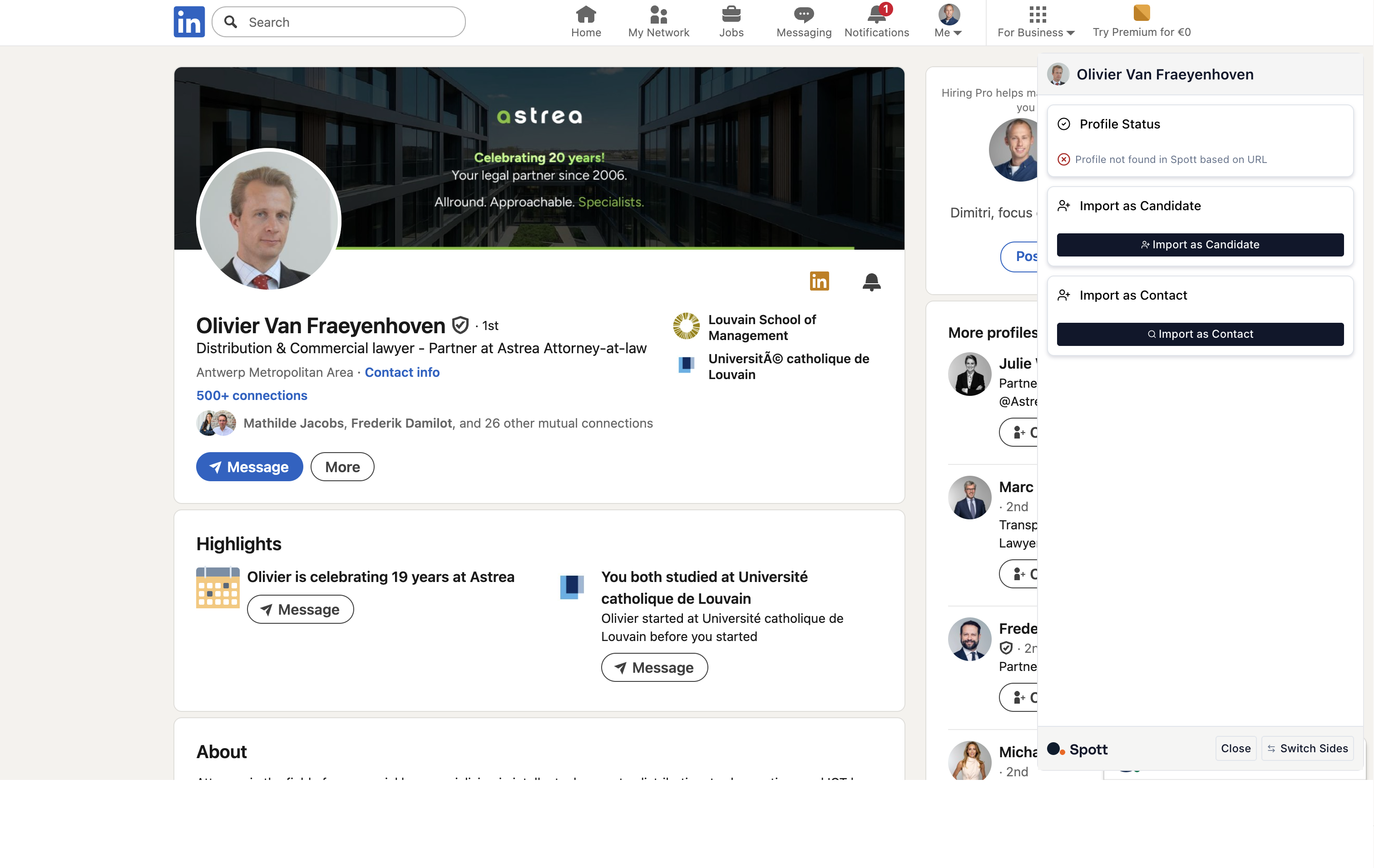
Setup LinkedIn Browser Extension
Install the Spott Chrome extension from the Chrome Web Store and ensure it's enabled in your browser
The Browser Extension is available in any Chromium-based web browser. This practically means it works on Chrome and Edge. It is available on the Chrome Web Store here.
Open LinkedIn in Google Chrome and log in to your account.
Navigate to any LinkedIn profile page.
Click on the Spott extension icon in your Chrome toolbar on the top right. It should open up on the right hand side of the page.
In the extension popup, click the Connect button to link your LinkedIn account
Complete any consent prompts that appear. Click Sync. It may take a minute for the sync to complete.
Go back to your browser and refresh your LinkedIn tab after connecting
Go back to Spott and verify the connection is working by checking that the extension no longer shows a "Connect" button. You may need to refresh your Browser.
For a step-by-step video, click here.
Troubleshooting
If you're experiencing connection issues, try disconnecting and reconnecting from your Spott settings, or completely uninstall and reinstall the Chrome extension. The connection process may take 2-3 minutes initially.
Use the LinkedIn Chrome Extension
Once connected, you can use the Chrome extension to:
Import candidate and contact profiles directly from LinkedIn pages
Import profiles from LinkedIn Sales Navigator (if you have a premium account)
Access Spott functionality while browsing LinkedIn profiles