How to setup AI-filled columns
Last updated: February 27, 2026
Usage
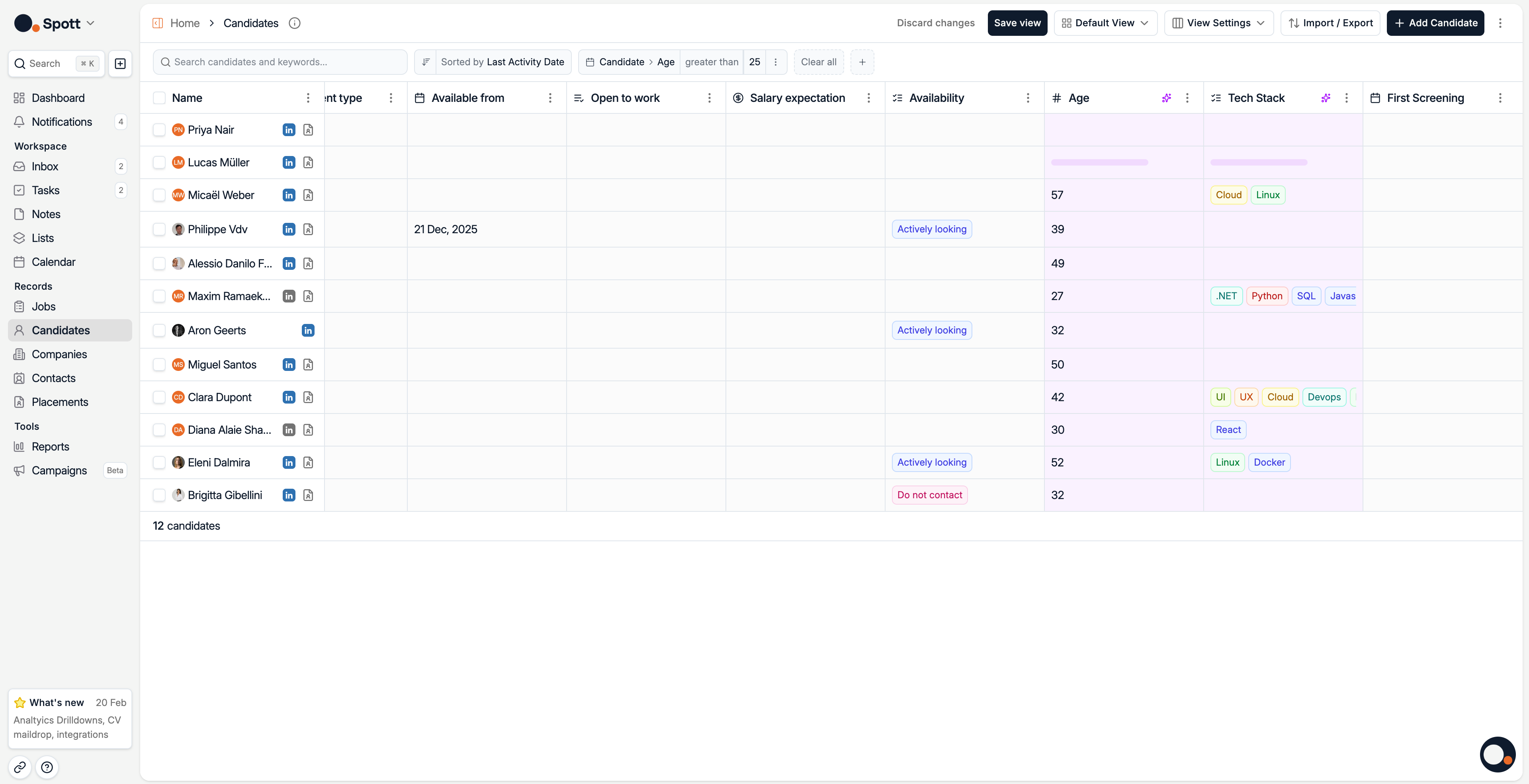
Once AI-filled columns are enabled and configured, the system will automatically populate the attributes based on candidate profiles and CVs. The AI analyzes the available information and fills in the attributes according to your specified prompt.
For example, you can create attributes for:
Age calculation based on graduation dates
Skills extraction from CVs
Category matching based on candidate profiles
Note that it may take a couple of hours for the initial setup to process existing candidates. New candidates added after setup will have their AI attributes populated automatically.
Setup AI-filled columns
Go to Settings in your workspace
Navigate to the Features section
Toggle on "Enable AI Filled Columns" - this feature needs to be activated before you can create AI-powered attributes

Go to Settings > Records > Navigate to the Record Type you want to create an AI Column for
Click on "Create your own Attributes"
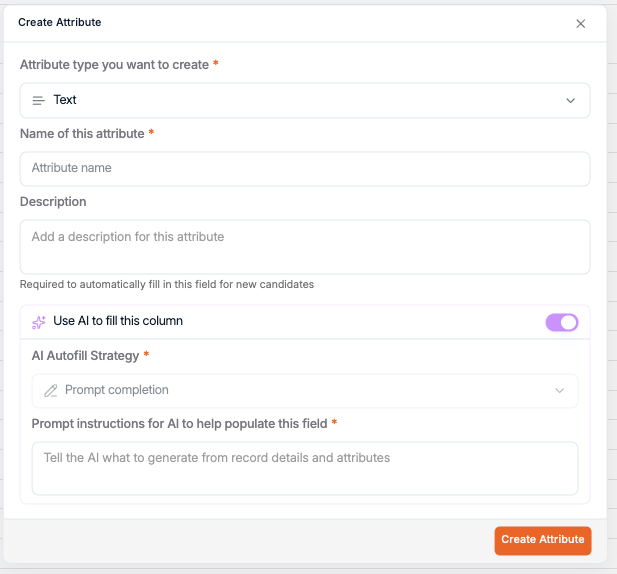
Configure your attribute by setting the attribute type, name, and description
When creating a new attribute, you'll now see the option to enable "AI autofill"
Write a clear prompt describing what you want the AI to extract or calculate for this attribute