Using Views
Last updated: February 26, 2026
Learn how to create, save, and manage custom views in Spott to quickly access filtered data for Candidates, Jobs, Companies, or Contacts.
You can quickly access saved views using the dropdown in the top-right corner of any record list - Default View.
Open any record list
Navigate to one of the sections in the left sidebar — for example:
Candidates
Jobs
Companies
Contacts
Lists
Placements
Notes
Tasks
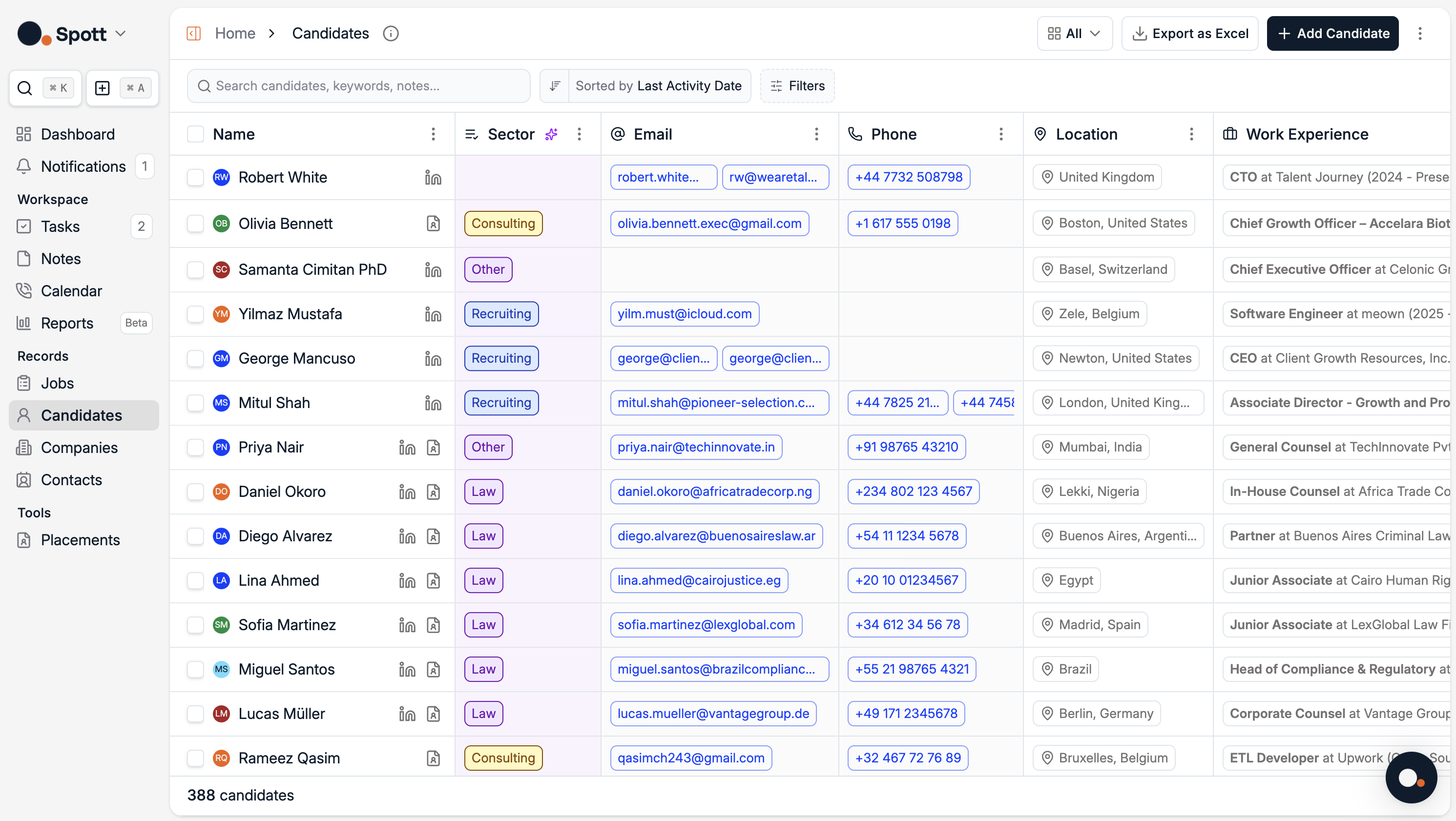
Each section displays your records in a table view with sorting, filtering, and view options.
Apply filters and sorting
Use the Filters button to narrow down your list (for example, by sector, location, or activity date).
You can also change the sorting criteria at the top of the list.Once you’re happy with how your data looks, you can save this configuration as a view.
Create a new view
Click on the current view name in the top-right corner (e.g. All or All Jobs).
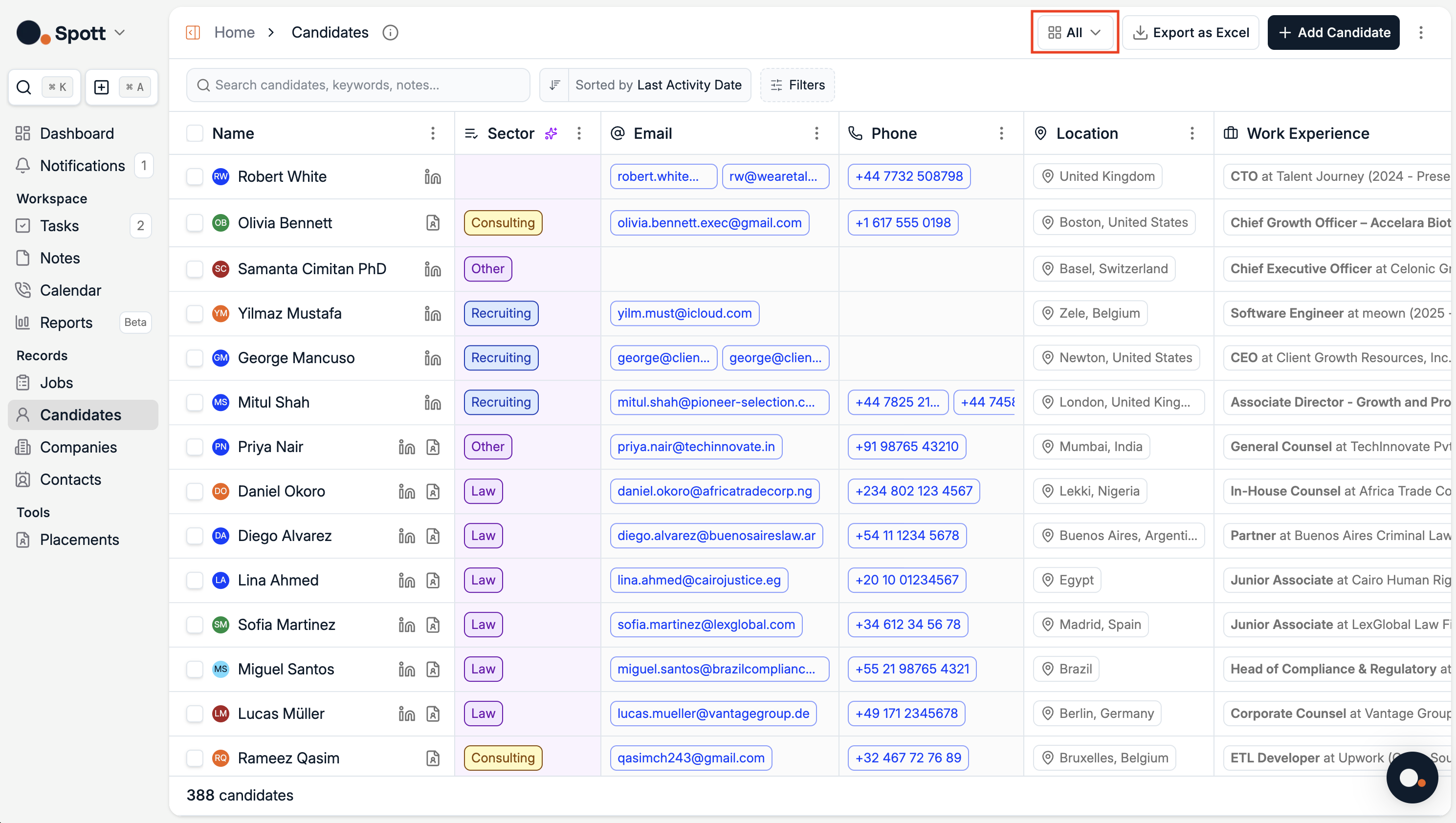
From the dropdown menu, select + Create New view.
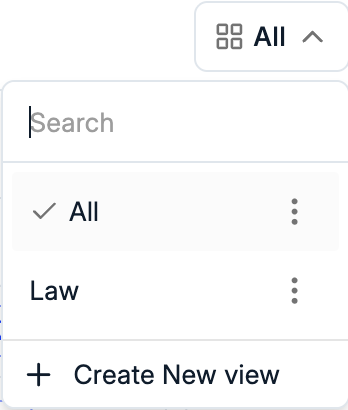
Give your view a name (e.g. Law, Recent Activity, Open Roles in UK).
Your filters, sorting preferences, and visible columns will all be saved in this new view.
Access your saved views
Once created, your custom view will appear in the same dropdown.
Simply click on the view name (e.g. Law) to instantly switch between your saved configurations.
You can create as many views as you like — each tailored to a specific workflow or segment.
Edit or delete existing views
Open the dropdown again.
Click the ⋮ (three dots) next to a saved view to rename or delete it.
Deleting a view only removes the saved configuration — your underlying data remains safe.
Custom views are user-specific. Other users in your workspace can create and manage their own views independently.