Adding and Managing Jobs
Last updated: February 25, 2026
Learn how to create a new job in Spott, link it to a client, add sourcing criteria, and manage Pipeline, Matching, Vacancy, Inbound, and Tasks.
You can quickly navigate to this page using G then J.
Learn more about all shortcuts here.
This guide explains how to create a new job in Spott, connect it to a client, define sourcing criteria, and manage the full recruitment workflow from one job record.
1⃣ Open the Jobs view
From the left-hand navigation bar, select Jobs to open your job listings.
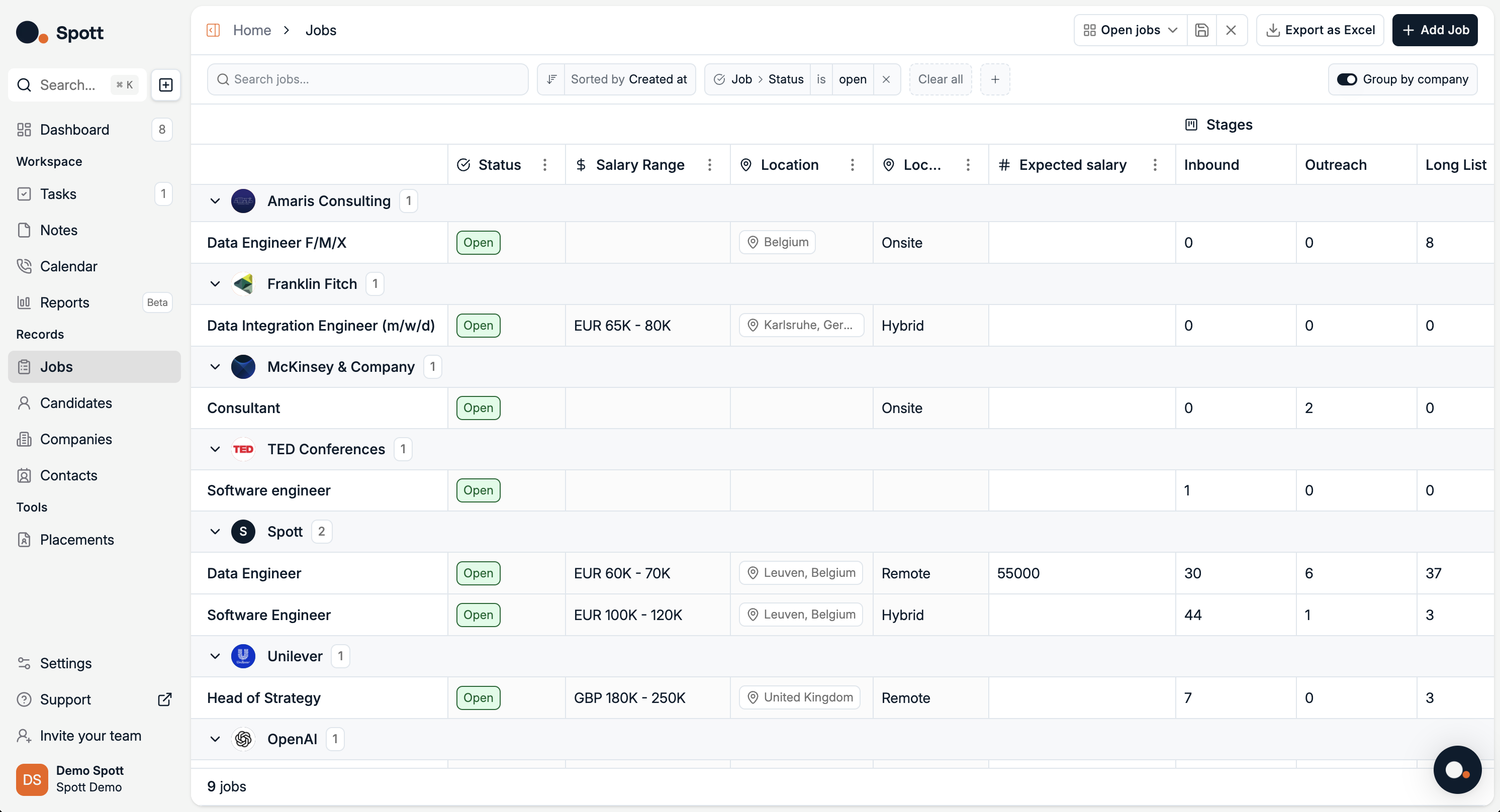
This view displays all active and upcoming roles that need to be filled.
2⃣ Start adding a new job
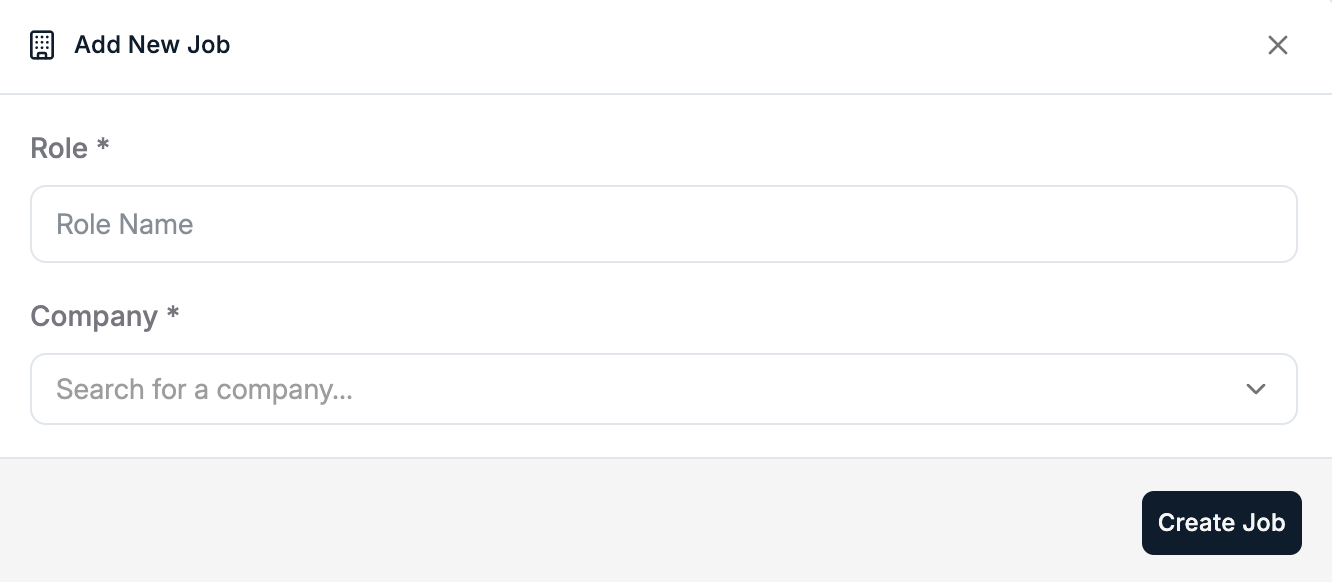
Click the Add Job button in the top-right corner of the screen.
In the job creation pop-up, complete the two main selections:
Role, the job title or position you are adding
Company, the client this job belongs to
3⃣ Create the job record
After selecting the role and client, click Create Job at the bottom-right of the pop-up window.
Your new job will be created and will appear in the Jobs list with its own detail view.
4⃣ Fill in job details
The job detail view contains multiple tabs for managing the role.
Start with the Details tab to define the sourcing criteria.
You can add sourcing criteria by:
Uploading a file, for example a job description document
Linking/Uploading a note from internal discussions or meetings
Typing criteria manually, such as responsibilities, requirements, and qualifications
Using AI to generate or summarize details.
The AI generation feature uses your uploaded files, notes, and typed text as context to create a complete and polished job description.
In the Details tab, you can also click Regenerate Details to:
Summarize your existing job description into a concise format
Automatically fill in missing information based on the provided content
Rewrite the description for clarity or improved candidate engagement
5⃣ Manage the job through its tabs
Once the job is created, you can manage it using the tabs inside the job record. You can deep dive into each of the tabs described below here.
Pipeline tab
Track candidates through each stage of your hiring process:
Move candidates between stages, for example Applied, Shortlist, Interview, Offer
Update statuses and add notes
By clicking on a Candidate, you can quickly take Action: Send an Email, Register Client Interviews, Present the Candidate to a client
Place or Reject Candidates
Advertising tab
Create a public vacancy posting for the role:
Write it from Scratch or Copy and Paste it in the right-hand panel
Automatically generate a full vacancy description from your job details using AI
The AI uses the full context from the job, and formats it using a template from the settings, which you can customise to your taste.
Publish the vacancy:
By linking it to a LinkedIn Recruiter Project
By creating a Spott Job Board Posting. Find more information about this topic here.
By posting an advert with Broadbean. Find more information about this topic here.
Candidates who apply will be visible under the Inbound Tab.
Matching tab
Automatically find the most relevant candidates based on your sourcing criteria:
View a ranked list of candidates from your database
Add matched candidates directly into your pipeline
See it in action in this video
Inbound Tab
View candidates who applied to your vacancy:
Review and qualify inbound applications
Move candidates directly into the pipeline
Matching will also rank inbound candidates
Company Portal Tab
Present Candidates to your clients:
Select candidate you want to present and publish them on the portal
Select fields that will be visible to clients
Open the Portal and give clients access to it
Just copying the link will not work to give clients access to the portal. You need to send them an invite by pressing "Manage Portal Access".
Files tab
Add and track files related to the job or vacancy such as a job description or a briefing document from a client
Notes tab
Add and track notes related to the job or vacancy
By enabling the Spott Notetaker, all meetings get transcribed and summarized into a note attached to the job
Notes serve as context for all AI features
Tasks tab
Add and track tasks related to the job or vacancy:
Assign follow-up actions to yourself or team members
Set due dates and track completion
You can deep dive into each of the tabs described here above here.
Each tab focuses on a different part of the recruitment workflow, from publishing the role to sourcing candidates and managing applications and tasks.
Each job in Spott is linked to a specific client. Make sure the correct client is selected before creating the job to avoid rework.