Understanding Spott's Matching Tool
Last updated: January 5, 2026
Learn how Spott’s Matching Tool helps you instantly identify the best candidates for any role.
You can quickly navigate to this page using G then J.
Learn more about all shortcuts here.
Matching in Spott uses AI to compare job requirements with candidate profiles, surfacing the most relevant matches in seconds. It highlights key skills, experience, and fit so you can focus on the strongest candidates first. Matches are fully integrated with your pipeline, making it easy to take action directly from the results.
Access a job’s Matching page
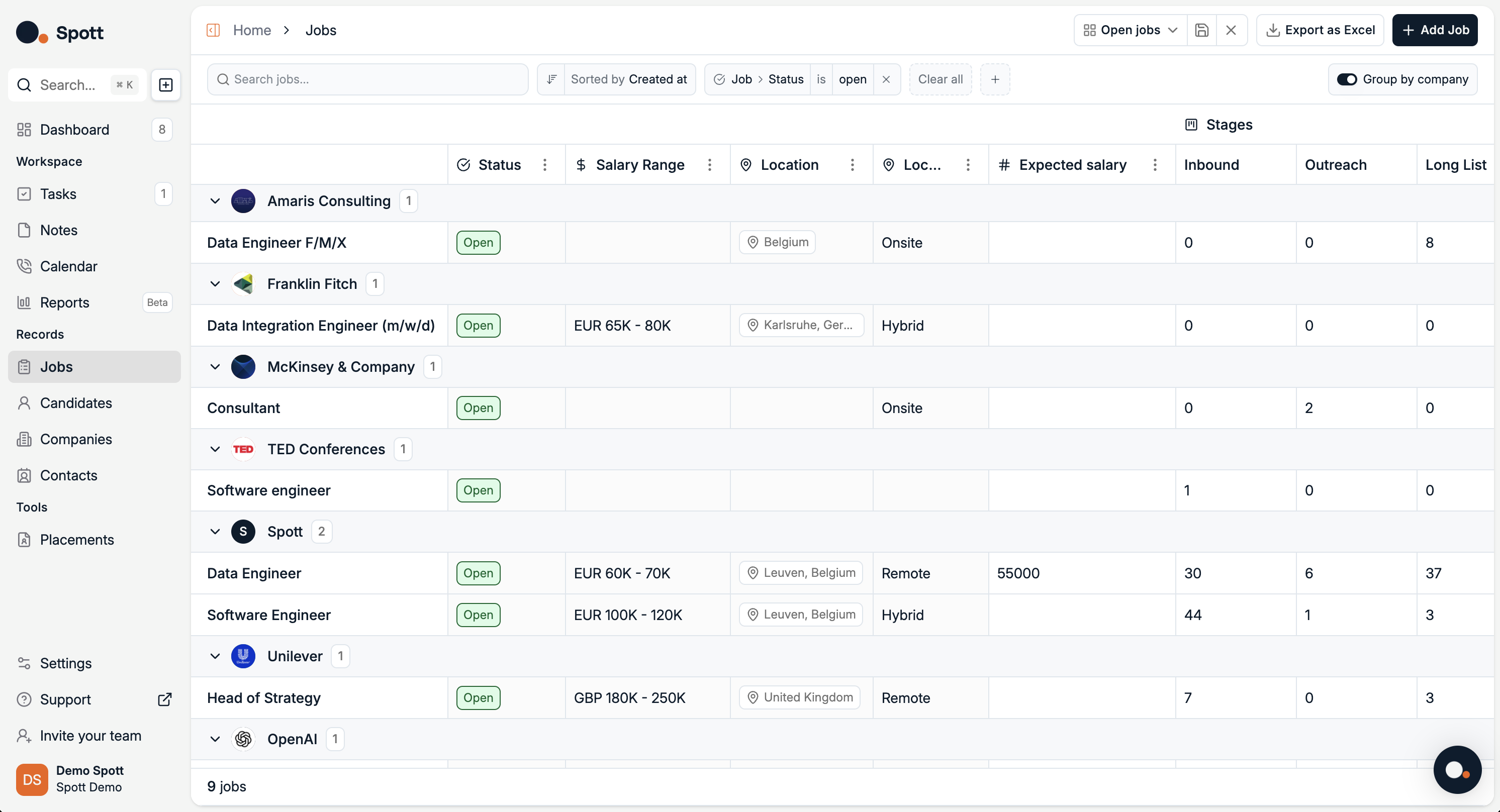
In Spott, go to Jobs.
Find the job you’re looking for. Make sure it’s under the right company or client.
Click on the job title.
Click on the Matching tab on the top ribbon.
Matching overview
AI Matching – First time setup
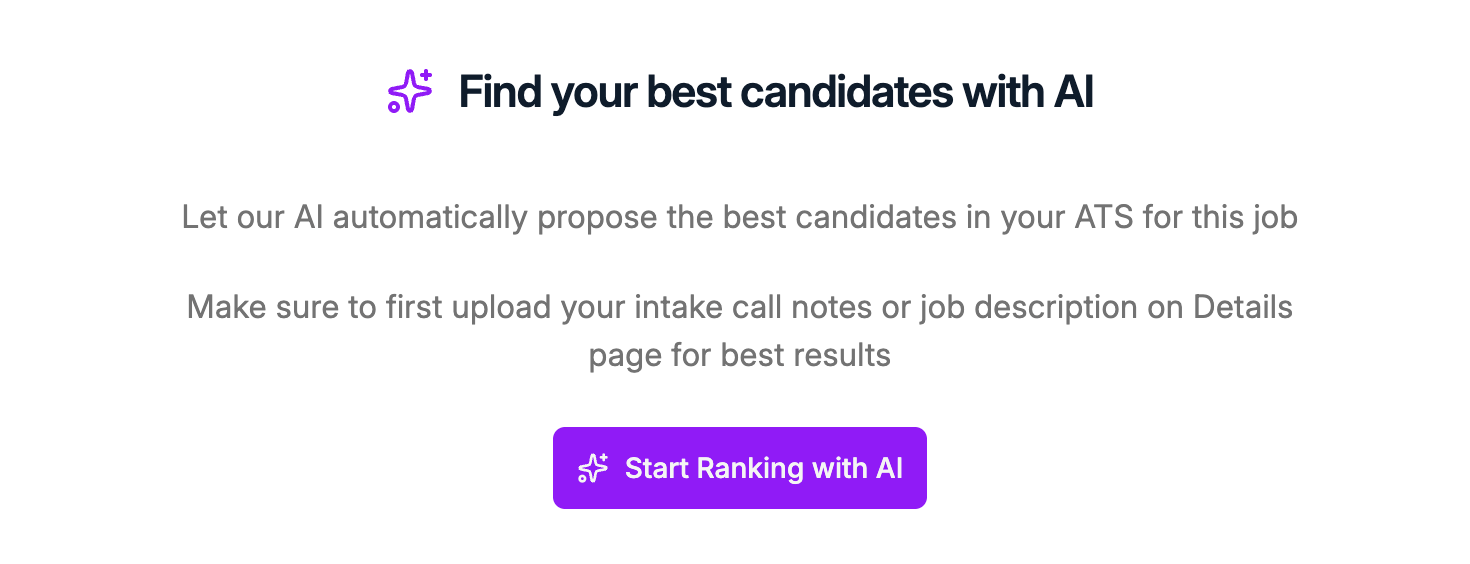
When you open the Matching tab for the first time, you’ll see the AI introduction screen.
How it works
Spott’s AI automatically proposes the best candidates from your ATS for this role.
To get the most accurate ranking:
Upload intake call notes
Or add a detailed job description in the Details tab
Start ranking
Click Start Ranking with AI to begin.
The system will:
Analyze your job context in the Details and Job Portal tabs
Rank all available candidates
Display the strongest matches in a sortable list
After the initial ranking, you can update or refine results anytime by editing ranking criteria.
AI Matching – Overview page
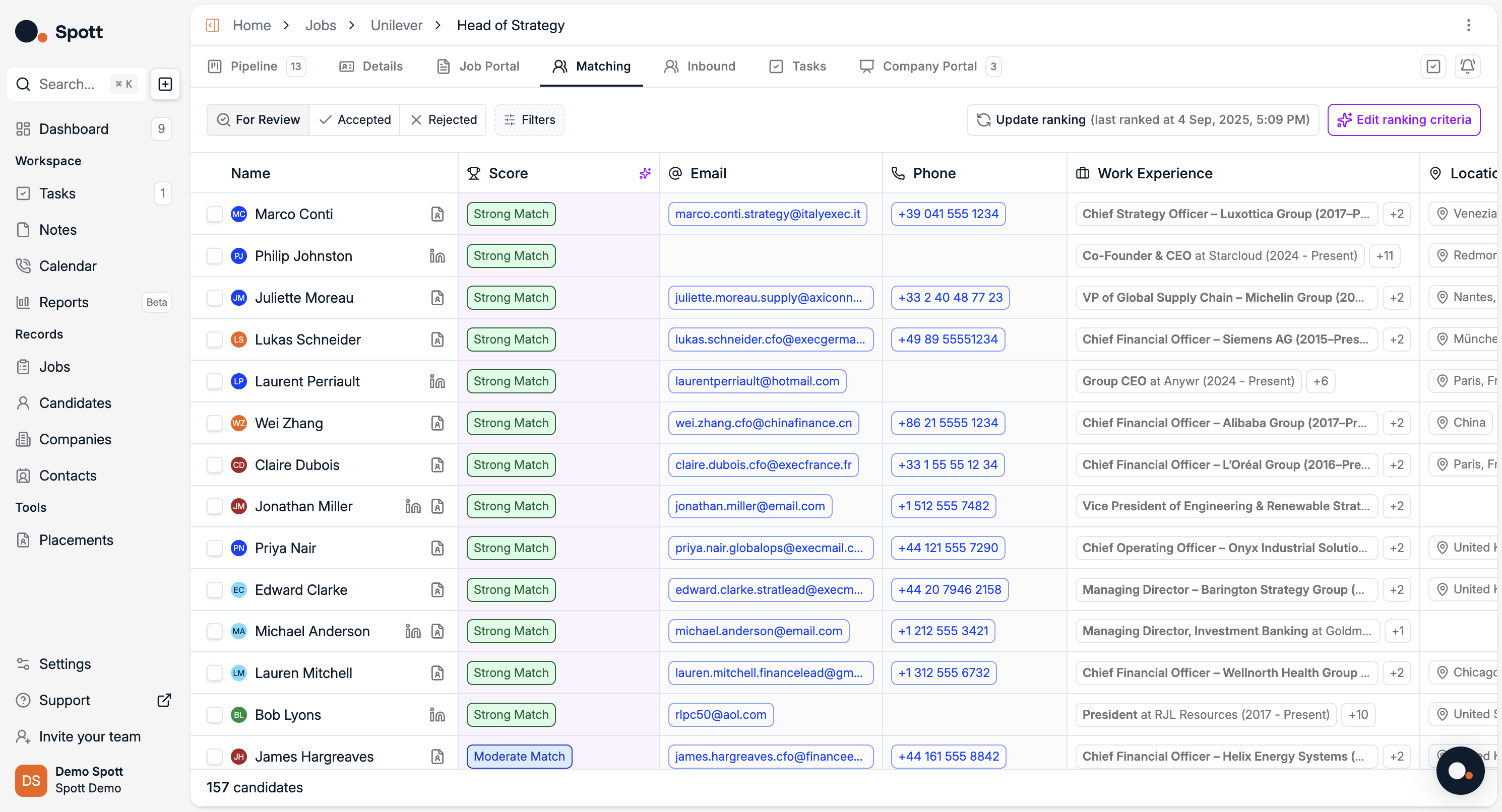
The Matching tab helps you automatically evaluate and rank candidates for a specific role.
Candidate list
Each row includes, among others:
Name
Match score (Strong Match, Moderate Match, etc.)
Email and phone, click to contact directly
Work experience, most recent roles with expandable details
Location
Ranking
Update Ranking, recalculate scores based on the latest data
Edit Ranking Criteria, customize weighting factors such as experience, skills, or location
Candidate status
Filter candidates by:
For Review
Accepted
Rejected
Workflow
Review candidates with the highest match scores
Accept strong fits into your Pipeline
Reject candidates who don’t align with requirements