Understanding Spott's Company Portal
Last updated: February 25, 2026
Learn how Spott’s Company Portal gives clients direct access to jobs, candidates, and placements.
You can quickly navigate to this page using G then J.
Learn more about all shortcuts here.
The Company Portal in Spott is a secure space where your clients can view their open roles, track candidate submissions, and collaborate with your team. It reduces back-and-forth communication, keeps all stakeholders aligned, and ensures clients have real-time visibility into the hiring process.
Access a job’s Company Portal page
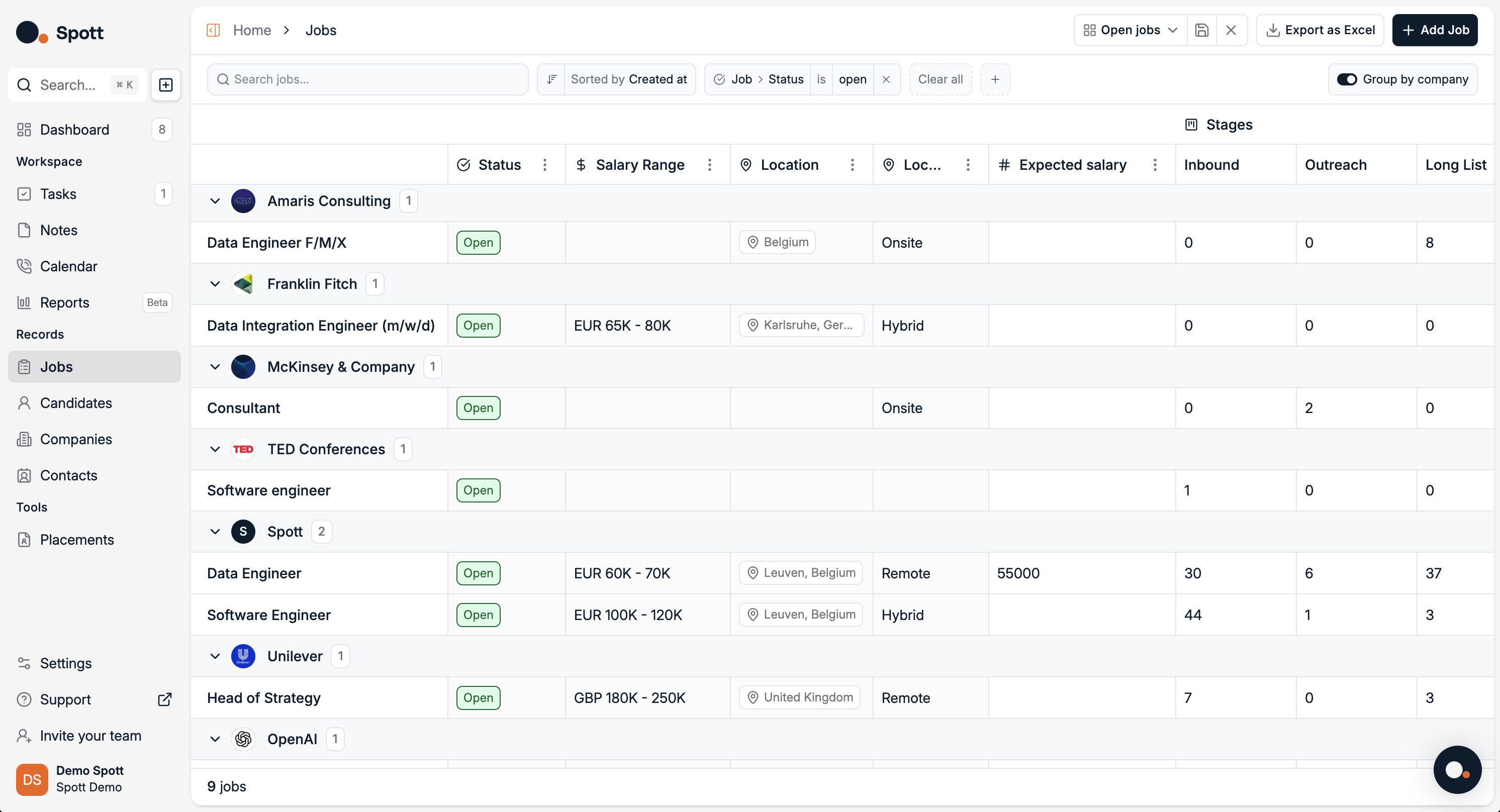
In Spott, go to Jobs.
Find the job you’re looking for. Make sure it’s under the right company or client.
Click on the job title.
Click on the Company Portal tab on the top ribbon.
Company Portal overview
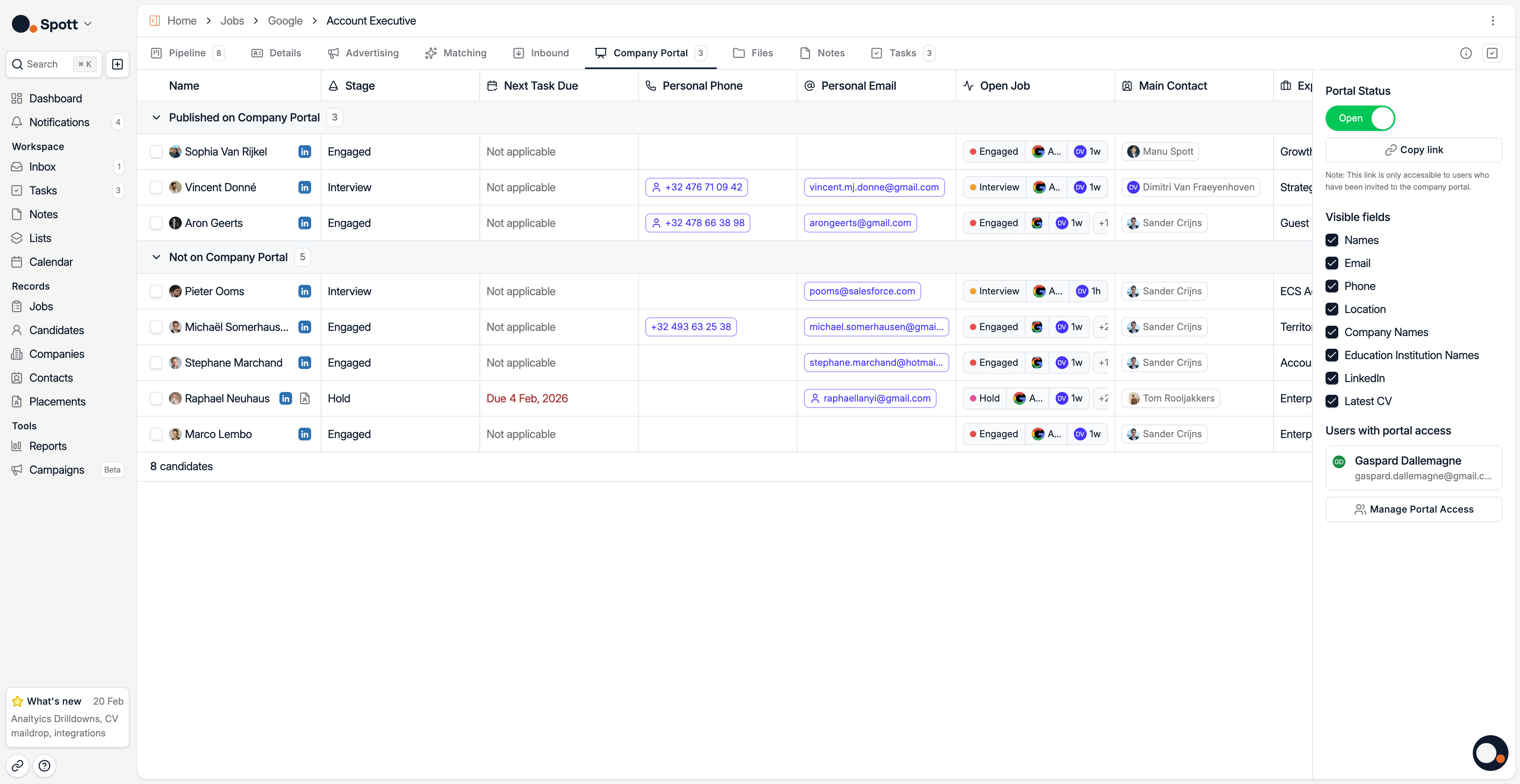
The Company Portal lets you securely share selected candidates with your client.
Publishing candidates
Move candidates in or out of the portal view to control visibility.
Published on Company Portal, visible to the client
Not on Company Portal, internal only
To publish one of the Candidate from your pipeline on the portal:
Hit the checkbox next to the Candidate Picture
Select "Publish on portal"
Portal controls
On the right panel you can:
Portal status, open or close the portal
Copy link, this link is intended for testing purposes only. It allows you to preview exactly what your clients will see. Please note that it is not functional for clients and should not be shared externally.
Visible fields, choose which candidate details to show, such as name, email, phone, location, company, LinkedIn or CV.
Manage portal access, invite or manage client contacts with access. This will send an email to your client with a unique link they can use to access the portal.
Only contacts registered under the Account associated with the relevant job can be invited to access the portal.
Clients should not log out of the portal, as they will not be able to log back in — even if they still have the original link. Instead, they can simply close the browser window. As long as they do not log out, they can continue accessing the portal using the same link.
Workflow
Select which candidates to publish
Configure visible fields to hide or show details
Share the secure portal link with the client
Manage which client contacts have access to the portal