Using the Dashboard
Last updated: February 25, 2026
Get an overview of your performance, pipeline, and daily activity in one central place.
You can quickly navigate to this page using G then D.
Learn more about all shortcuts here.
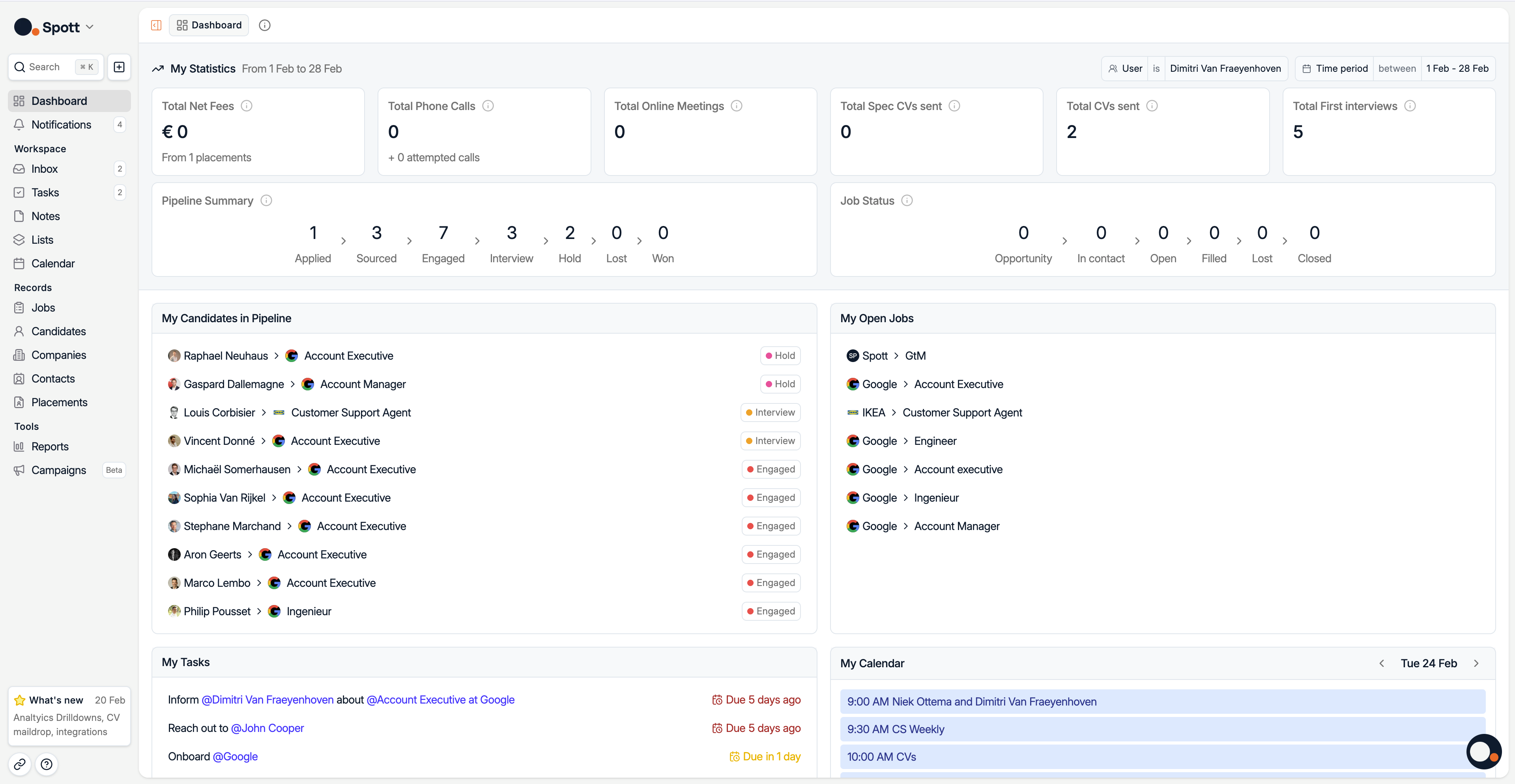
The Dashboard gives you a real-time snapshot of your recruitment activity — from placements and calls to open jobs and candidate progress.
1⃣ Access the Dashboard
Click Dashboard in the left-hand navigation bar.
This is your personal home screen when opening Spott.
2⃣ View your statistics
Use the user filter to adjust who's included in your overview (only you or other team members). Use the date filter on the top right to adjust your reporting period (for example, “This Month,” “Quarter to Date,” or custom ranges).
The top section shows your key performance metrics for a selected period:
Total Net Fees – The total net fees generated from successful placements.
Total PhoneCalls – The number of completed and attempted calls logged in Spott.
Total Online Meetings – Online Meetings scheduled or completed.
Total Speculative CVs sent – Total candidates presented speculatively
Total CVs sent – Total candidates presented for a Job
Total CVs sent – Total candidates presented for a Job
Total First Interviews – Total candidates interviewed for a Job
Pipeline Summary - Number of Applications for Open Jobs of which I am assigned as the Application Owner (per stage)
Job Status - Number of Jobs by Status for which I am assigned to the internal team, broken down per status
Total Net Fees, Pipeline Summary and Job Status are clickable, so you can drill down into the numbers and see who's behind the aggregated number.
3⃣ Track your candidates in pipeline
The My Candidates in Pipeline widget summarizes all candidates you are currently managing across job stages.
Each candidate card shows:
Candidate name and current company or job
The client or job they are associated with
The current stage (Short List, Presented, Placed, etc.)
This view helps you stay on top of every candidate’s progress without opening each job individually.
4⃣ Monitor your open jobs
The My Open Jobs section lists all active positions you own or collaborate on.
Clicking a job name takes you directly to its job page for detailed progress tracking.
Use this to quickly see where your active searches stand and which clients you’re currently hiring for.
5⃣ Stay on top of your tasks
The My Tasks section shows your to-dos, follow-ups, and reminders, sorted by due date.
Each task includes:
Linked candidate or job
Short description or note
Due date indicator (red for overdue)
You can complete or edit tasks directly from this view.
6⃣ Check your calendar
The My Calendar widget syncs with your connected calendar (Google or Outlook) to show upcoming calls, interviews, and meetings.
Calendar events are automatically linked to the relevant candidates or jobs whenever possible.
The Dashboard updates in real time as you log calls, add candidates, or move them through stages — making it your central hub for daily recruiting activity.