Contact and Candidate Enrichment
Last updated: February 26, 2026
Automatically enrich Candidate and Contact profiles with email addresses and phone numbers using Spott’s enrichment engine.
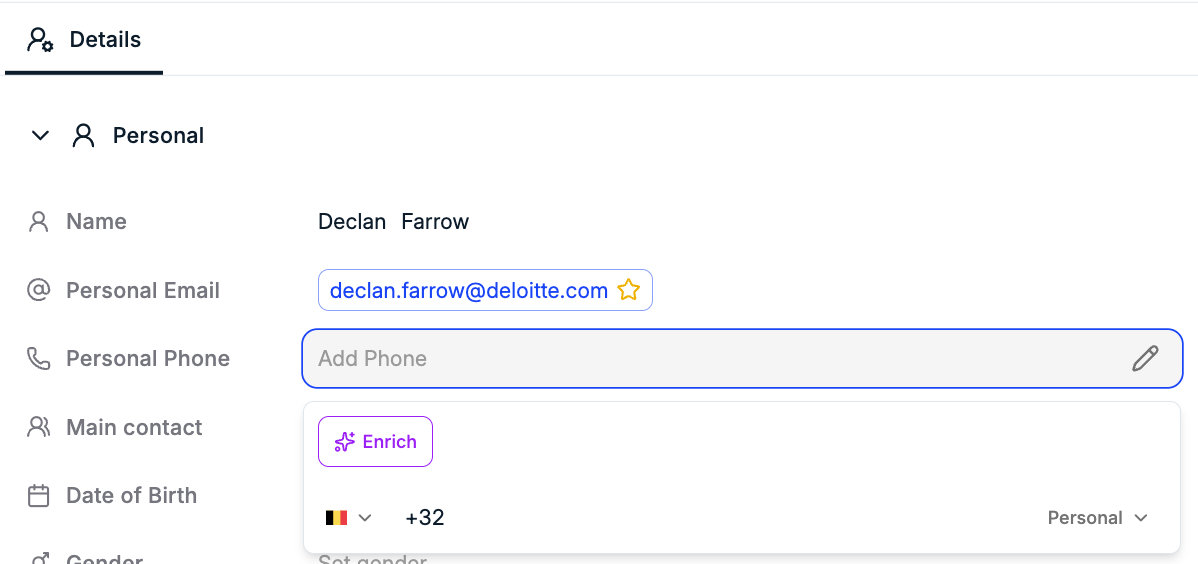
Enrichment in Spott helps you complete Candidate and Contact profiles by automatically finding missing email addresses, phone numbers, LinkedIn URL or updating their profile based on their current LinkedIn.
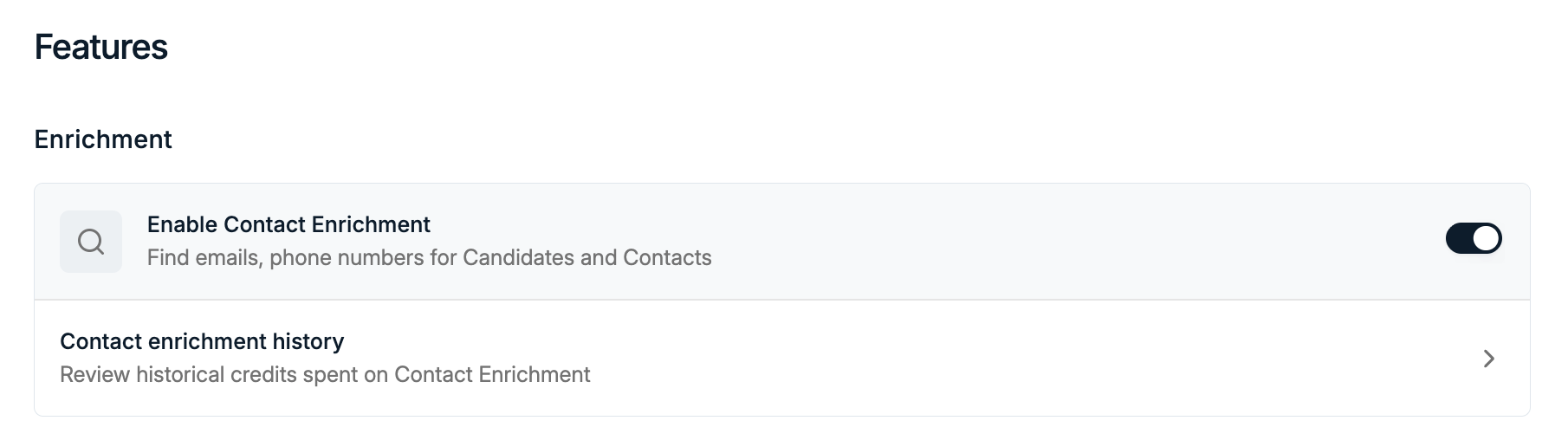
Enrichment is managed from Settings → Features and can also be triggered directly from Candidate and Contact profiles.
Spott uses a waterfall enrichment system, combining multiple data sources to maximize accuracy and coverage, with an average +80% find rate.
Spott uses a waterfall approach, meaning multiple providers are tried until data is found or all sources are exhausted.
Enrichment credits
Enrichment uses credits based on the type of data that is successfully found:
Email enrichment costs 1 credit
Enrich LinkedIn URL costs 1 credit
Auto-Update Profile from LinkedIn costs 5 credits
Phone enrichment costs 10 credits
Credits are only deducted when enrichment is successful.
Enable Contact Enrichment
1⃣ Open Features in Settings
Navigate to Settings → Features.
2⃣ Enable Contact Enrichment
Toggle Enable Contact Enrichment on to allow enrichment for Candidates and Contacts.
Enrich a Candidate or Contact Email, Phone Number or LinkedIn URL
You can enrich profiles directly from both Candidates and Contacts.
To enrich a person:
Open a Candidate or Contact profile
Click into an empty email or phone number field
Click the purple AI Enrich button that appears
Spott will attempt to enrich the selected field
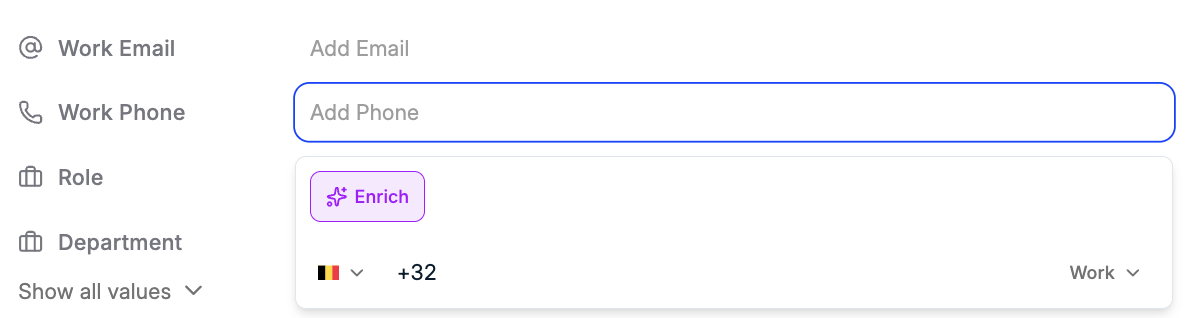
You can also trigger enrichment from the Candidate or Contact view by selecting the checkbox next to a person’s name.
Enrich Profile from LinkedIn
You can enrich both Candidates and Contacts from LinkedIn.
To enrich a person:
Open a Candidate or Contact profile
Click on the Experience Tab
Click the Enrich from LinkedIn Button
Spott will attempt to enrich the profile. This will take a couple of minutes
From the Settings, you can also configure automatic profile updates by defining a number of profiles to update within a specific time window.
Enrichment history
You can review enrichment usage from Settings → Features by opening Contact enrichment history.
On the history page, you can see:
Historical credit usage
Which profiles were enriched
Whether enrichment was successful
How many credits were deducted
Managing credits
If you need more enrichment credits, you can purchase them from the Billing page:
Go to Settings → Billing
Credits are shared across different features, such as enrichment and auto update, and are tracked centrally within your workspace.