Managing Candidates
Last updated: February 26, 2026
Learn how to navigate the Candidate Page in Spott, from centralizing information to tracking applications and chatting on multiple channels from one place .
1⃣ Access a Candidate Profile
From the left-hand navigation bar, select Candidates to open your job listings.
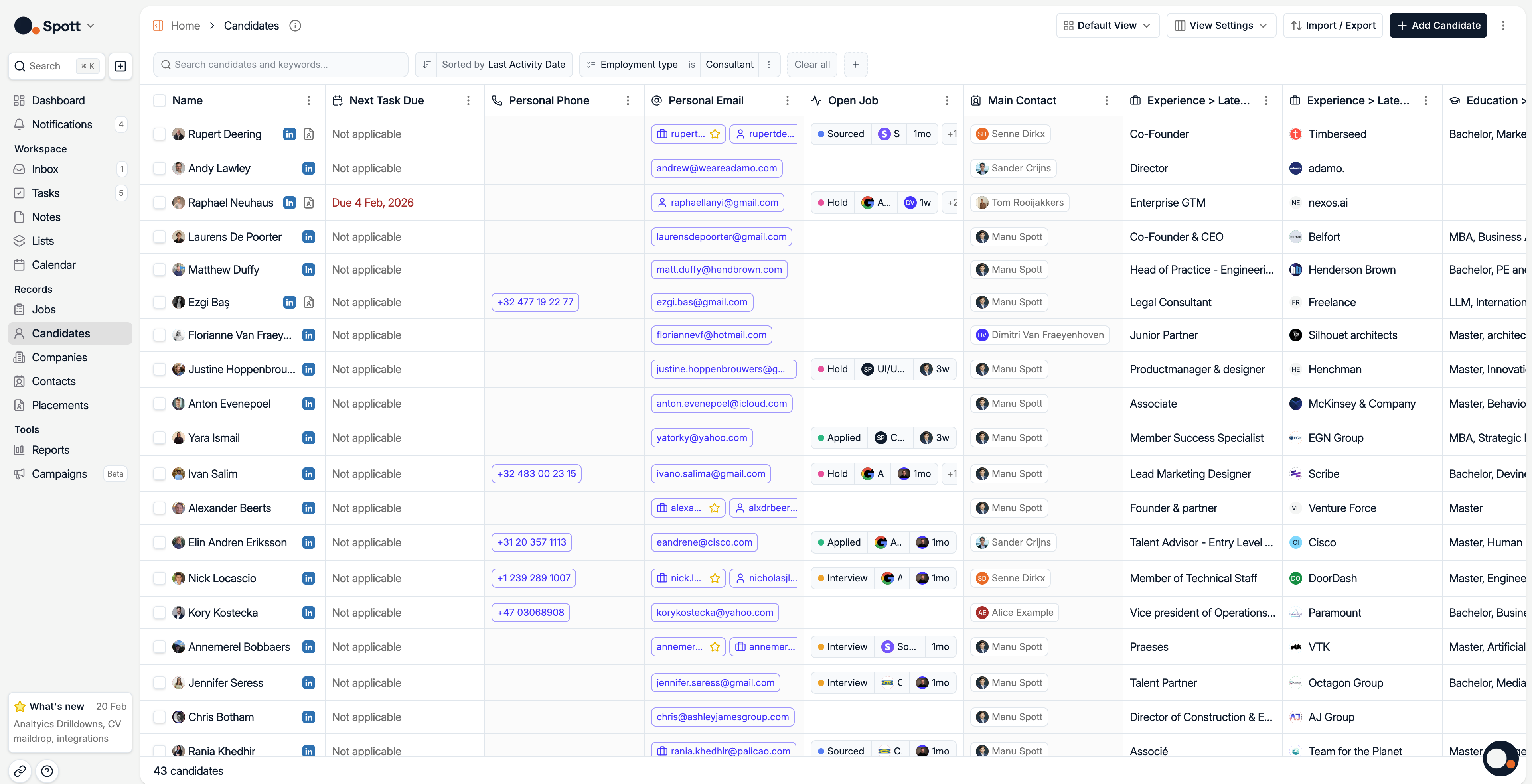
This view displays all candidates from your database. Click on the Candidate name to access its profile.
2⃣ Manage a Candidate through its Tabs
The Candidate Page is organized in Tabs

Overview Tab - Access all relevant Candidates information and context
Candidate Tab - Manage all ongoing Applications and explore potential ones
Inbox Tab - Access message history and reach out with Candidates on all channels
Add as Contact Button - In some situations, a Candidate can also be a Contact. This button lets you quickly create a Contact while keeping all of the information from this profile
The Overview and Candidate tabs each expand into a series of subtabs, which are explained in detail below.
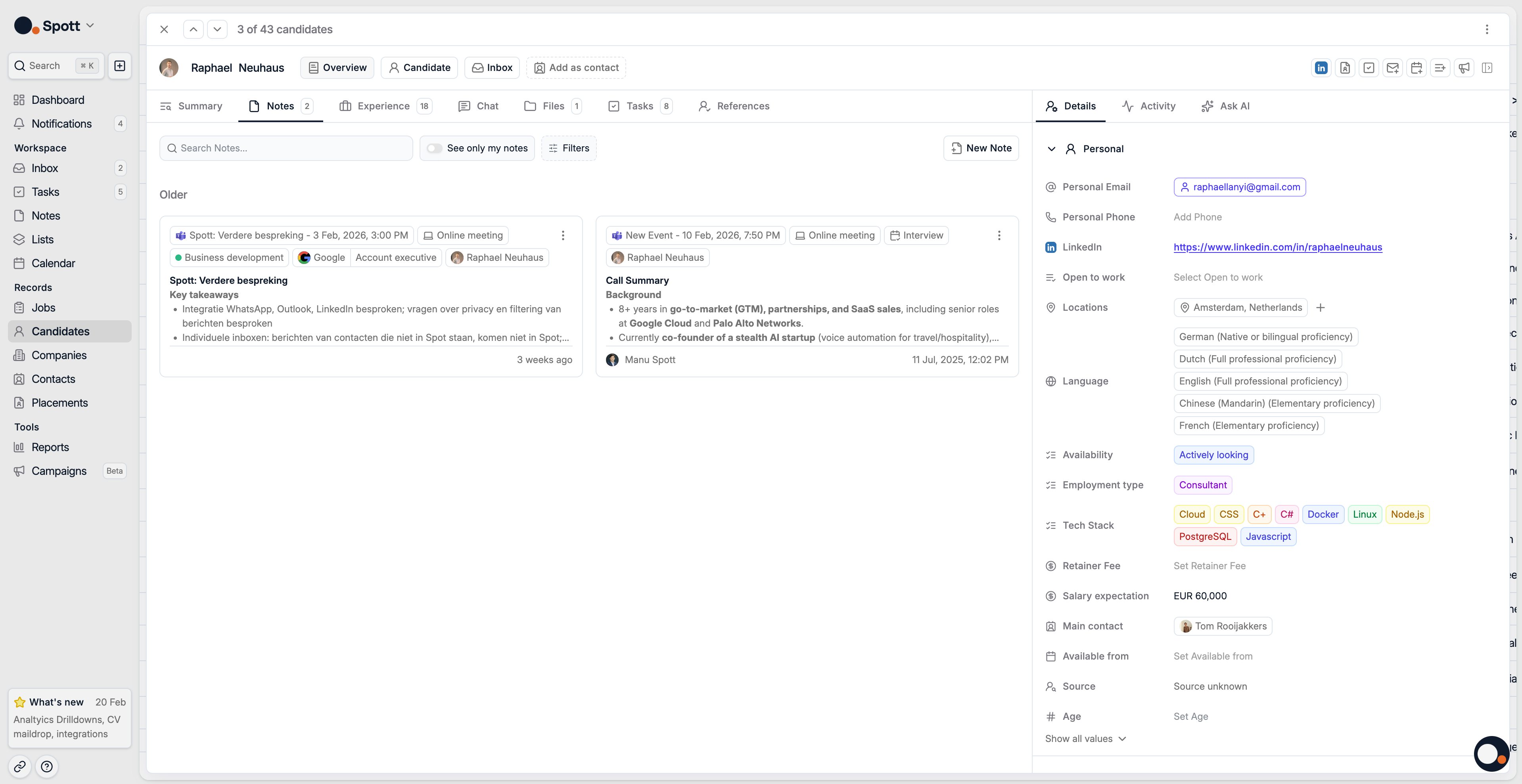
In the top-right corner, you’ll find a set of action buttons that allow you to quickly perform key actions directly from the Candidate profile.
Access to LinkedIn Profile
View CV
Create a Task
Send an Email
Send a Calendar Invite
Add to a List
Enroll in a Campaign
Overview Tab Subtabs
The overview tab is divided in two parts. The subtab on the right-hand side, and the side panel on the left-hand side.
Summary Subtab
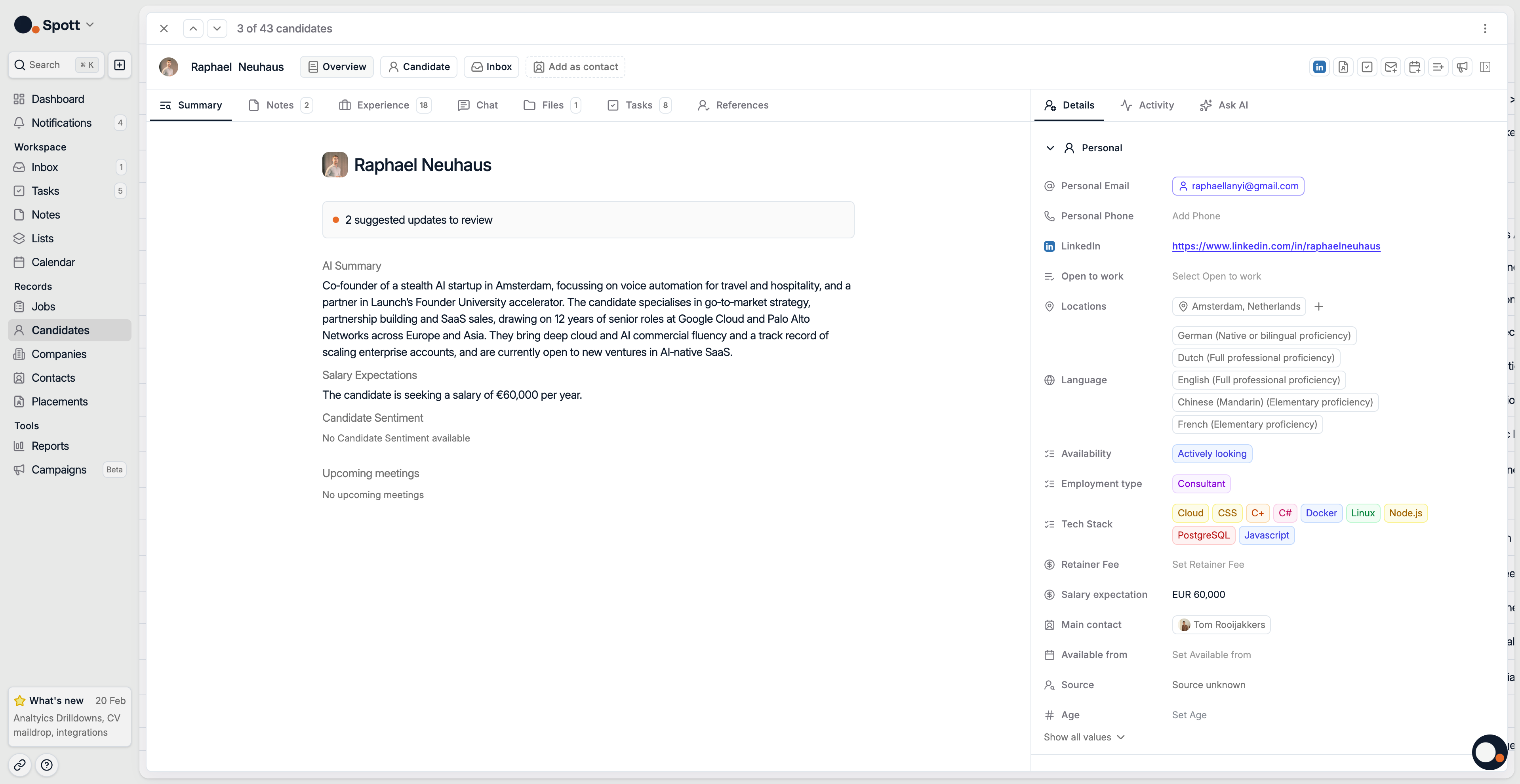
Based on the entire context from the candidate profile, the system provides:
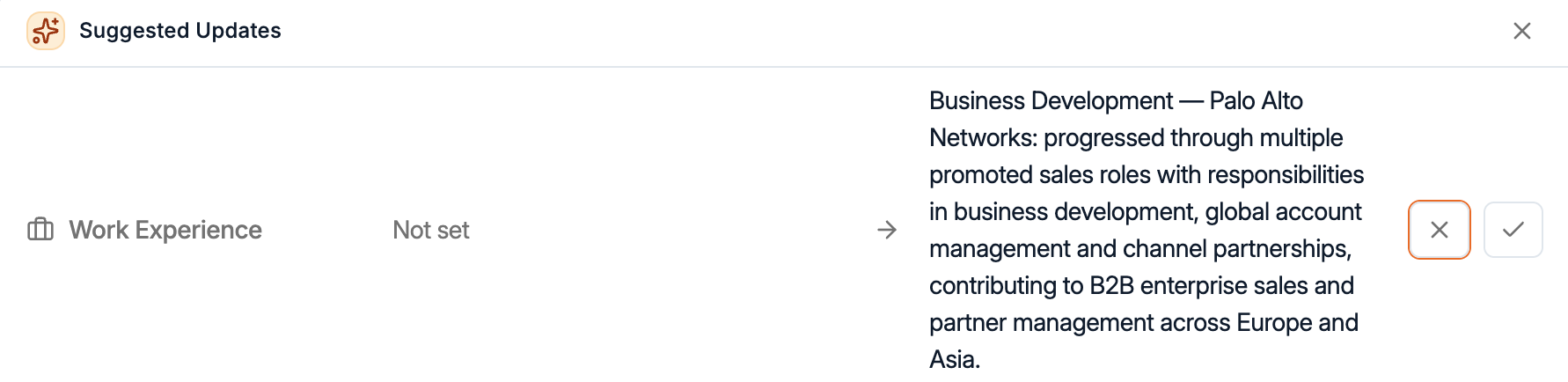
Suggested field updates based on recent conversations or emails
In this example, through a conversation captured by the notetaker, the system suggest enriching an item from the candidates's work experience with more details. You're always free to accept or reject suggested updates.
A short AI summary of the Candidate
Salary Expectations
Candidate sentiment based on recent conversations
Upcoming meetings
Notes Subtab
Add and track notes related to the candidate or one of their applications
By enabling the Spott Notetaker, all meetings get transcribed and summarized into a note attached to the candidate
Notes serve as context for all AI features
Experience Subtab
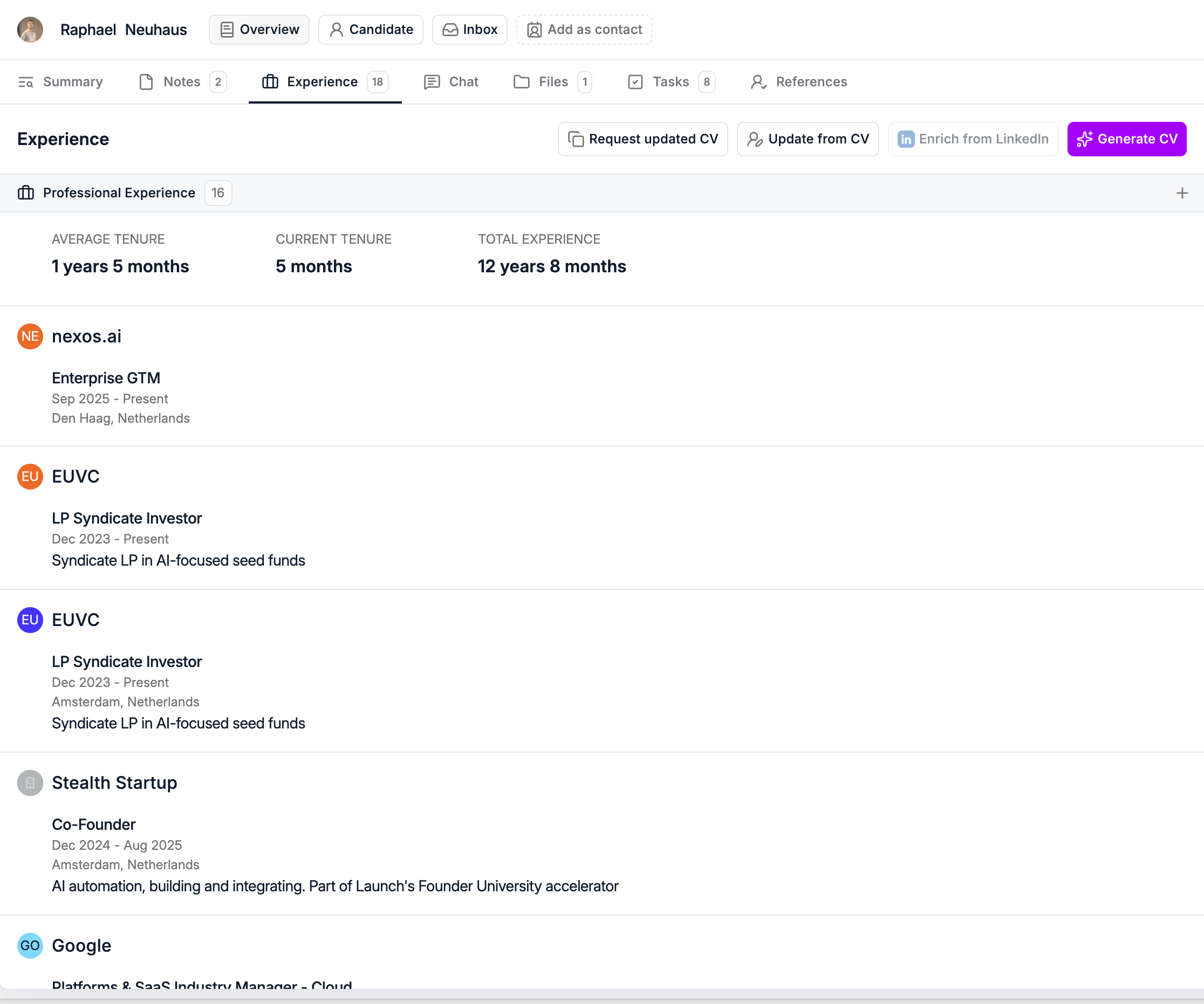
View, add and update candidate's professional experiences and education. Initially, the information in this subtab can be added in multiple ways:
Manually created
Parsed from a CV
Scraped from LinkedIn using the Chrome extension
Over time, you also have several ways to keep it up to date:
Manually, using the + sign
Request updated CV, share a link with the candidate to upload their latest CV
Update from CV, upload a new CV file (PDF or DOCX) yourself to trigger an automatic update.
Enrich from LinkedIn, to trigger an automatic update based on their LinkedIn Profile.
For more information on updating candidate profiles, navigate to this page.
Chat Subtab
View Message history Chat with candidates directly from Spott via Email, LinkedIn or WhatsApp.
Chats synchronisation is bi-directionnal, meaning that messages sent out of Spott will also be visible in the system and vice versa.
Files Subtab
Add and track files related to the candidate such as their CV.
By hitting on the three dots next to the Cv, you can generate a formatted CV so all CVs shared with your clients follow a standard template.
Tasks Subtab
Add and track tasks related to the job or vacancy:
Assign follow-up actions to yourself or team members
Set due dates and track completion
References tab
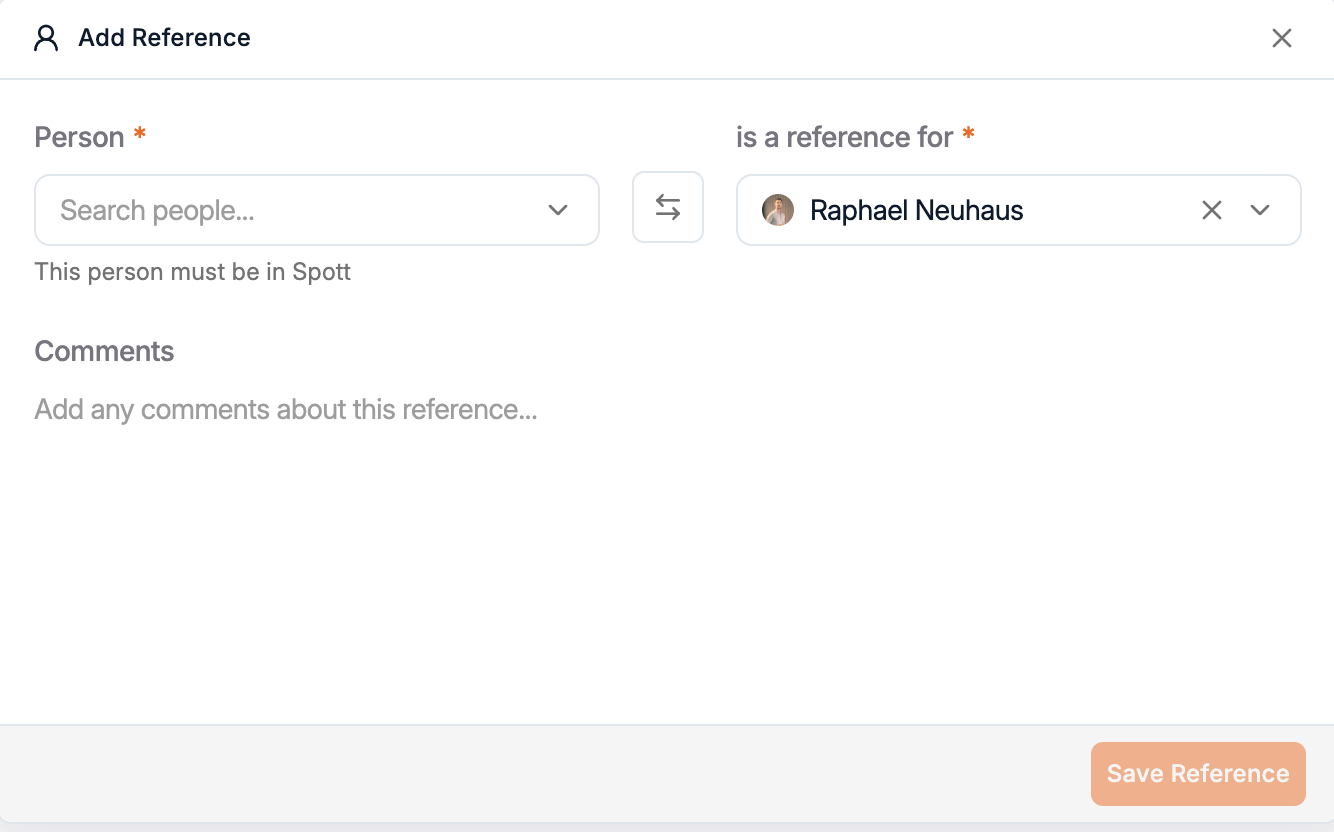
Log and track references for the candidate. Note the person must exist in Spott to be logged as a reference. For each reference, you can add comments.
Overview Tab Side Panel
Details Subtab
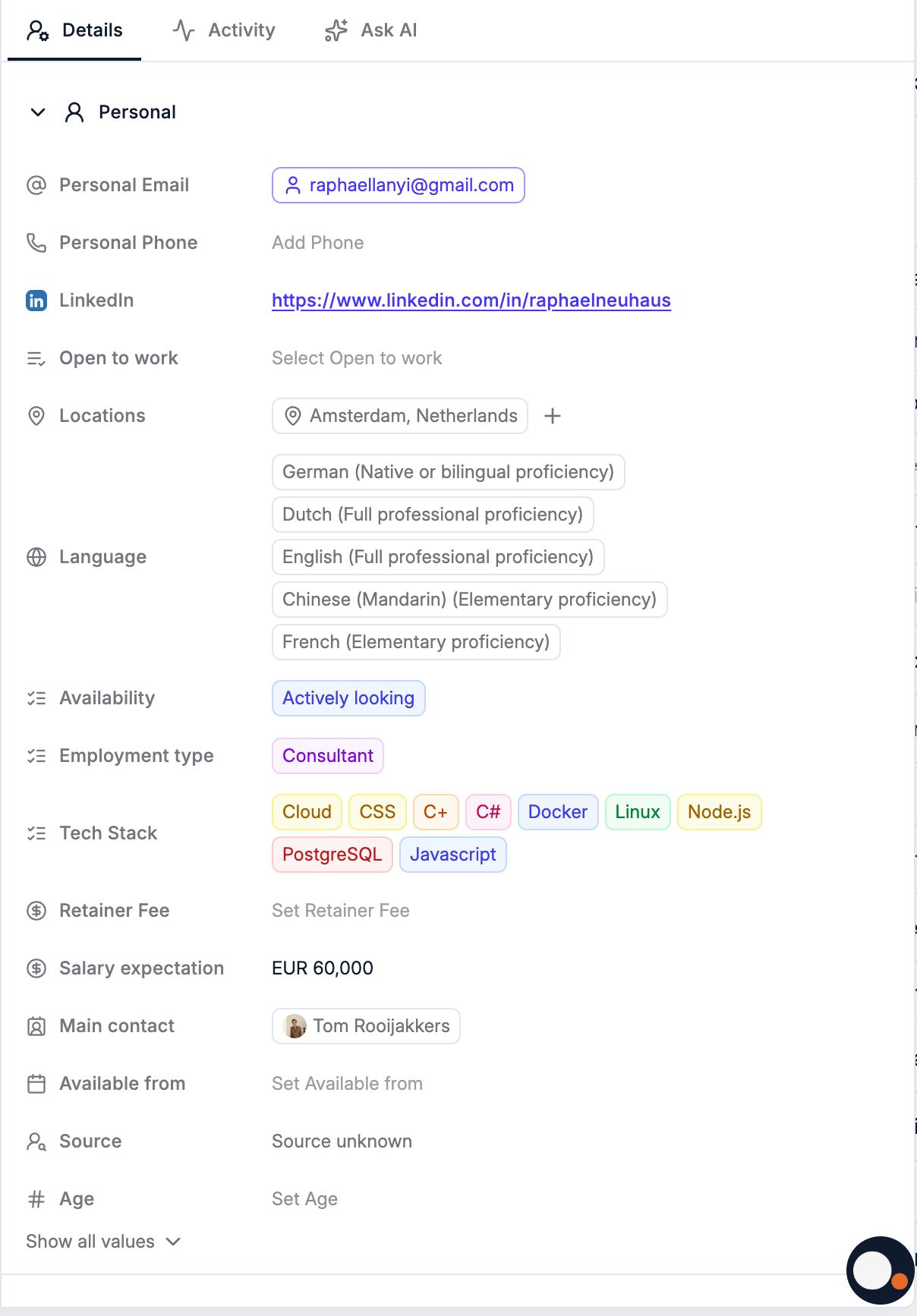
View, add and update candidate's details. Initially, the information be added in multiple ways:
Manually created
Parsed from a CV
Scraped from LinkedIn using the Chrome extension
Over time, you can update fields here.
In Settings, you can create new fields, reorder them, and customise which appear by default above the Show all values dropdown.
Activity Subtab
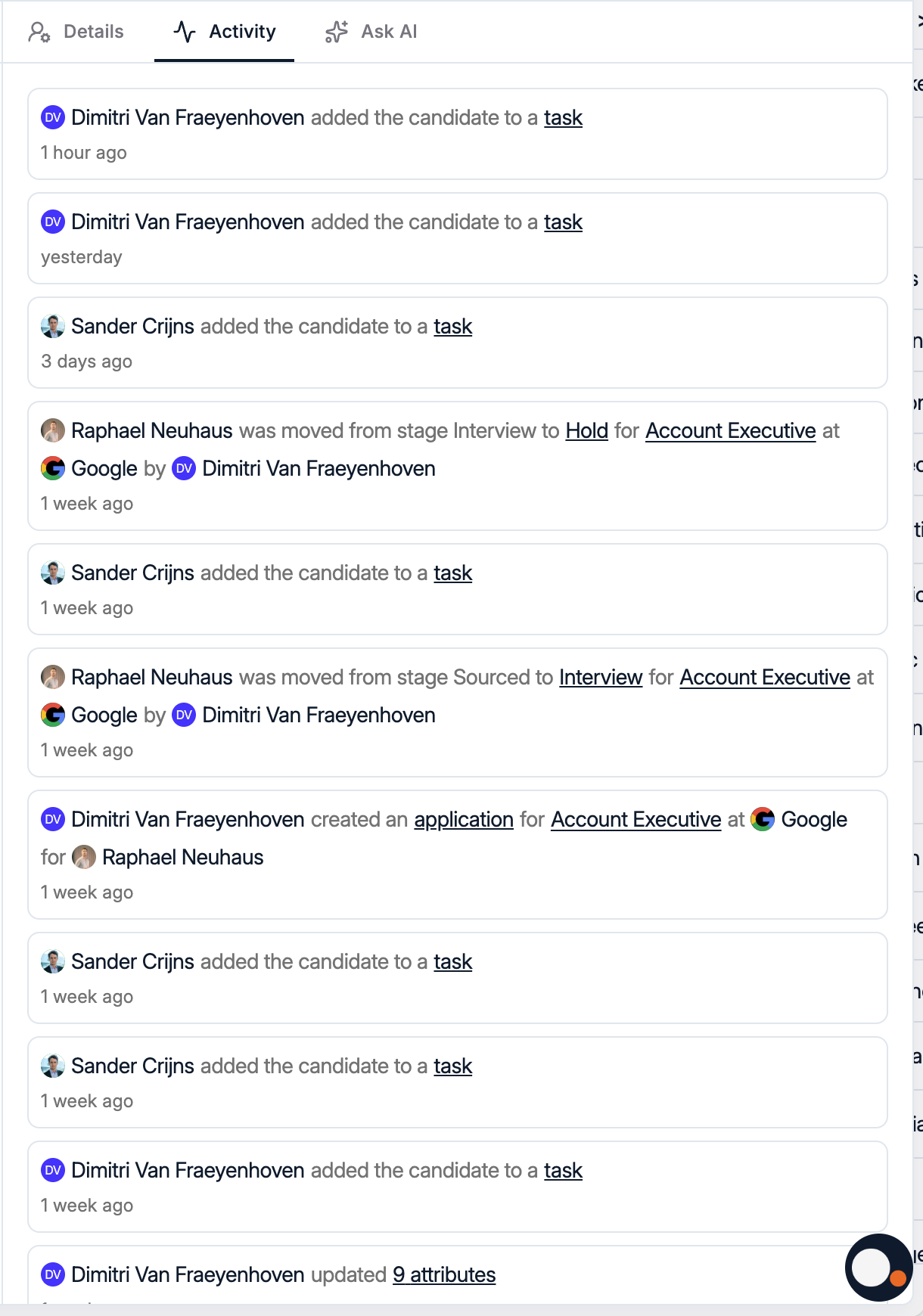
Monitor data and application updates for candidates and keep a record of who performed the change.
Ask AI Subtab
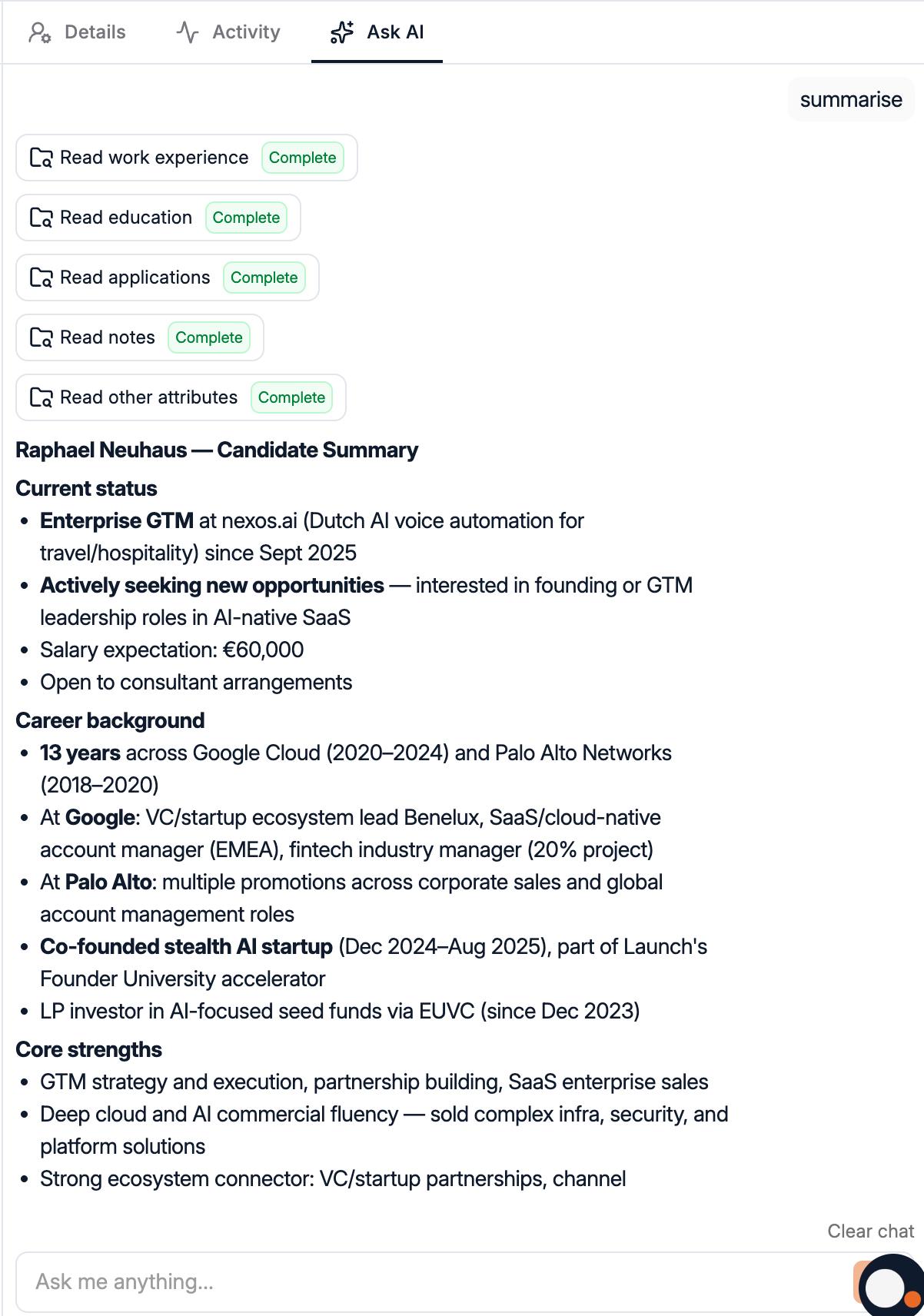
See this subtab as your personal agent who knows everything about your candidate: details, experience & education, notes, emails, applications. With all that context in mind, it is able to answer questions for you in record time. Here are a couple of examples:
Summarize the situation with the Candidate
Give me an Application Overview
What should I do next with this Candidate?
Candidate Tab
Overview Subtab
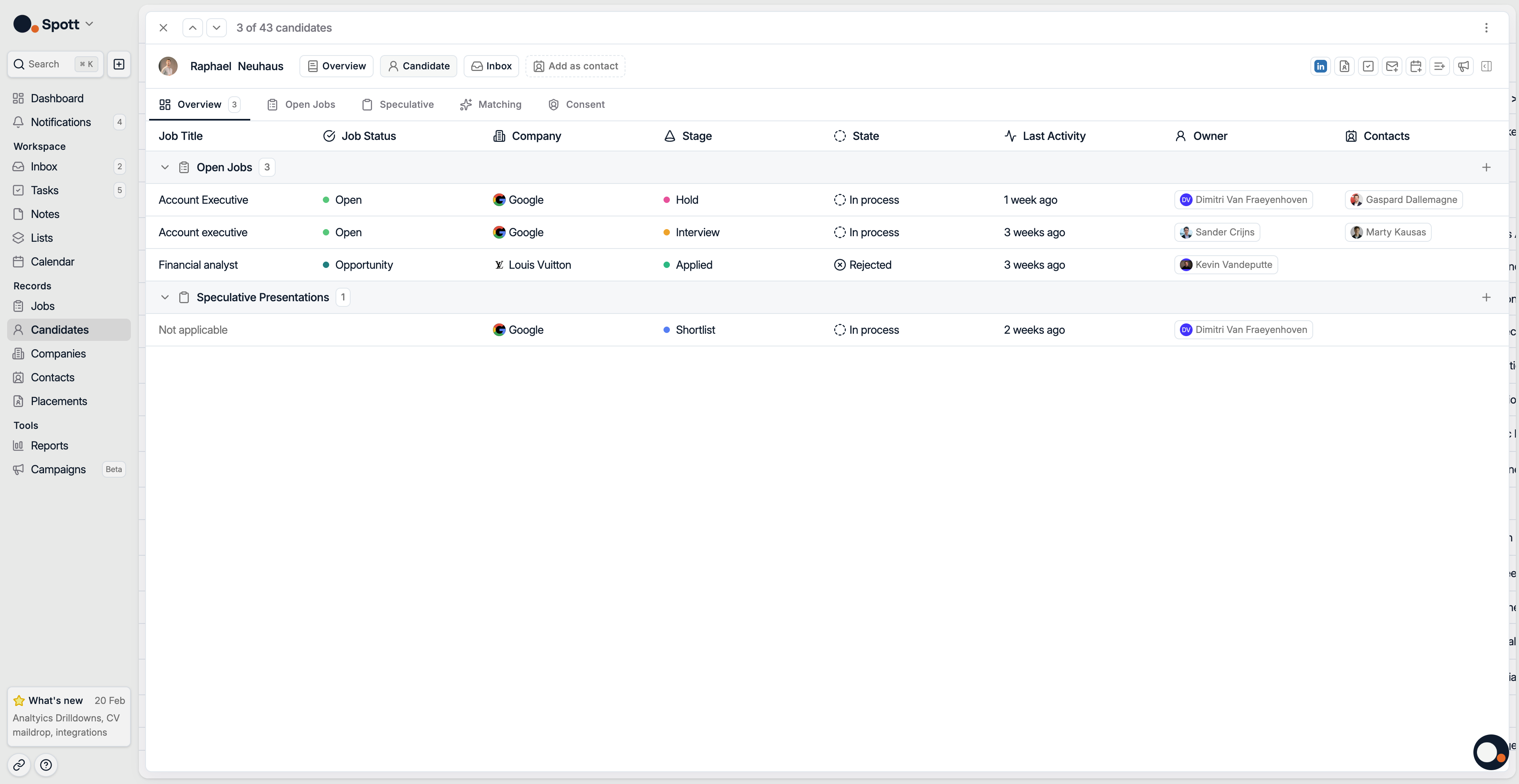
Get an overview of all the different processes the candidate is part of, both for open jobs and speculative presentations.
Open Jobs Subtab
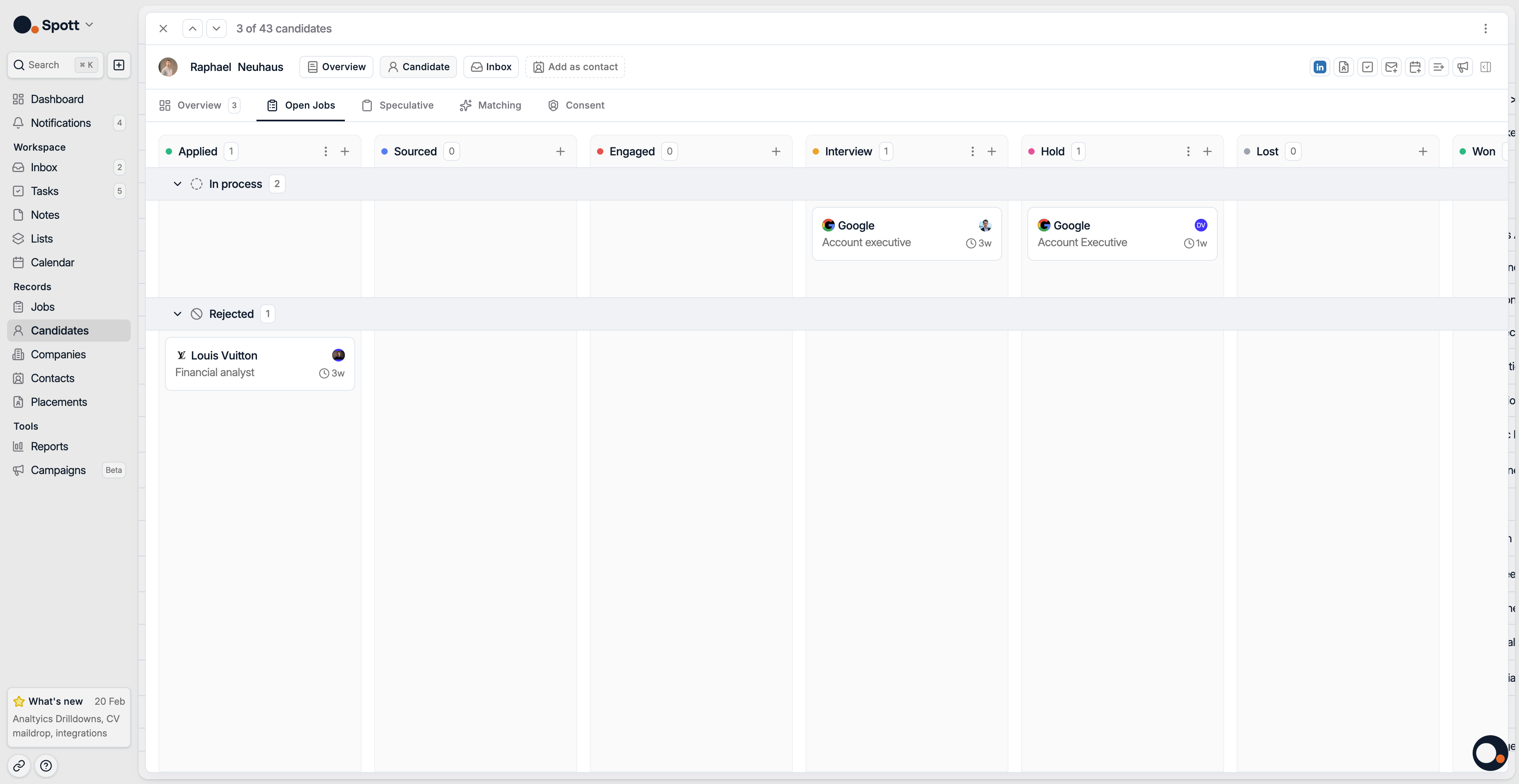
This tab provides an overview of all open job application processes the candidate is currently part of.
For each open job, you can view:
Company Name
Job Title
Time in Stage
Application Stage
Application Status
From this page, you can also move candidates forward in the hiring process. Click on the candidate card to access detailed information about that specific application and gain additional context.
Speculative Subtab
Use this tab to proactively introduce a strong candidate to a company, even when there is no open role. This allows you to present candidates you believe would be a great fit and create new opportunities.
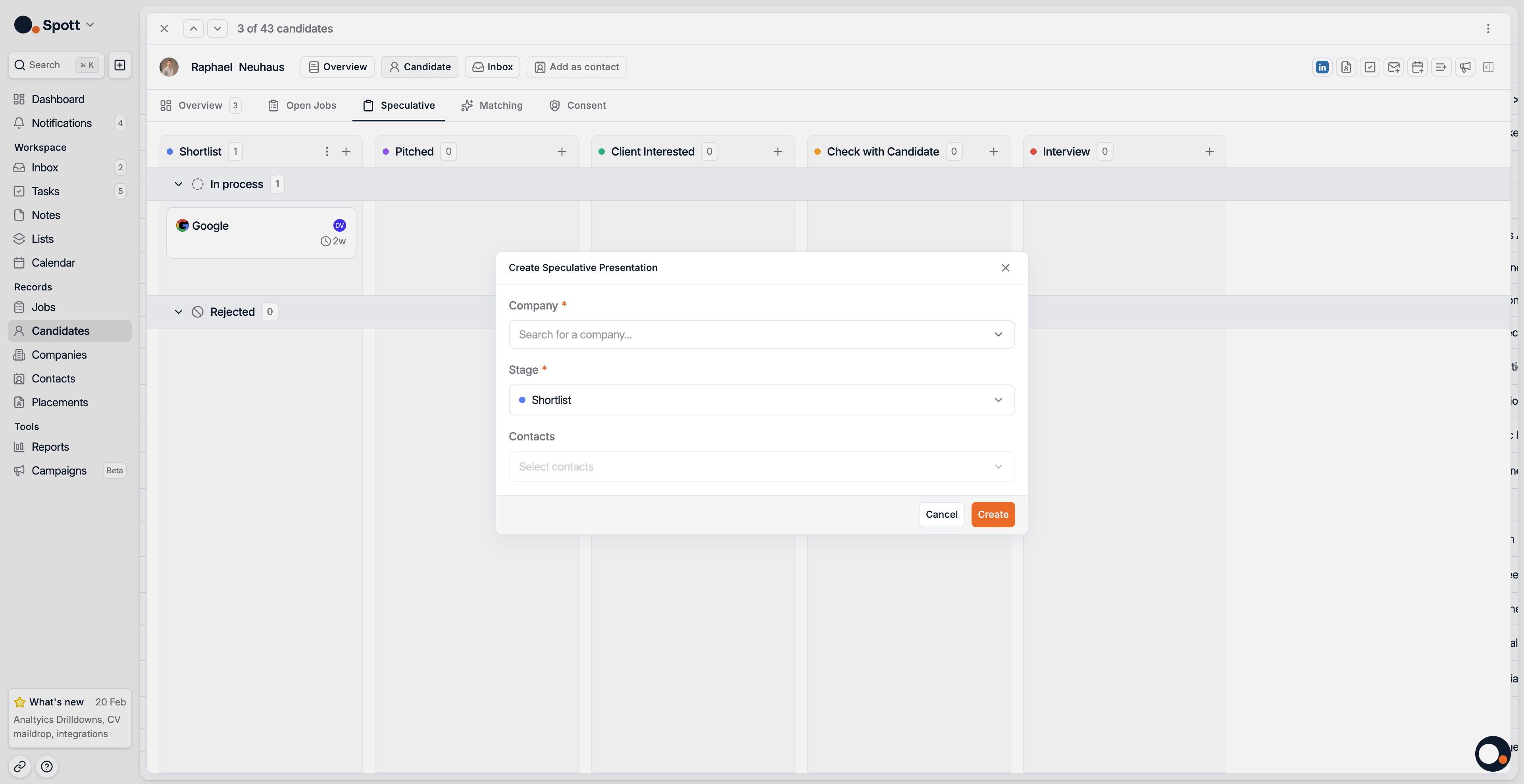
To create a new Speculative presentation, hit the + sign on in the top right corner of a column. Specify the company you want to proactively present to, and optionally a contact. Once created, you can move candidates forward in the process.
The stages of the Speculative Presentation process are fully customizable from the Settings.
Matching Subtab
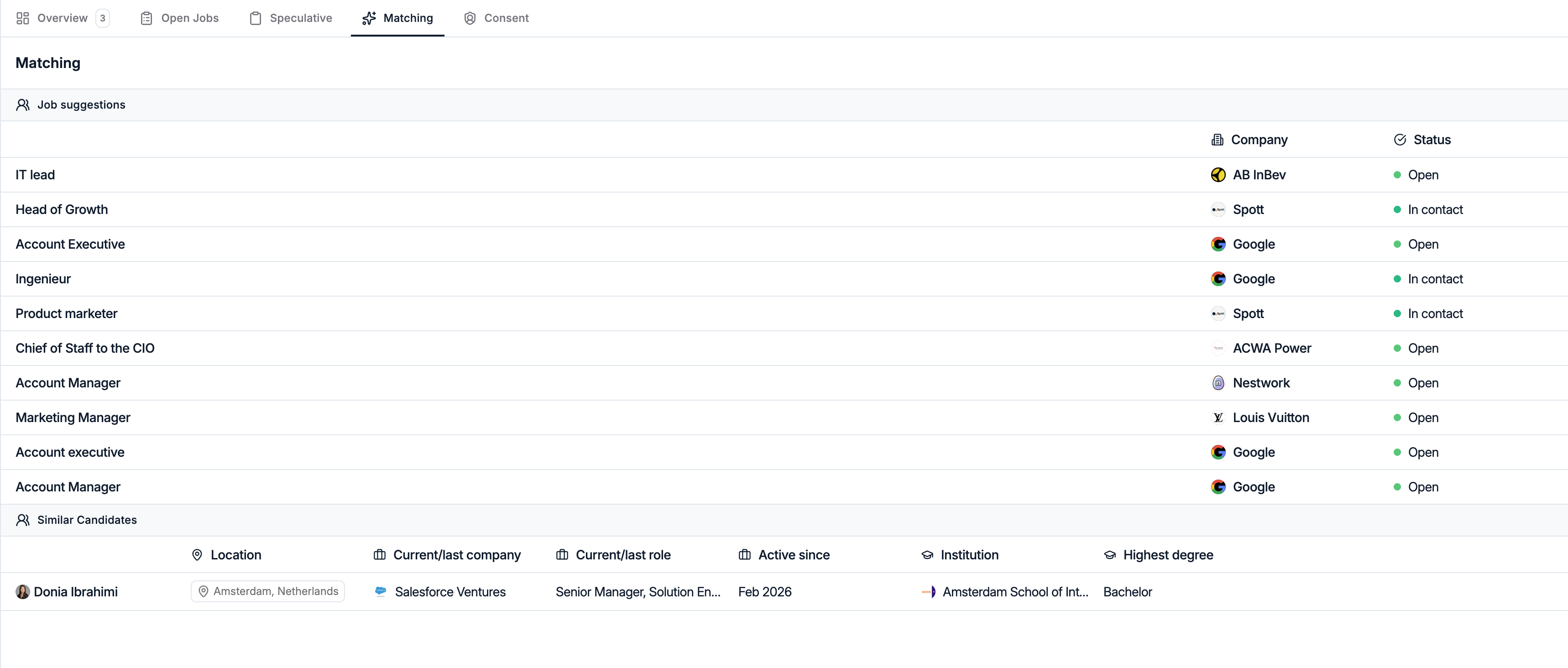
Based on the entire context of the Candidate profile - Details, Experience, Notes, Emails, Applications - AI identifies:
Job inside your database that could be a good match
Candidates in Spott who have a similar profile
Consent Subtab
Candidate consents allow you to manage compliance requirements (e.g., GDPR). They are stored directly in the candidate profile and include type, source, and validity period. For more information about this topic, navigate to this page.