Create Custom Attributes
Last updated: February 27, 2026
For Jobs, Candidates, Companies, and Contacts, you can create custom attributes to track, filter, and search for information relevant to your business
1⃣ Navigate to the Record Settings
Go to Settings
Scroll down to the Record Tab you want to create a Custom Attribute for
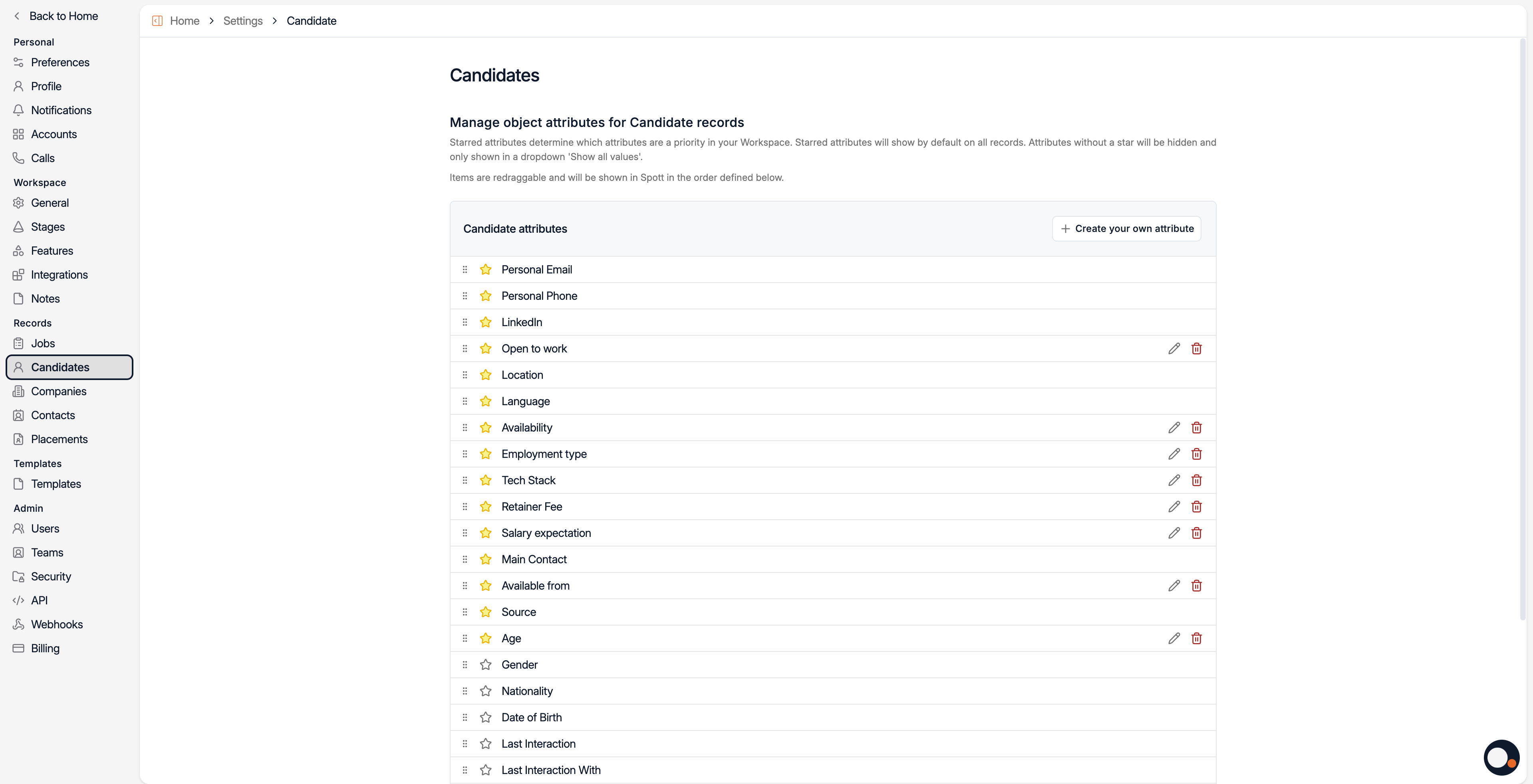
2⃣ Create custom attributes
When adding a new attribute, choose the data type:
Text – For free text input
Number – For numeric values
Checkbox – For a Yes or No Answer
Select – For selecting one or more options from a list
Multi-select – For selecting one or more options from a list
Date – For date fields (e.g. availability date)
Currency - For Monetary fields
URL – For a web link
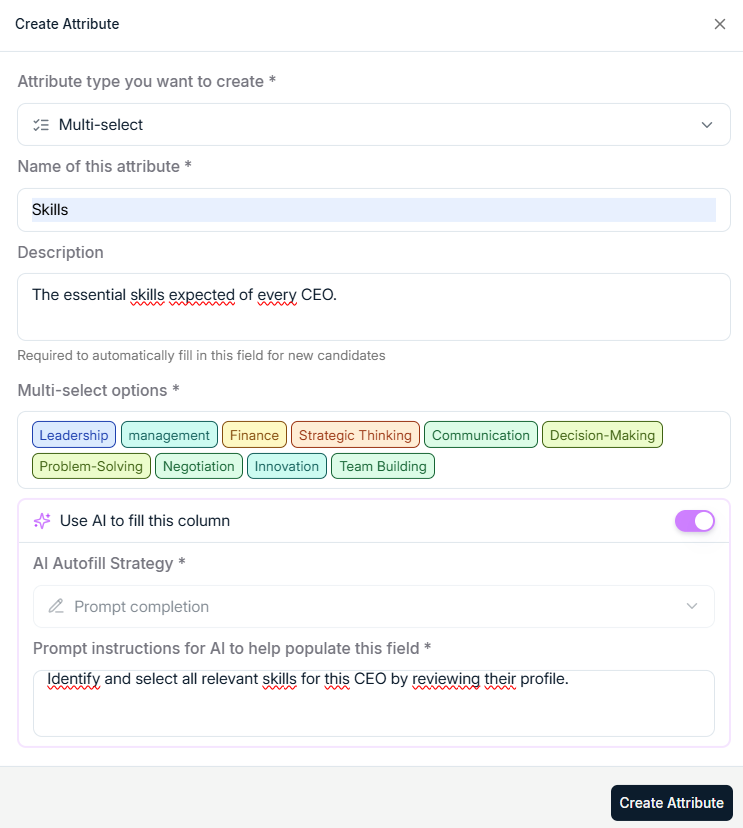
Once a custom attribute is created, it will be available for all candidate profiles in your database.
AI filled Columns
When creating a new attribute, you'll now see the option to use AI to fill this column. Once enabled, the system will automatically populate the attributes based on candidate profiles and CVs. The AI analyzes the available information and fills in the attributes according to your specified prompt.
AI Columns examples:
Age calculation based on graduation dates
Skills extraction from CVs
Category matching based on candidate profiles
Use and manage custom attributes
Once created, custom attributes are directly visible and usable in Spott. You can:
Fill in attribute values directly in the candidate table or in the candidate’s profile view
Reorder columns by dragging them to a new position
Hide or show attributes as needed to keep your table organized
AI linking can speed up data entry by pre-filling attribute values where matches are detected. You can review and approve suggestions before they are saved.
Customizing candidate profiles helps you capture unique data points relevant to your recruitment process, making searches and filters more effective.