Understanding Spott's Job Tasks
Last updated: February 25, 2026
Learn how Spott helps you manage tasks linked to each job, keeping your hiring process on track.
You can quickly navigate to this page using G then J.
Learn more about all shortcuts here.
Tasks in Spott let you assign, track, and complete actions related to a specific role — from scheduling interviews to sending offers. Every task is tied to the job, ensuring nothing falls through the cracks and your team always knows what needs to be done next.
Access a job’s Tasks page
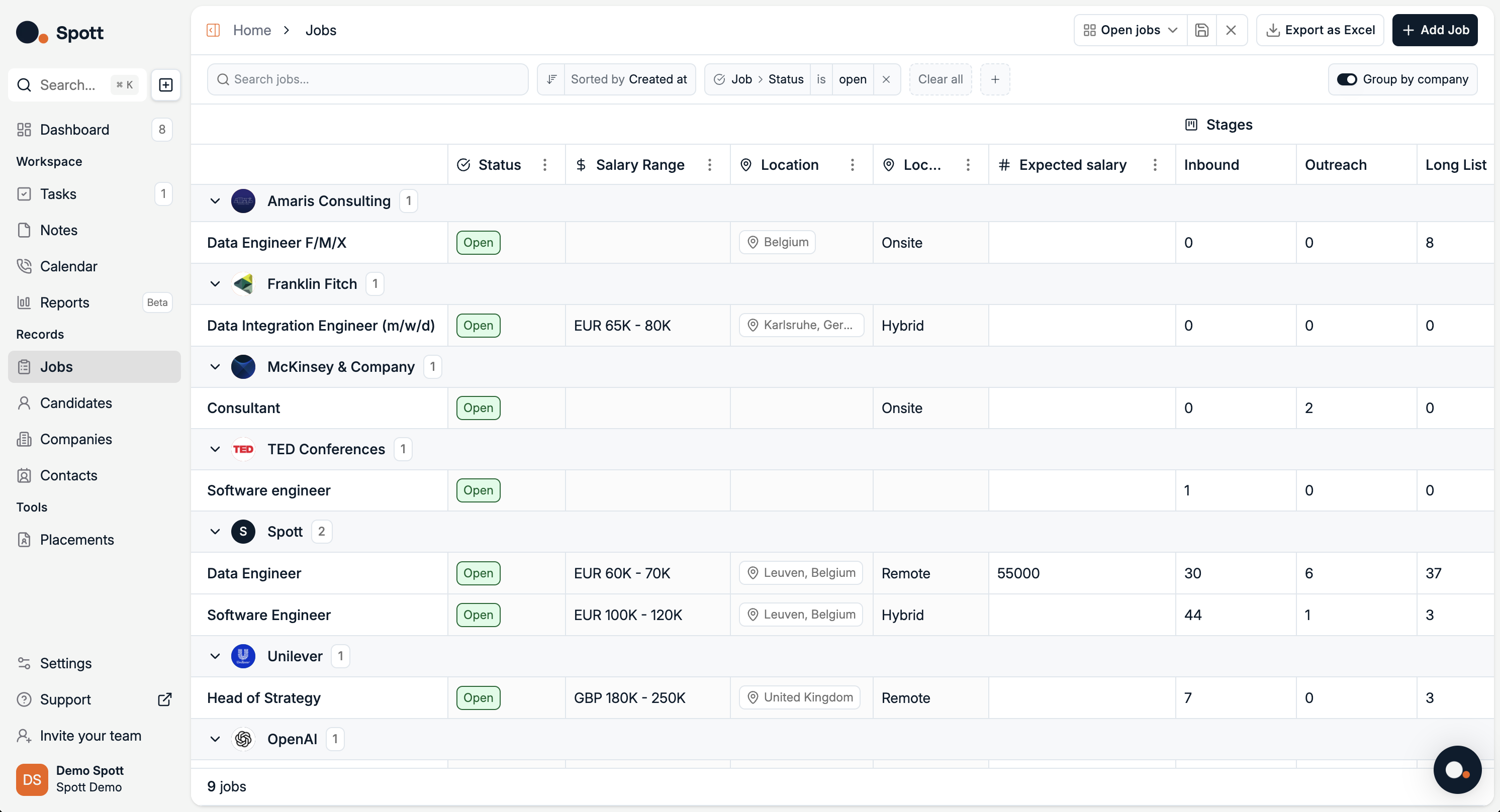
In Spott, go to Jobs.
Find the job you’re looking for. Make sure it’s under the right company or client.
Click on the job title.
Click on the Tasks tab on the top ribbon.
Tasks overview
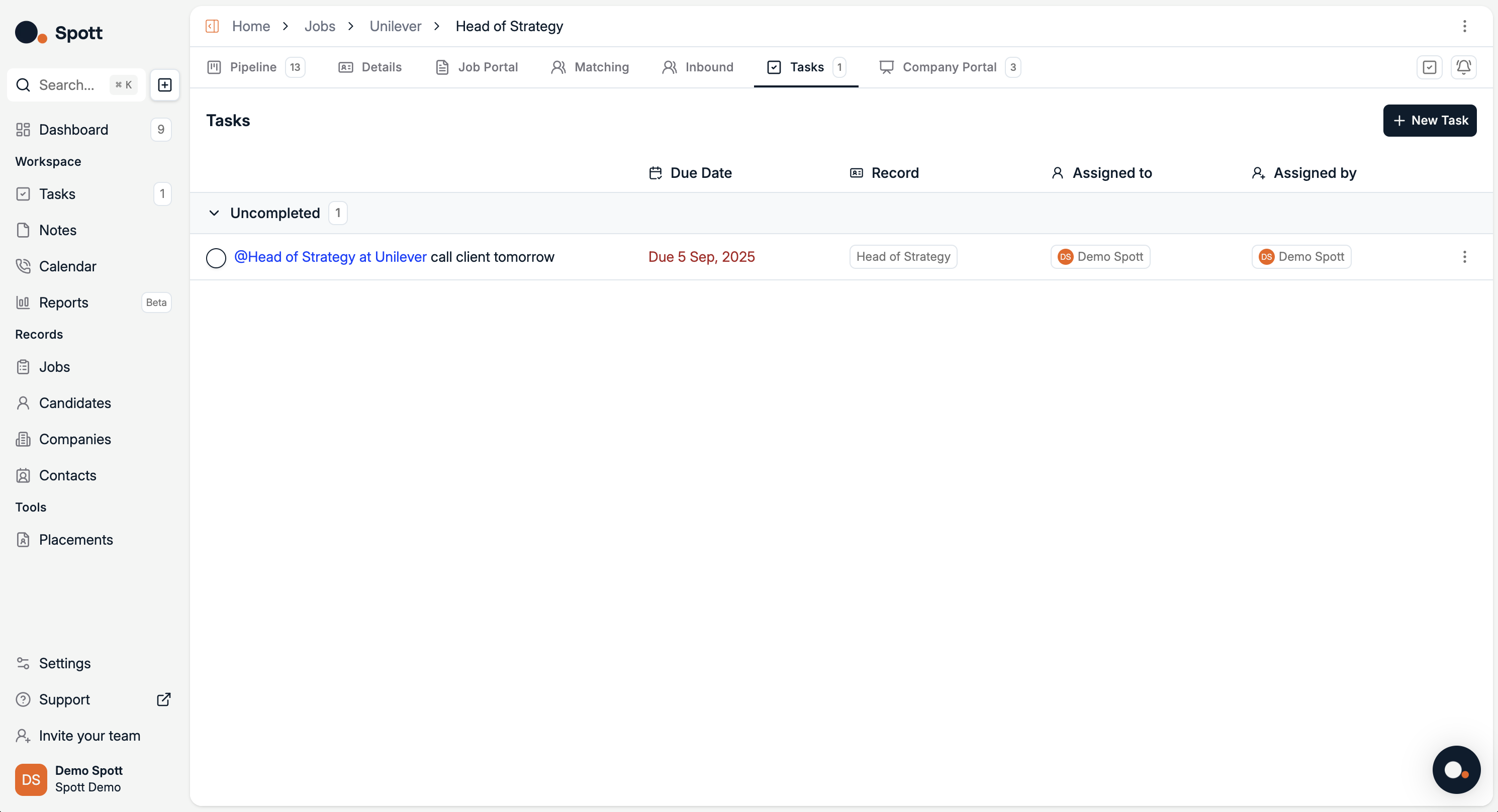
The Tasks tab helps you manage all follow-up actions related to a job, candidate, or company.
Task list
Each task includes:
Description with a linked record (job, candidate, etc.)
Due date, highlighted if overdue
Record, the associated job or candidate
Assigned to and assigned by
As a best practice, use tags as much as possible, so tasks are always visible in the right context across the different pages.
Managing tasks
Uncompleted tasks are shown by default
Mark tasks as complete once finished
Creating a task
Click + New Task and specify:
Task title or description
Due date
Associated record, job, candidate, company, or contact
Assignee
Workflow
Example:
Add a reminder to call the client tomorrow
Link it to the job
Assign it to a colleague
Once completed, it will be removed from the pending list.